Testing your install with the viewer
September 30, 2019 · View on GitHub
Visualise a stream of events either from real hardware/camera or from a pre-recorded sequence.
Description
This application demonstrates how to visualise a stream of address events either from the cameras or from a pre-recorded sequence.
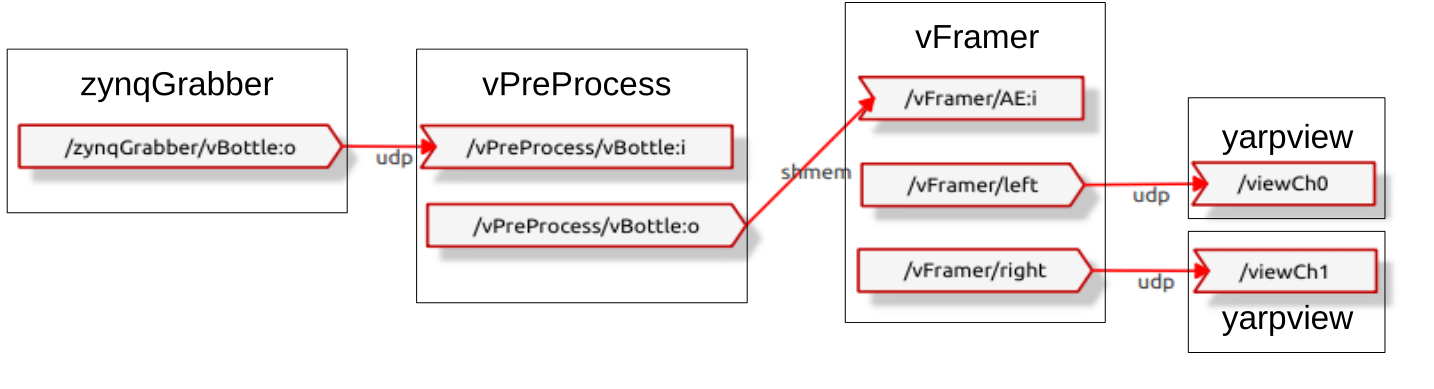
The event stream is transmitted from the cameras (/zynqGrabber/AE:o) to the vPreProcess (/vPreProcess/AE:i), that removes salt-and-pepper noise from the event stream. The filtered stream (/vPreProcess/left:o and /vPreProcess/right:o) is sent to vFramer (/vFramer/left/AE:i), that converts it to a yarpview-able image. The "images" from left (/vFramer/left/image:o) and right camera (/vFramer/right/image:o) are then sent to the yarp viewers (/viewCh0 and /viewCh1).
Here is a visualisation of the instantiated modules and connections.
How to run the application
These are basic instructions for first time YARP users, assuming the comprehensive instructions have been followed.
Using actual hardware/camera? Skip ahead. Using a dataset? Follow these instructions:
- Download the sample dataset from here and unpack to a location of your choosing.
- Set the yarp namespace:
yarp namespace /<yourname>
- Run a yarpserver:
yarpserver --write
- In a separate terminal, run a yarpdataplayer:
yarpdataplayer
- In the yarpdataplayer gui, open the downloaded datsets (File->open) by pressing "Choose" on the upper-level folder (e.g. folder name: fasthandtrim).
- The dataset should be open in the yarpdataplayer window with a "Port Name" of
/zynqGrabber/AE:o.
Using real hardware/camera?
- You should have followed the instructions to run install hardware and run zynqGrabber.
- If everything went smoothly, your laptop should be connected to the
yarpserverrunning on the ZCB, your zynqGrabber should be running and a port/zynqGrabber/AE:oshould be already open (check withyarp name list).
Okay - yarpdataplayer users, and hardware users back together here:
- In a separate terminal, run a yarpmanager:
yarpmanager
- The yarpmanager gui should be open.
- On the entities tab (left) open the "Applications" folder - the vView application should be visible. Double click the
event-viewer-exampleapplication to load it. - If you do not have the
event-viewer-exampleapplication, make sure you followed the installation steps correctly, and that yourYARP_DATA_DIRSenvironment variable correctly points to the share folders in your install folder (echo $YARP_DATA_DIRS) - Run all the modules in the
event-viewer-exampleapp by choosing "Run All" in the left-most vertical toolbar. All applications should become green. - If not all applications are green, it means the executable files could not be found on the
PATH. Verfify your installation and yourPATHenvironment variable (echo $PATH). - Connect all yarp ports by choosing "Connect All" in the same toolbar. All connections should turn green.
- Press "Play" on the yarpdataplayer. The dataset should be visible in the yarpview windows (split into left and right cameras).
- To close all applications first "Disconnect All" and then "Close All" on the left-hand toolbar. GUI's are closed as per a normal window. The yarpserver can be closed using
ctrl+cin the appropriate terminal.