🚀 The ultimate Visual Studio Code setup
February 5, 2026 · View on GitHub
This repository contains my Visual Studio Code settings and theme, used when coding Digitoimisto Dude Oy's projects.
Features
- 🎨 Beautiful - I'm a visual perfectionist, so my editor must look clean, minimal, distraction-free, and beautiful.
- 🧠 Useful extensions - Includes plenty of extensions that don't slow down VS Code.
- ✂ Snippets - Handy snippets like
media + tabfor media queries. - ⌨ Key bindings - Helpful key bindings for various tasks.
- ⚡ Fast - VS Code hasn’t always been the fastest, but I choose my extensions wisely.
- 👨💻 Customizable - Feel free to fork this repo and tweak the settings to suit your preferences.
Installation
- Install Visual Studio Code, Visual Studio Code Insiders, VSCodium, or Cursor
- Download Maple Mono, Liga SFMono Nerd Font, Monaspace variable fonts and add them to Font Book
- Open the editor and press ⌘ + ⇧ + P (or Ctrl + ⇧ + P on Windows) and choose
Preferences: Open Keyboard Shortcuts (JSON). Copy the contents of keybindings.json. - Open
Snippets: Configure Snippetsand choosehtml, then copy html.json. - Do the same for
phpand php.json. - Repeat for
scssand scss.json.
Recommended settings
- Open
Preferences: Open User Settings (JSON) - Copy settings.json into your settings file. If you already have custom settings, make a backup or merge them selectively.
- Adjust them to your preferences.
- Install all extensions and themes below.
Extensions
You can install whichever you like, but I recommend all of them for the best experience. These have been carefully selected and fully supported by my settings.json.
Note
For Cursor, you’ll need to enable the VS Code marketplace by adding this to your settings.json (see details here):
"extensions.gallery.serviceUrl": "https://marketplace.visualstudio.com/_apis/public/gallery",
- EditorConfig for VS Code —
EditorConfig.EditorConfig - Error Lens —
usernamehw.errorlens - ESLint —
dbaeumer.vscode-eslint - GitLens — Git supercharged —
eamodio.gitlens - PHP_CodeSniffer —
obliviousharmony.vscode-php-codesniffer - Project Manager —
alefragnani.project-manager - Stylelint —
stylelint.vscode-stylelint - SVG —
1000ch.svgo - Indenticator —
SirTori.indenticator - Prettier —
esbenp.prettier-vscode

My current favorite themes
- Catppuccin for VS Code + Catppuccin Noctis Icons
- See below for more
Interface
CSS property syntax highlighting fix
Fix this long-standing issue by installing SCSS Language Improvements (ronilaukkarinen.scss-language-improvements) and adding this to your settings.json if not already present:
"editor.tokenColorCustomizations": {
  "textMateRules": [
    {
      "scope": "meta.property-name-custom-unique.scss",
      "settings": { "foreground": "#79b8ff" }
    }
  ]
},
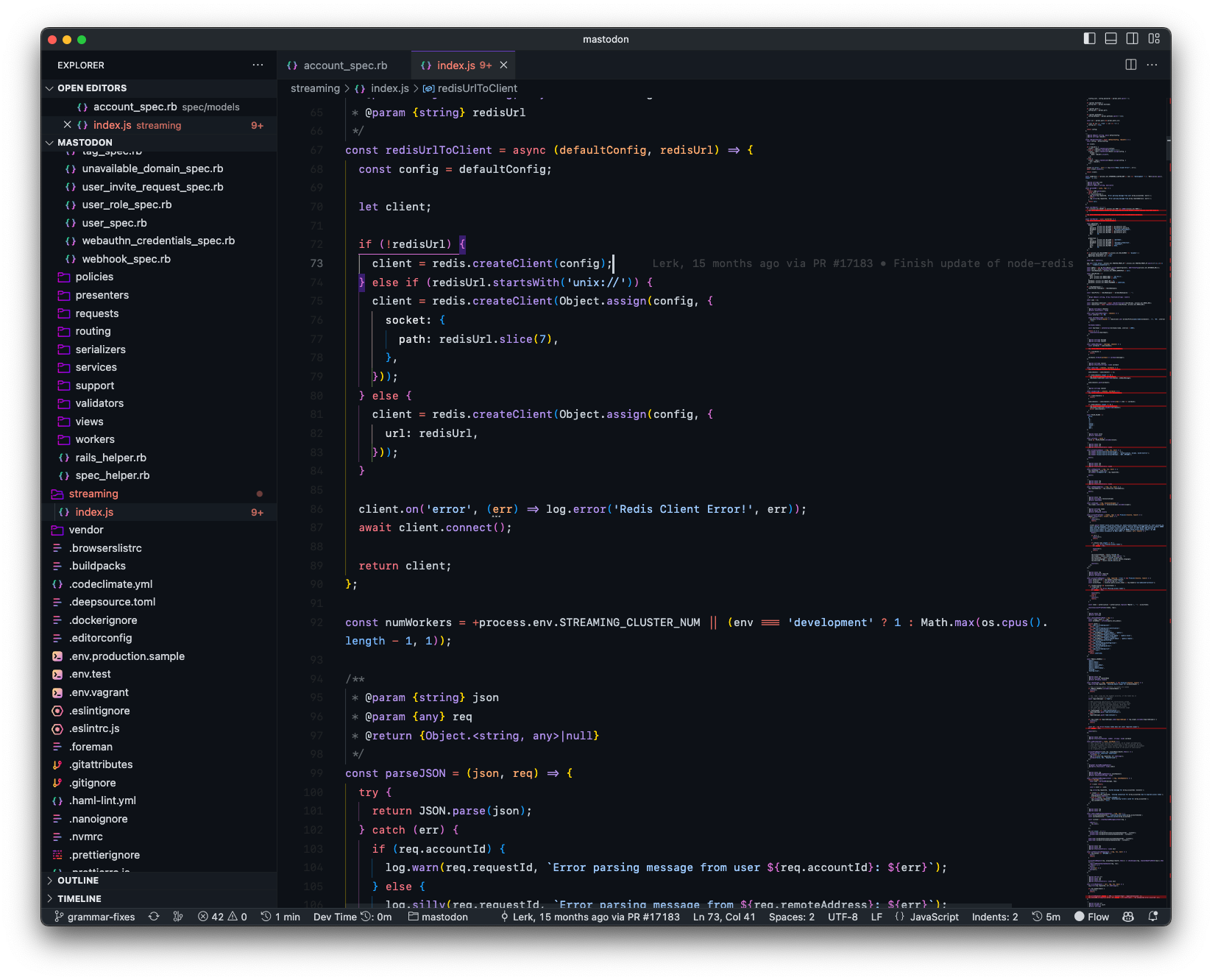
GitHub Purple + Sweet icons
Recommended setup: GitHub Purple + Sweet VS Code Icons.
Install GitHub Purple theme:
cd ~/.vscode/extensions/
# Or: cd ~/.cursor/extensions
# Or: cd ~/.vscode-oss/extensions
git clone https://github.com/ronilaukkarinen/github-purple
Then select “GitHub Purple” from the Theme Color menu (Ctrl + P).
Add colored icons for Helium icon theme
Add these to settings.json:
"helium-icon-theme.saturation": 1,
"helium-icon-theme.opacity": 1,
Then press ⌘ + ⇧ + P and select Preferences: File Icon Theme.
Switch to any other theme, then re-enable Helium icons.
Windows 10–11 support
If you’re using Windows, you’ll need a .bat file for executables — see this Microsoft issue and this Reddit thread.
Get my .bat files from vscode-windows-helpers.