NanoKVM-USB
December 4, 2025 · View on GitHub

Finger-sized 4K USB KVM for Server/SBCs
Introduction
The NanoKVM-USB is a convenient tool for operations and multi-device collaboration. It allows you to perform maintenance tasks without the need for a keyboard, mouse, or monitor. Using just a single computer and no additional software downloads, you can start graphical operations directly through the Chrome browser.
NanoKVM-USB captures HDMI video signals and transmits them to the host via USB 3.0. Unlike typical USB capture cards, NanoKVM-USB also captures keyboard and mouse input from the host and sends it to the target machine in real-time, eliminating the need for traditional screen and peripheral connections. It also supports HDMI loop-out, with a maximum resolution of 4K@30Hz, making it easy to connect to a large display.
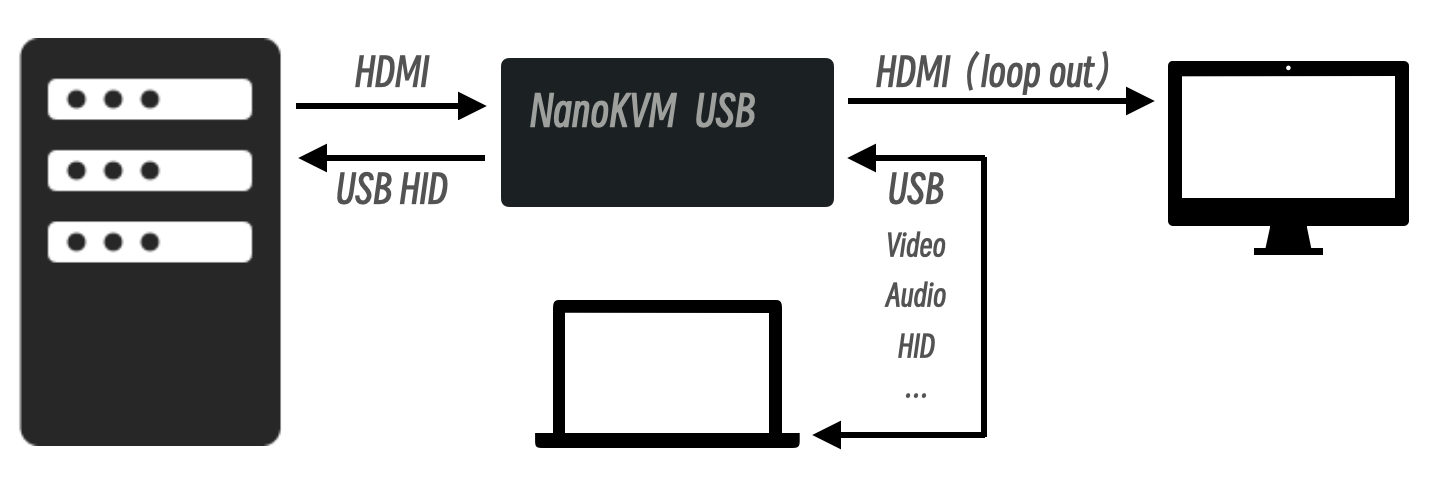
Technical Specifications
| NanoKVM-USB | Mini-KVM | KIWI-KVM | |
|---|---|---|---|
| HDMI Input | 4K@30fps / Pro 4K@60fps | 1080P@60fps | 4K@30fps |
| HDMI Loopout | 4K@30fps / Pro 4K@60fps | None | None |
| USB Capture | 1080P@60fps / Pro 4K@60fps | 1080P@60fps | 1080P@60fps |
| USB Interface | USB3.0 | USB2.0 | USB3.0 |
| USB Switch | Yes | Yes | No |
| Keyboard & Mouse | Yes | Yes | Yes |
| Clipboard | Yes | Yes | Yes |
| Software | No setup needed, works in Chrome | Host App required | Host App required |
| Latency | 50-100ms | 50-100ms | 50-100ms |
| Volume | 57x25x23mm | 61x13.5x53mm | 80x80x10mm |
| Shell Material | Aluminum Alloy | Aluminum Alloy | Plastics |
| Color | Black / Blue / Red | Black | Black |
| Price | $39.9/\$49.9, Pro $59.9/\$69.9 | $89 / \$109 | $69 / \$99 |

Note: For the best experience, please use a USB 3.0 cable to connect the device.
Resources
We offer two versions of the application: Browser and Desktop. Both are available on the Releases page.
Browser Version
Access our online service at usbkvm.sipeed.com.
For self-deployment, download the NanoKVM-USB-xxx-browser.zip and serve it. Refer to the Deployment Guide for details. If you are using Docker, simply run docker-compose up -d.
Please use the desktop Chrome browser.
Desktop Version
Download the appropriate package for your operating system and install it.
For Linux users, a permission error may occur when connecting to the serial port.
To resolve this run the commands below matching your system, then log out and log back in or restart your system.Debian
sudo usermod -a -G dialout $USERArch
sudo usermod -a -G uucp $USER
Where to Buy
- AliExpress Store (To be released)
- Taobao Store (To be released)
- Pre-sale Page