Usage
June 16, 2026 · View on GitHub
Usage documentation for ccstatusline.
If you want the main project overview, return to README.md.
Once configured, ccstatusline automatically formats your Claude Code status line. The status line appears at the bottom of your terminal during Claude Code sessions.
Runtime Modes
- Interactive mode (TUI): Launches when there is no stdin input
- Piped mode (renderer): Parses Claude Code status JSON from stdin and prints one or more formatted lines
# Interactive TUI
bun run start

# Piped mode with example payload
bun run example
Available Widgets
Claude & Session
- Model / Output Style / Version - Show the active Claude model, output style, and Claude Code CLI version. Model names omit trailing context suffixes like
(1M context); use Context Window when you want the total window size shown. - Claude Session ID / Session Name / Claude Account Email - Show session identifiers plus the currently signed-in Claude account email.
- Voice Status - Show whether Claude Code voice input is enabled. It can render as an icon, icon plus text, plain text, or
voice on/off, with optional Nerd Font microphone icons. - Thinking Effort / Vim Mode / Skills - Show Claude thinking effort, the current vim editing mode, and skill activity from hook data. Thinking Effort reads live status JSON first, then
/modelor/efforttranscript output, then settings fallback; it supportslow,medium,high,xhigh, andmax, showsdefaultwhen no effort is set, and marks unknown future values with?. Claude Code reports Ultracode asxhighin status line data; it does not expose Ultracode as a separate effort level. - Session Clock / Session Cost - Show elapsed session time and the current session cost in USD.
Git
- Git Branch / Git Root Dir / Git PR - Show the current branch, repository root directory, and PR/MR details for the current branch with optional links. Works with GitHub (
gh) and GitLab (glab); SSH remote aliases are resolved withssh -Gbefore provider detection, while canonical GitHub/GitLab remotes keep their original forge hosts. For self-hosted hosts whose name contains neither token, whichever CLI is authenticated against that host (gh auth status --hostname <h>/glab auth status --hostname <h>) is used. - Git Changes / Git Insertions / Git Deletions - Show aggregate file-change counts and dedicated insertion/deletion counts.
- Git Status / Git Staged / Git Unstaged / Git Untracked / Git Ahead/Behind / Git Conflicts / Git SHA - Show compact repo-state indicators, upstream divergence, merge-conflict count, and the current short commit SHA.
- Git Staged Files / Git Unstaged Files / Git Untracked Files / Git Clean Status - Show file-level status counts and clean/dirty state.
- Git Origin Owner / Git Origin Repo / Git Origin Owner/Repo - Show parsed
originremote metadata. - Git Upstream Owner / Git Upstream Repo / Git Upstream Owner/Repo / Git Is Fork - Show upstream remote metadata and whether the current repo is a fork.
- Git Worktree / Git Worktree Mode / Git Worktree Name / Git Worktree Branch / Git Worktree Original Branch - Show worktree status plus the active worktree's name and branch metadata.
Tokens, Usage & Context
- Tokens Input / Tokens Output / Tokens Cached / Tokens Total - Show current-session token counts. Input/output prefer cumulative transcript metrics and fall back to
context_window.total_input_tokens/context_window.total_output_tokenswhen transcript metrics are unavailable; cached/total use transcript metrics. - Cache Hit Rate / Cache Read / Cache Write - Show prompt-cache efficiency. Cache Hit Rate uses cache reads divided by cache reads plus cache writes; Cache Read and Cache Write include each value's share of prompt context. They default to the latest turn from
context_window.current_usage, can switch to cumulative session totals, and can hide when empty. - Input Speed / Output Speed / Total Speed - Show session-average token throughput with an optional per-widget rolling window (
0-120seconds;0= full-session average). - Context Length / Context Window / Context % / Context % (usable) / Context Bar - Show current context length, total context window size, used/remaining percentage, usable-window percentage, or a progress bar.
- Compaction Counter - Show how many context compactions have been detected in the current session by scanning transcript compaction markers. It can render as icon plus number, text plus number, or number-only, and can hide while the count is zero. Two optional, independent per-item add-ons toggle extra detail: a trigger split (
↻ 3 (2 auto, 1 manual); a compaction whose trigger is missing or unrecognized is bucketed asunknown) and tokens reclaimed (↻ 3 ↓887.0k, each compaction'spreTokens - postTokensfloored at 0 and summed, shown only when greater than 0 — so very old transcripts predating thepostTokensfield display nothing). - Session Usage / Weekly Usage / Weekly Sonnet Usage / Weekly Opus Usage / Extra Usage Utilization / Extra Usage Remaining / Extra Usage Used / Block Timer / Block Reset Timer / Weekly Reset Timer - Show usage percentages, monthly pay-as-you-go overage usage, and current block/reset timing. The all-models weekly bar covers
seven_dayfrom the usage API; the per-model variants surface theseven_day_sonnetandseven_day_opusbuckets that Claude Code's own/usagepanel shows. Extra usage widgets accept known extra-usage state as complete when an account has no monthly limit configured, avoid repeated refetches and stale[Timeout]output, and format amounts with the API-reported billing currency when available. Session and weekly usage bars can show a time cursor; reset timers can show remaining time, progress, or exact reset date/time with timezone and locale controls.
Environment, Layout & Custom
- Current Working Dir / Terminal Width / Memory Usage - Show the current working directory, detected terminal width, and system memory usage.
- Custom Text / Custom Symbol / Custom Command / Link - Add user-defined text, a single symbol or emoji, custom command output, or a clickable OSC 8 hyperlink.
- Separator / Flex Separator - Add a manual divider or a width-filling flexible spacer. Manual separators are disabled in Powerline mode, but flex separators still work there as layout spacers.
Terminal Width Options
These settings affect where long lines are truncated, and where right-alignment occurs when using flex separators:
- Full width always - Uses full terminal width (may wrap if auto-compact message appears or IDE integration adds text)
- Full width minus 40 - Reserves 40 characters for auto-compact message to prevent wrapping (default)
- Full width until compact - Dynamically switches between full width and minus 40 based on context percentage threshold (configurable, default 60%)
Flex separators expand against the detected width in both regular and Powerline rendering. If width detection is unavailable, they render like normal separators until a terminal width is available.
If ccstatusline cannot detect your terminal width, set CCSTATUSLINE_WIDTH to a positive integer to override probing:
CCSTATUSLINE_WIDTH=160 ccstatusline
The override is checked before automatic width detection, so it also works in wrapper processes, IDE integrations, nested PTYs, and Windows environments where probing may be unavailable. Invalid values such as 0, negative numbers, or non-numeric strings are ignored and ccstatusline falls back to normal detection.
Global Options
Configure global formatting preferences that apply to all widgets:
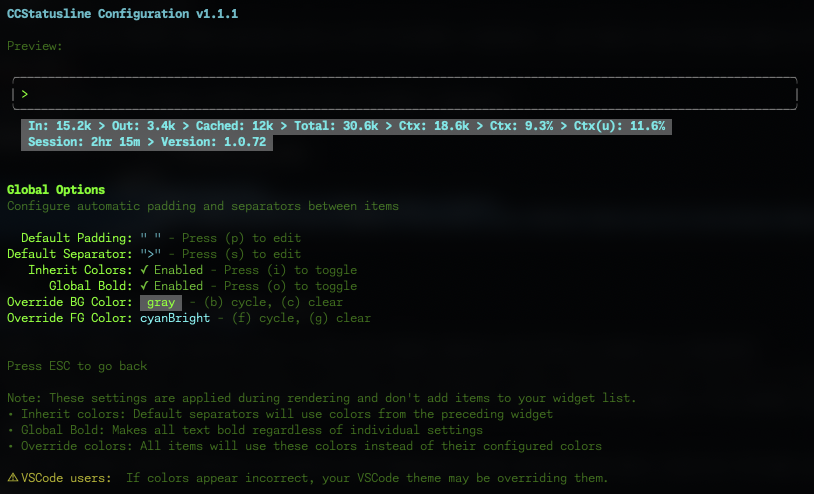
Default Padding & Separators
- Default Padding - Add consistent padding to the left and right of each widget
- Default Separator - Automatically insert a separator between all widgets
- Press (p) to edit padding
- Press (s) to edit separator
- Manual separators collapse around widgets that render empty, so hide-when-empty widgets do not leave dangling dividers.
Global Formatting Options
- Inherit Colors - Default separators inherit foreground and background colors from the preceding widget
- Press (i) to toggle
- Global Bold - Apply bold formatting to all text regardless of individual widget settings
- Press (o) to toggle
- Minimalist Mode - Force widgets into raw-value rendering globally for a cleaner, label-free status line
- Press (m) to toggle
- Override Foreground Color - Force all widgets to use the same text color, or a whole-line gradient (see below)
- Press (f) to cycle through colors
- Press (g) to choose a gradient
- Press (x) to clear override
- Override Background Color - Force all widgets to use the same background color
- Press (b) to cycle through colors
- Press (c) to clear override
💡 Note: These settings are applied during rendering and don't add widgets to your widget list. They provide a consistent look across your entire status line without modifying individual widget configurations.
⚠️ VSCode Users: If colors appear incorrect in the VSCode integrated terminal, the "Terminal › Integrated: Minimum Contrast Ratio" (
terminal.integrated.minimumContrastRatio) setting is forcing a minimum contrast between foreground and background colors. You can adjust this setting to 1 to disable the contrast enforcement, or use a standalone terminal for accurate colors.
Widget Styling
The color editor can adjust foreground color, background color, bold, dim, and gradients per widget:
- Use
←/→to cycle the selected foreground or background color. - Press
fto switch between foreground and background editing. - Press
bto toggle bold. - Press
dto cycle dim styling: off → whole widget → parenthesized text only → off. - Press
rto reset styling on the selected widget, orcto clear styling on every widget in the line.
Gradient Colors
A foreground color can be a multi-stop gradient instead of a solid. Colors interpolate in OKLab for perceptually even blends. A gradient value takes one of three forms, all prefixed gradient::
- Named preset —
gradient:atlas(case-insensitive). Built-in presets:atlas,cristal,teen,mind,morning,vice,passion,fruit,instagram,retro,summer,rainbow,pastel. - Dash stops —
gradient:RRGGBB-RRGGBB[-RRGGBB...](two or more bare or#-prefixed hex stops). - Comma stops —
gradient:hex:RRGGBB,#RRGGBB,RRGGBB(two or morehex:/#/bare stops).
Gradients apply at two scopes:
- Per-widget — set a widget's color to a gradient so its text carries its own self-contained sweep. In the color menu (foreground, 256-color or truecolor mode), press (g) to open the gradient picker, then choose a preset or enter custom start/end hex stops.
- Whole line — set
overrideForegroundColorto a gradient spec to paint the entire status line with one continuous sweep, each character colored by its column position. In the Global Overrides menu, press (g) on Override FG Color to open the same gradient picker, or author the value directly insettings.json.
Gradients self-degrade where they can't render: at Basic or No Color levels, gradient settings are preserved but render as plain text. In Powerline mode, global foreground gradients color widget text while separators and caps keep Powerline's normal foreground/background contrast rules; per-widget gradients collapse to their first stop when using 256-color or truecolor output.
Claude Code Status Line Settings
When ccstatusline is installed in Claude Code, the main menu includes Configure Status Line. Claude Code versions >=2.1.97 support statusLine.refreshInterval; ccstatusline can set it to 1-60 seconds, defaults fresh supported installs to 10 seconds, and removes the setting when the input is left empty.
Settings Recovery
If settings.json is unreadable or invalid, ccstatusline leaves the file unchanged, renders with built-in defaults for that run, and prepends an invalid-config warning badge to the status line. Fix the JSON or open the TUI and save intentionally to replace it.
Block Timer Widget
The Block Timer widget helps you track your progress through Claude Code's 5-hour conversation blocks:
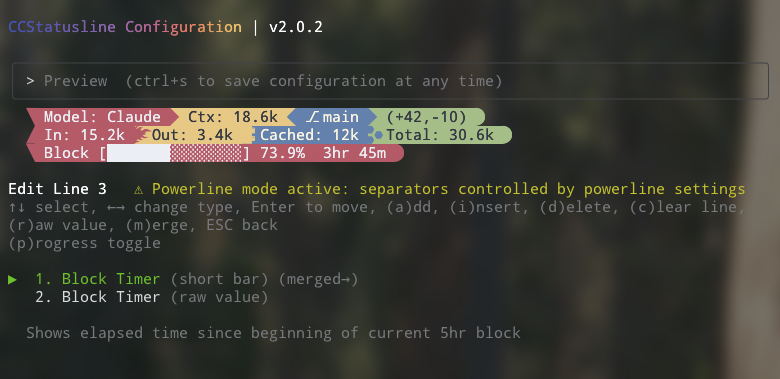
Display Modes:
- Time Display - Shows elapsed time as "3hr 45m" (default)
- Progress Bar - Full width 32-character progress bar with percentage
- Progress Bar (Short) - Compact 16-character progress bar with percentage
Features:
- Automatically detects block boundaries from transcript timestamps
- Floors block start time to the hour for consistent tracking
- Shows "Block: 3hr 45m" in normal mode or just "3hr 45m" in raw value mode
- Progress bars show completion percentage (e.g., "[████████████████████████░░░░░░░░] 73.9%")
- Use (p) to cycle time/full bar/short bar, (s) for compact time mode, and (v) to invert fill in progress mode
Raw Value Mode
Some widgets support "raw value" mode which displays just the value without a label:
- Normal:
Model: Claude 3.5 Sonnet→ Raw:Claude 3.5 Sonnet - Normal:
Session: 2hr 15m→ Raw:2hr 15m - Normal:
Block: 3hr 45m→ Raw:3hr 45m - Normal:
Ctx: 18.6k→ Raw:18.6k
Widget Editor Keybinds
Common controls in the line editor:
↑/↓select widget←/→open the type picker for the selected widget- navigation wraps at list boundaries, including move/reorder mode
aadd widget via the pickeriinsert widget via the pickerkclone the selected widgetEnterenter/exit move modeddelete selected widgetcclear the current lineSpacecycle a manual separator characterrtoggle raw value (supported widgets)mcycle merge mode (off→merge→merge no padding)Escgo back
Widget picker:
- type to search categories and widgets
- supports substring, initialism, and fuzzy matching
↑/↓change selection,Entercontinue/apply,Escclear search/back/cancel
The keybind footer in the TUI only shows shortcuts that apply to the currently selected widget.
Widget-specific shortcuts:
- Git widgets with empty-state toggles:
hhideno git/ empty output where supported - Glyph widgets (Git Branch, Git Worktree, Git Worktree Mode, Git Staged, Git Unstaged, Git Untracked, Git Conflicts, Git Ahead/Behind, Git Status, JJ Bookmarks, JJ Workspace):
gset custom glyphs for the widget's symbols; Backspace in the editor renders without one, and multi-symbol widgets (Ahead/Behind, Status) edit each part in one list - Git Branch:
ltoggle clickable branch links (GitHub, GitLab, self-hosted) - Git Root Dir:
lcycle IDE links (off→VS Code→Cursor) - Git PR:
hhide empty/no-PR/MR output,stoggle review status,ttoggle title (renders "MR" for GitLab origins) - Git remote widgets (
Git Origin*/Git Upstream*):hhide when no remote,ltoggle clickable repo links - Git Origin Owner/Repo:
oshow only the owner when the repo is a fork - Git Is Fork:
hhide when the repo is not a fork - Context % widgets:
utoggle used vs remaining display,pcycle percentage/short bar/short bar only - Session Usage / Weekly Usage / Weekly Sonnet Usage / Weekly Opus Usage:
pcycle percentage/full bar/medium bar/short bar/short bar only,vinvert fill in progress mode,ttoggle the time cursor in bar modes - Block Timer:
pcycle time/full bar/short bar,stoggle compact time,vinvert fill in progress mode - Block Reset Timer:
pcycle time/full bar/short bar,stoggle compact time/date,ttoggle exact reset date/time,htoggle 12/24-hour display in date mode,zedit timezone in date mode,ledit locale in date mode,vinvert fill in progress mode - Weekly Reset Timer:
pcycle time/full bar/short bar,stoggle compact time/date,ttoggle exact reset date/time,htoggle hours-only in time mode or 12/24-hour display in date mode,zedit timezone in date mode,ledit locale in date mode,vinvert fill in progress mode - Context Bar:
pcycle medium/full/short/short-only progress bar - Compaction Counter:
fcycle format,ntoggle Nerd Font icon in icon mode,stoggle trigger split (auto/manual/unknown),ttoggle tokens reclaimed,hhide when zero - Cache widgets (Cache Hit Rate, Cache Read, Cache Write):
ttoggle turn/session scope,hhide when empty - Voice Status:
fcycle format,ntoggle Nerd Font microphone icons - Current Working Dir:
hhome abbreviation,ssegment editor,ffish-style path - Skills:
vcycle view mode,hhide when empty,ledit list limit in list mode - Input Speed / Output Speed / Total Speed:
wedit the rolling window in seconds - Custom Text / Custom Symbol:
eedit text or symbol - Custom Command:
ecommand,wmax width,ttimeout,ppreserve ANSI colors - Link:
uURL,elink text - Vim Mode:
fcycle format,ntoggle Nerd Font icons
Custom Widgets
Custom Text Widget
Add static text to your status line. Perfect for:
- Project identifiers
- Environment indicators (dev/prod)
- Personal labels or reminders
Custom Symbol Widget
Add a single symbol or emoji to your status line when you want a compact visual marker:
- Nerd Font or Powerline-friendly glyphs
- Status markers like
●,✓, or⚠ - Emoji shorthand for environments, workflows, or attention cues
Custom Command Widget
Execute shell commands and display their output dynamically:
- Refreshes whenever the statusline is updated by Claude Code
- Receives the full Claude Code JSON data via stdin (model info, session ID, transcript path, etc.)
- Also includes
terminal_width— the detected terminal width in columns, added by ccstatusline (omitted when it can't be determined) — so scripts can adapt their output to the available space - Displays command output inline in your status line
- Configurable timeout (default: 1000ms)
- Optional max-width truncation
- Optional ANSI color preservation (
preserve colors) - Examples:
pwd | xargs basename- Show current directory namenode -v- Display Node.js versiongit rev-parse --short HEAD- Show current commit hashdate +%H:%M- Display current timecurl -s wttr.in?format="%t"- Show current temperaturenpx -y ccusage@latest statusline- Display Claude usage metrics (set timeout: 5000ms)
⚠️ Important: Commands should complete quickly to avoid delays. Long-running commands will be killed after the configured timeout. If you're not seeing output from your custom command, try increasing the timeout value (press 't' in the editor).
💡 Tip: Custom commands can be other Claude Code compatible status line formatters. They receive the same JSON via stdin that
ccstatuslinereceives from Claude Code (augmented with aterminal_widthfield), allowing you to chain or combine multiple status line tools.
Link Widget
Create clickable links in terminals that support OSC 8 hyperlinks:
metadata.url- target URL (http/https)metadata.text- optional display text (defaults to URL)- Falls back to plain text when URL is missing or unsupported
Integration Example: ccusage
ccusage is a tool that tracks and displays Claude Code usage metrics. You can integrate it directly into your status line:
- Add a Custom Command widget
- Set command:
npx -y ccusage@latest statusline - Set timeout:
5000(5 seconds for initial download) - Enable "preserve colors" to keep ccusage's color formatting

📄 How it works: The command receives Claude Code's JSON data via stdin, allowing ccusage to access session information, model details, and transcript data for accurate usage tracking.
Integration Example: AIWatch
AIWatch monitors the live status of 30+ AI APIs and apps (Claude, GPT, Gemini, …). Surfacing it in your status line answers "is Claude slow because of me, or because the API is degraded?" without leaving the terminal.
-
Add a Custom Command widget
-
Set command:
( curl -sf --max-time 2 https://ai-watch.dev/api/status/cached | jq -r '[.services[] | select(.status != "operational") | "🔴 " + .name] | .[0:3] | join(" ")' ) 2>/dev/null || true -
Set timeout:
2000(thecurlitself caps at 2s; the outer|| truekeeps the widget silent on any failure) -
Leave "preserve colors" off — the output is a plain emoji + name list
When every tracked service is operational the command prints nothing, so the widget renders empty and manual separators collapse around it. The endpoint is JSON, CORS-enabled, and served with a ~5-minute cache.
📄 Variants: See ai-watch.dev/#statusline for count-only, compact, provider-scoped, and clickable OSC 8 link presets.
Smart Truncation
When terminal width is detected, status lines automatically truncate with ellipsis (...) if they exceed the available width, preventing line wrapping.
Truncation is ANSI/OSC-aware, so preserved color output and OSC 8 hyperlinks remain well-formed.