README.md
June 24, 2026 · View on GitHub

supabase_auth_ui
A simple library of predefined widgets to easily and quickly create auth components using Flutter and Supabase.


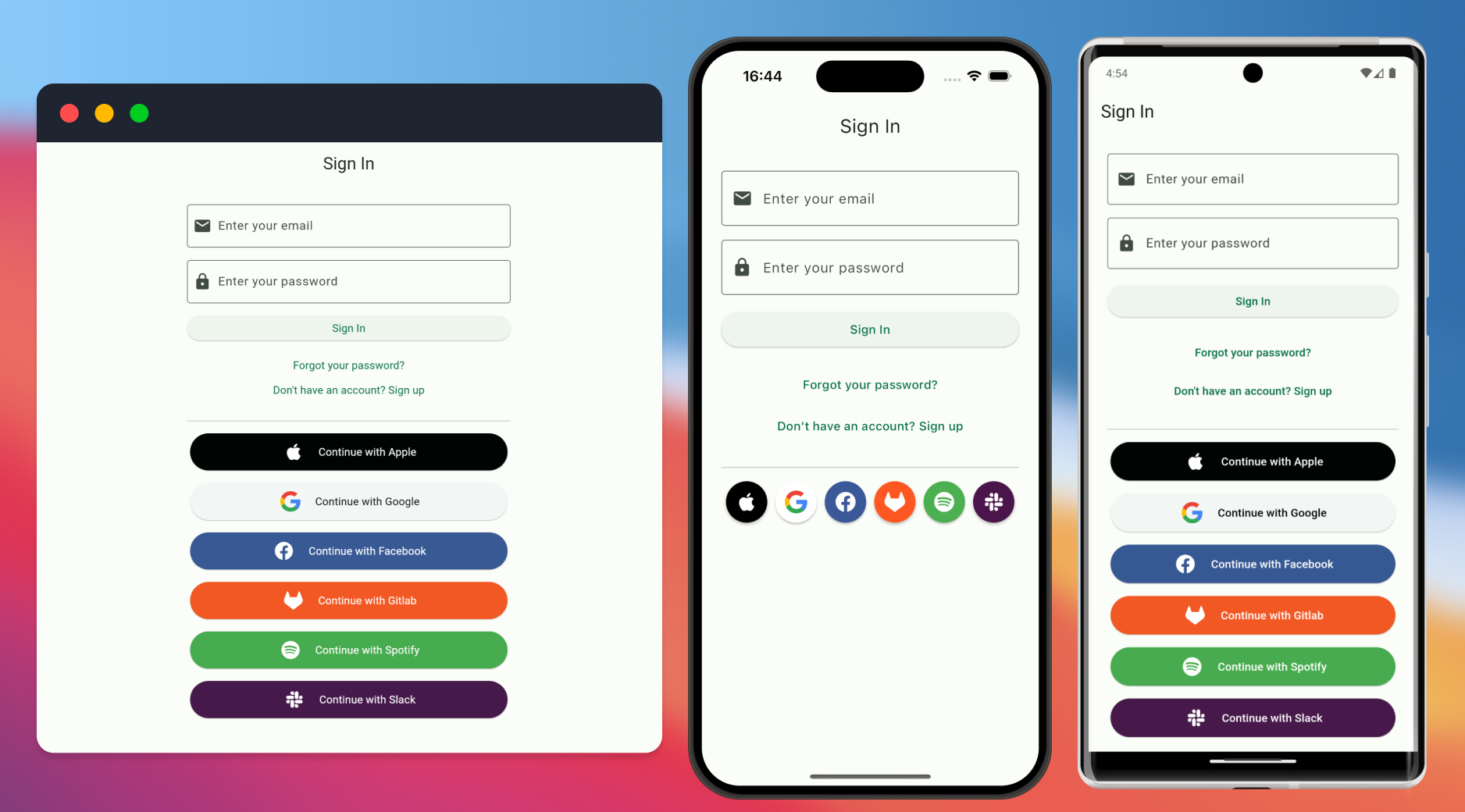
Email Auth
Use a SupaEmailAuth widget to create an email and password signin/ signup form.
It also contains a button to toggle to display a forgot password form.
You can pass metadataFields to add additional fields to the signup form to pass as metadata to Supabase.
You need to setup deep links in your app to if you have enabled email confirmation. Learn more about deep links on the supabase_flutter README.
// Create a Email sign-in/sign-up form
SupaEmailAuth(
  redirectTo: kIsWeb ? null : 'io.mydomain.myapp://callback',
  onSignInComplete: (response) {
    // do something, for example: navigate('home');
  },
  onSignUpComplete: (response) {
    // do something, for example: navigate("wait_for_email");
  },
  metadataFields: [
    // Creates an additional TextField for string metadata, for example:
    // {'username': 'exampleUsername'}
    MetaDataField(
      prefixIcon: const Icon(Icons.person),
      label: 'Username',
      key: 'username',
      validator: (val) {
        if (val == null || val.isEmpty) {
          return 'Please enter something';
        }
        return null;
      },
    ),

    // Creates a CheckboxListTile for boolean metadata, for example:
    // {'marketing_consent': true}
    BooleanMetaDataField(
      label: 'I wish to receive marketing emails',
      key: 'marketing_consent',
      checkboxPosition: ListTileControlAffinity.leading,
    ),
    // Supports interactive text. Fields can be marked as required, blocking form
    // submission unless the checkbox is checked.
    BooleanMetaDataField(
      key: 'terms_agreement',
      isRequired: true,
      checkboxPosition: ListTileControlAffinity.leading,
      richLabelSpans: [
        const TextSpan(
            text: 'I have read and agree to the '),
        TextSpan(
          text: 'Terms and Conditions',
          style: const TextStyle(
            color: Colors.blue,
          ),
          recognizer: TapGestureRecognizer()
            ..onTap = () {
              // do something, for example: navigate("terms_and_conditions");
            },
        ),
      ],
    ),
  ],
)
You can prefill the email and/or password fields by passing prefilledEmail and prefilledPassword. The corresponding fields will be initialized with these values, which the user can still edit.
SupaEmailAuth(
  prefilledEmail: 'mail@example.com',
  prefilledPassword: 'password',
  onSignInComplete: (response) {
    // do something, for example: navigate('home');
  },
  onSignUpComplete: (response) {
    // do something, for example: navigate("wait_for_email");
  },
),
SupaEmailAuth exposes a few more options worth knowing about:
passwordValidator: provide your own password validation function to enforce password rules.showConfirmPasswordField: show a "confirm password" field on the sign-up form.useOtpForPasswordRecovery: recover the password with a one-time code instead of a magic link.extraMetadata: pass static metadata on sign up that isn't tied to a form field.resetPasswordRedirectTo: the deep link to redirect to after a password reset email.onPasswordResetEmailSent,onToggleSignIn,onToggleRecoverPassword: callbacks for the corresponding events.prefixIconEmail,prefixIconPassword,prefixIconOtp: override the default field icons.
Magic Link Auth
Use SupaMagicAuth widget to create a magic link signIn form. You need to setup deep links in your app to use magic link. Learn more about deep links on the supabase_flutter README.
SupaMagicAuth(
  redirectUrl: kIsWeb ? null : 'io.supabase.flutter://login-callback/',
  onSuccess: (Session response) {
    // do something, for example: navigate('home');
  },
  onError: (error) {
    // do something, for example: navigate("wait_for_email");
  },
),
Reset password
Use SupaResetPassword to create a password reset form.
SupaResetPassword(
  accessToken: supabase.auth.currentSession?.accessToken,
  onSuccess: (UserResponse response) {
    // do something, for example: navigate('home');
  },
  onError: (error) {
    // do something, for example: navigate("wait_for_email");
  },
),
Phone Auth
Use SupaPhoneAuth to create a phone and password sign-in/sign-up form. Pass SupaAuthAction.signIn or SupaAuthAction.signUp to control which action the form performs.
SupaPhoneAuth(
  authAction: SupaAuthAction.signUp,
  onSuccess: (AuthResponse response) {
    // do something, for example: navigate('home');
  },
),
After signing up, use SupaVerifyPhone to verify the phone number with the OTP code that was sent over SMS.
SupaVerifyPhone(
  onSuccess: (AuthResponse response) {
    // do something, for example: navigate('home');
  },
),
Social Auth
Use SupaSocialsAuth to create list of social login buttons. You need to setup deep links in your app to use social auth. Learn more about deep links on the supabase_flutter README.
SupaSocialsAuth(
    socialProviders: [
        OAuthProvider.apple,
        OAuthProvider.google,
    ],
    colored: true,
    redirectUrl: kIsWeb
          ? null
          : 'io.supabase.flutter://login-callback/',
    onSuccess: (Session response) {
        // do something, for example: navigate('home');
    },
    onError: (error) {
        // do something, for example: navigate("wait_for_email");
    },
),
Native Google and Apple sign in
On mobile and desktop you can use the native sign in dialogs instead of the
browser-based OAuth flow. SupaSocialsAuth falls back to the web OAuth flow on
any platform where the native flow is not available or not configured, so it is
safe to leave these options enabled across all platforms.
Before wiring up the UI, configure the providers in your Supabase project and in each platform as described in the native Google sign in and native Apple sign in guides.
Native Google
Native Google sign in is used when you pass a nativeGoogleAuthConfig and the
client ID for the current platform is set. Otherwise the web OAuth flow is used.
- On Android, set
webClientId. - On iOS, set
iosClientId.
The client IDs are the ones you registered with Google Cloud. See the
google_sign_in package for the
required platform setup (iOS URL scheme, etc.).
Native Apple
Native Apple sign in is enabled by default (enableNativeAppleAuth: true) and is
used on iOS and macOS. On other platforms the web OAuth flow is used. It requires
the "Sign in with Apple" capability to be added to your app in Xcode. See the
sign_in_with_apple package for
the platform setup.
SupaSocialsAuth(
    socialProviders: [
        OAuthProvider.apple,
        OAuthProvider.google,
    ],
    // Enables native Google sign in on Android and iOS.
    nativeGoogleAuthConfig: const NativeGoogleAuthConfig(
        webClientId: 'YOUR_WEB_CLIENT_ID',
        iosClientId: 'YOUR_IOS_CLIENT_ID',
    ),
    // Native Apple sign in is used on iOS and macOS by default.
    enableNativeAppleAuth: true,
    onSuccess: (Session response) {
        // do something, for example: navigate('home');
    },
),
SupaSocialsAuth also supports:
socialButtonVariant: render the buttons asSocialButtonVariant.iconAndText(default) orSocialButtonVariant.iconfor icon-only buttons.scopes: request additional OAuth scopes per provider.queryParams: pass custom query parameters per provider.colored: use the provider brand colors (defaults totrue).authScreenLaunchMode: control how the OAuth browser screen is launched.
Theming
This library uses bare Flutter components so that you can control the appearance of the components using your own theme. The fields and buttons respect your ThemeData, so styling them through InputDecorationTheme, ElevatedButtonTheme, and the rest of your app theme works as expected.
See the theme example in example/lib/sign_in.dart.
Example
A full example app covering every widget is available in the example directory.
Controlling Form Submission Behavior
All auth components (SupaEmailAuth, SupaPhoneAuth, SupaMagicAuth, and SupaResetPassword) support the enableAutomaticFormSubmission parameter to control whether pressing Enter/Done on the on-screen keyboard automatically submits the form.
By default, this is set to true for backward compatibility, which means pressing Enter will submit the form. If you want users to be forced to explicitly tap the submit button, set this to false:
SupaEmailAuth(
  redirectTo: kIsWeb ? null : 'io.mydomain.myapp://callback',
  enableAutomaticFormSubmission: false, // Disable auto-submit on Enter
  onSignInComplete: (response) {
    // do something, for example: navigate('home');
  },
  onSignUpComplete: (response) {
    // do something, for example: navigate("wait_for_email");
  },
),
This applies to all auth components:
// Phone Auth
SupaPhoneAuth(
  authAction: SupaAuthAction.signIn,
  enableAutomaticFormSubmission: false,
  onSuccess: (response) {
    // handle success
  },
),

// Magic Link Auth
SupaMagicAuth(
  redirectUrl: kIsWeb ? null : 'io.supabase.flutter://login-callback/',
  enableAutomaticFormSubmission: false,
  onSuccess: (Session response) {
    // handle success
  },
),

// Reset Password
SupaResetPassword(
  accessToken: supabase.auth.currentSession?.accessToken,
  enableAutomaticFormSubmission: false,
  onSuccess: (UserResponse response) {
    // handle success
  },
),
Localization
Every widget accepts a localization parameter you can use to override the default English strings, for example to translate the UI or reword it.
SupaEmailAuth(
  localization: const SupaEmailAuthLocalization(
    enterEmail: 'What\'s your email?',
    enterPassword: 'Enter your password',
    signIn: 'Log in',
    signUp: 'Create account',
  ),
  onSignInComplete: (response) {
    // do something, for example: navigate('home');
  },
  onSignUpComplete: (response) {
    // do something, for example: navigate("wait_for_email");
  },
),
Each widget has its own localization class with the strings it uses: SupaEmailAuthLocalization, SupaMagicAuthLocalization, SupaPhoneAuthLocalization, SupaResetPasswordLocalization, SupaSocialsAuthLocalization, and SupaVerifyPhoneLocalization.
Contributing
- Fork the repo on GitHub
- Clone the project to your own machine
- Commit changes to your own branch
- Push your work back up to your fork
- Submit a Pull request so that we can review your changes and merge
License
This repo is licensed under MIT.