📘 AutoOS Installer User Guide
July 22, 2026 · View on GitHub
Home
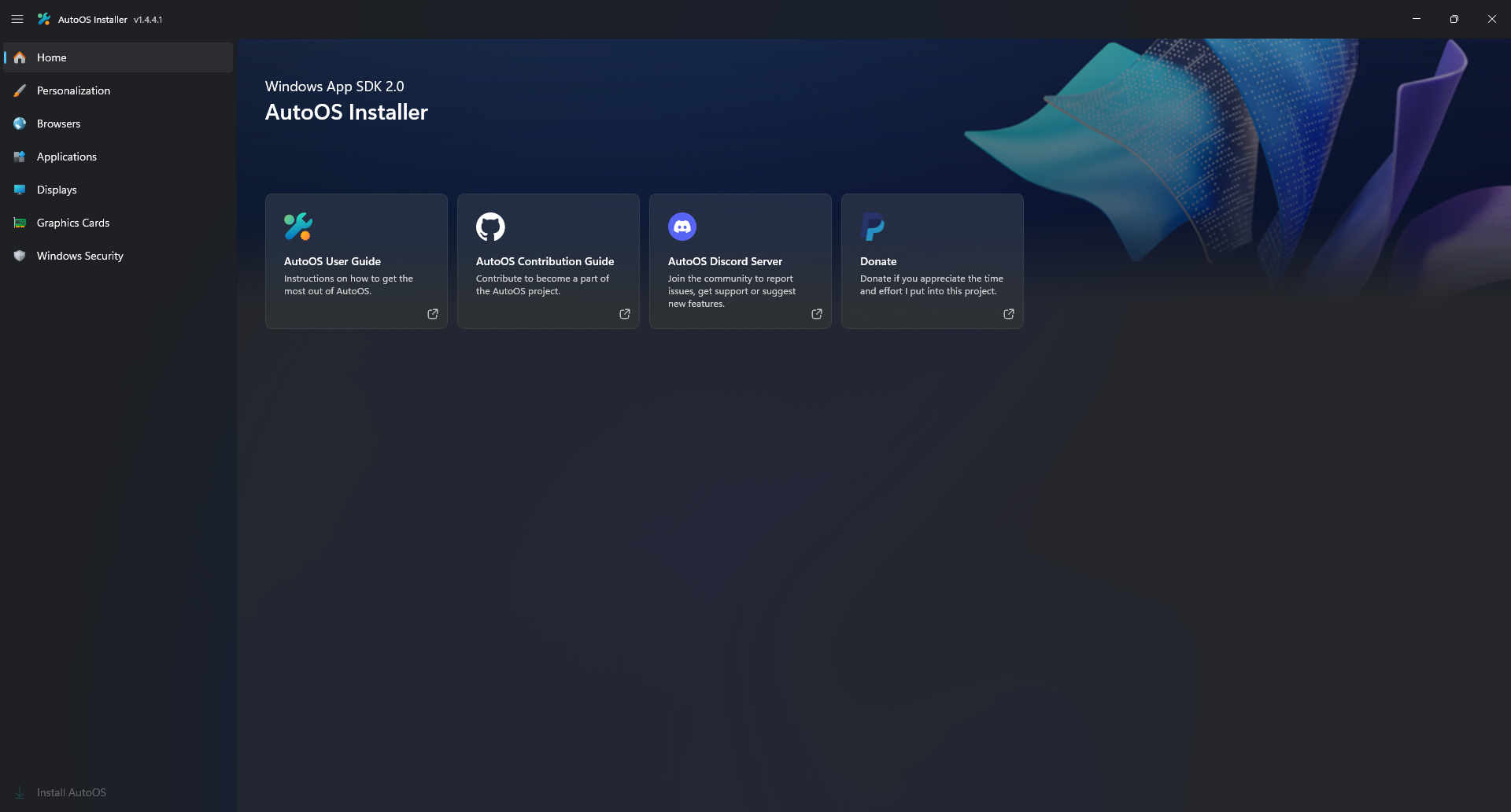
Quick access for links:
- Open AutoOS User Guide
- Open AutoOS Contribution Guide
- Join AutoOS Discord Server
- Donate
Personalization
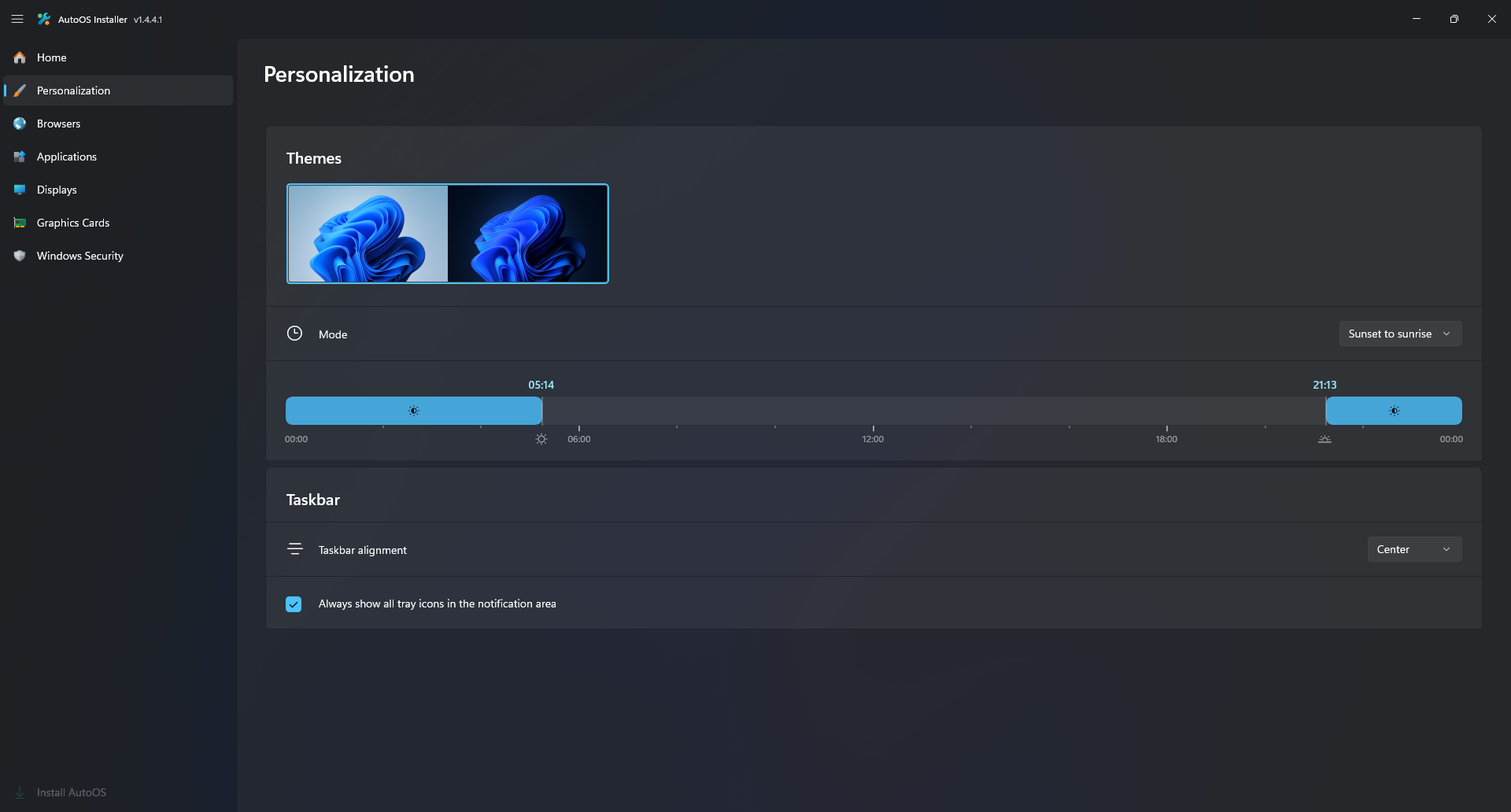
Choose your Theme and Taskbar preferences:
- Change Mode to
Always LightorAlways Darkif you prefer it, otherwise the theme will automatically change throughout the day. - Change Mode to
Customto input a custom schedule. - Disable
Always show all tray icons in the notification areaif you prefer a cleaner taskbar.
Browsers
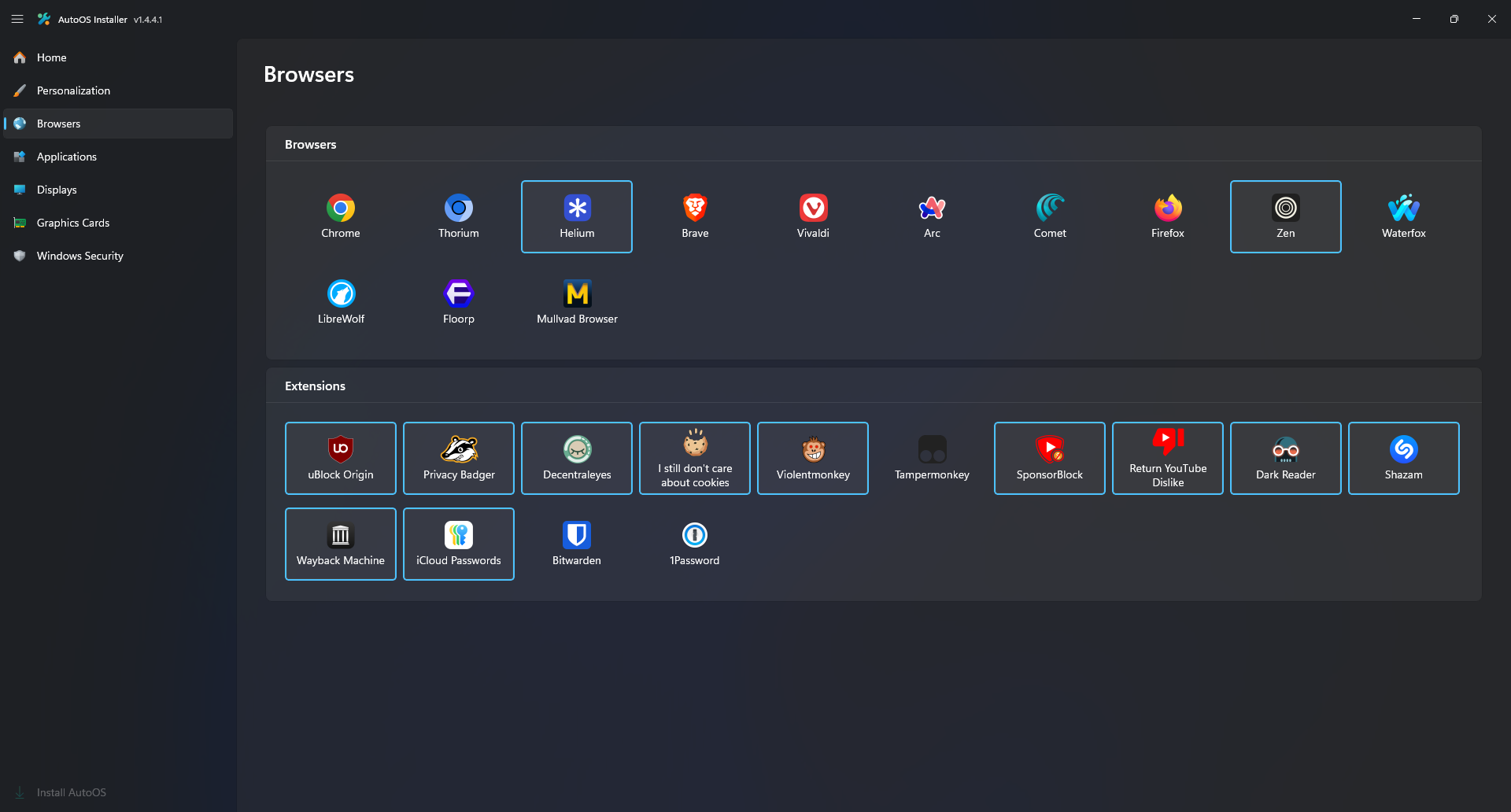
Choose your Browsers and Browser Extensions:
- Use
ThoriumorHeliumoverChrome. - Use
Zenfor best productivity and design. - Use
uBlock Originand other extensions like in my selection.
Applications
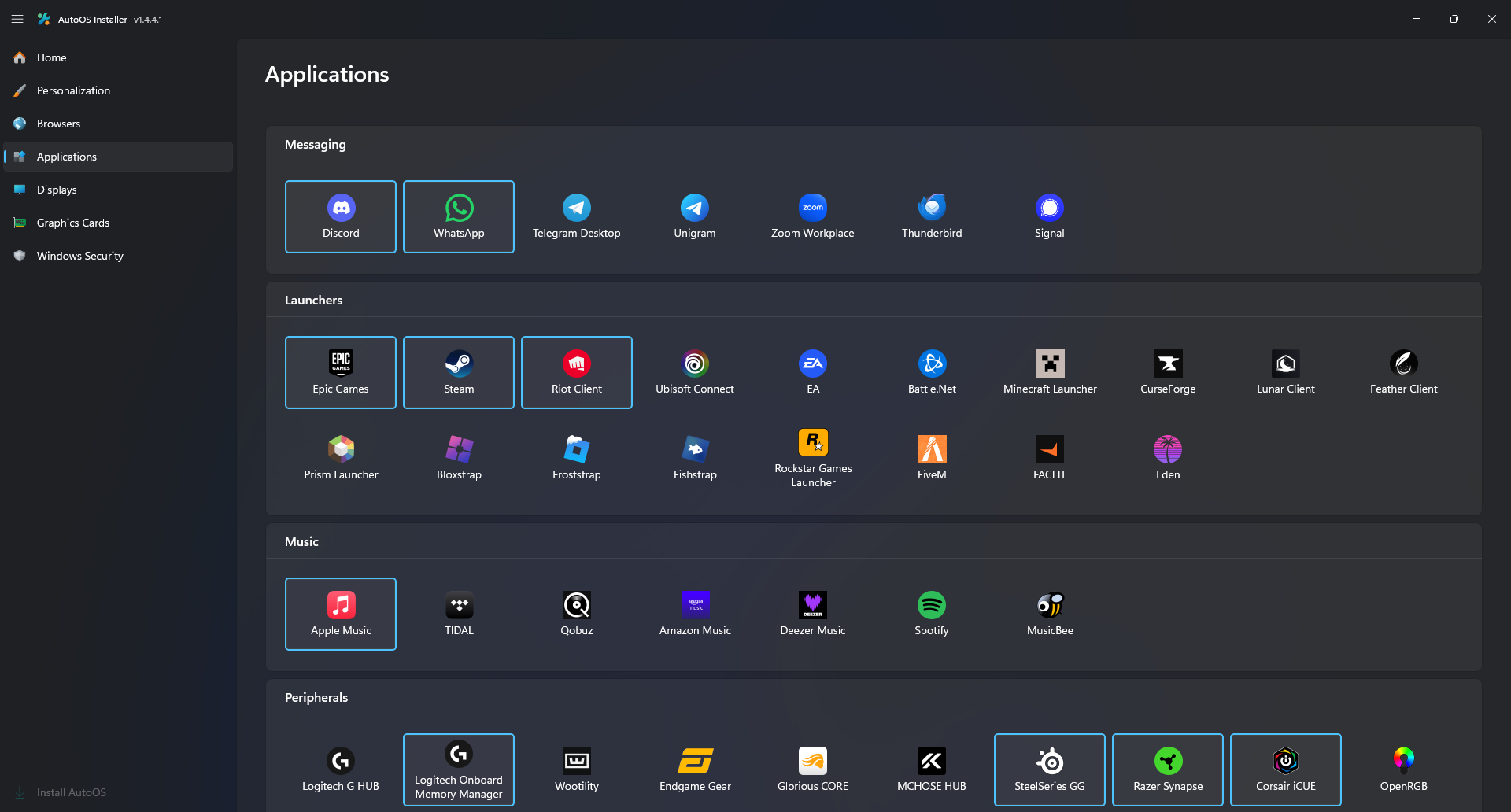
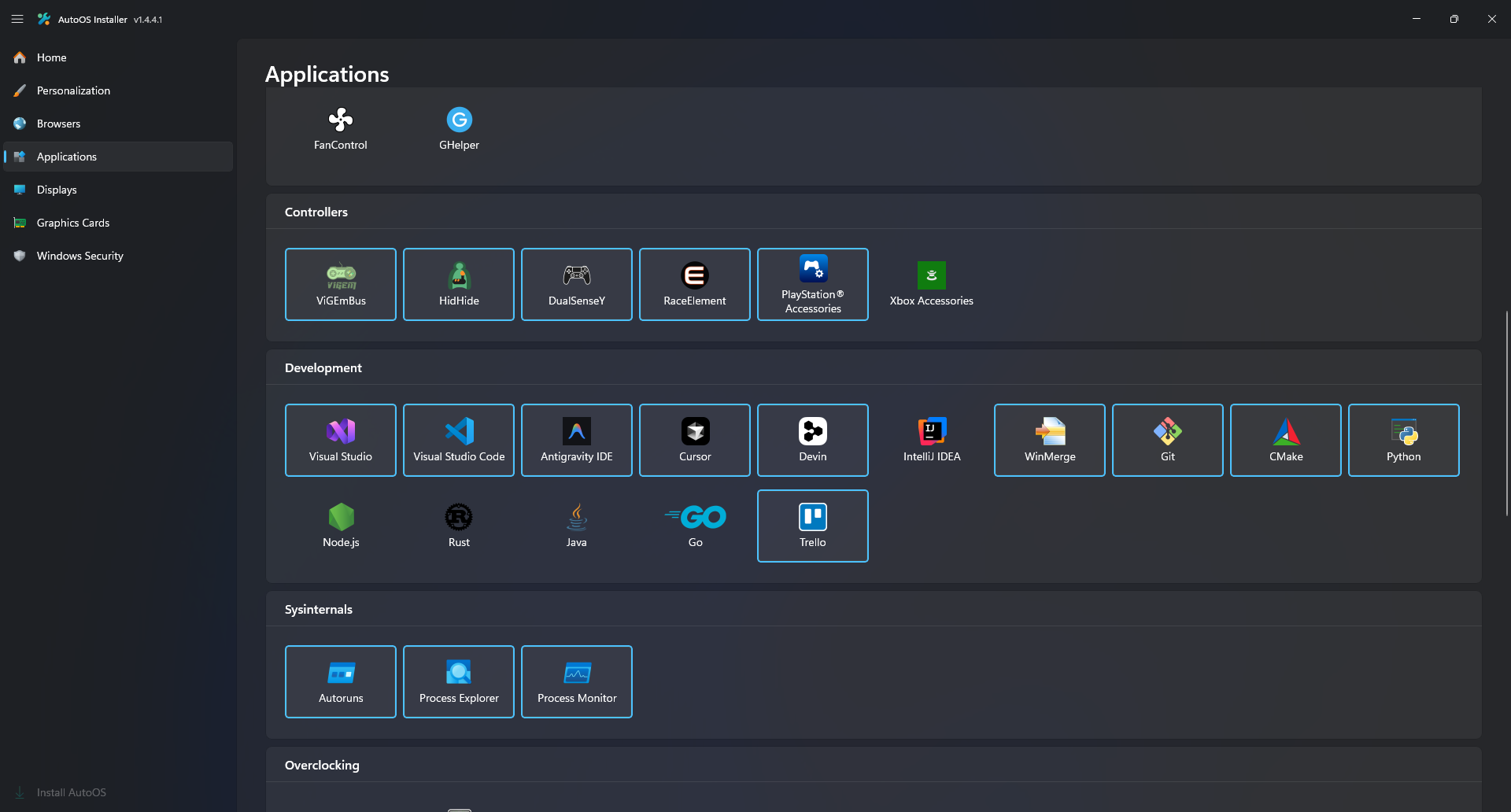
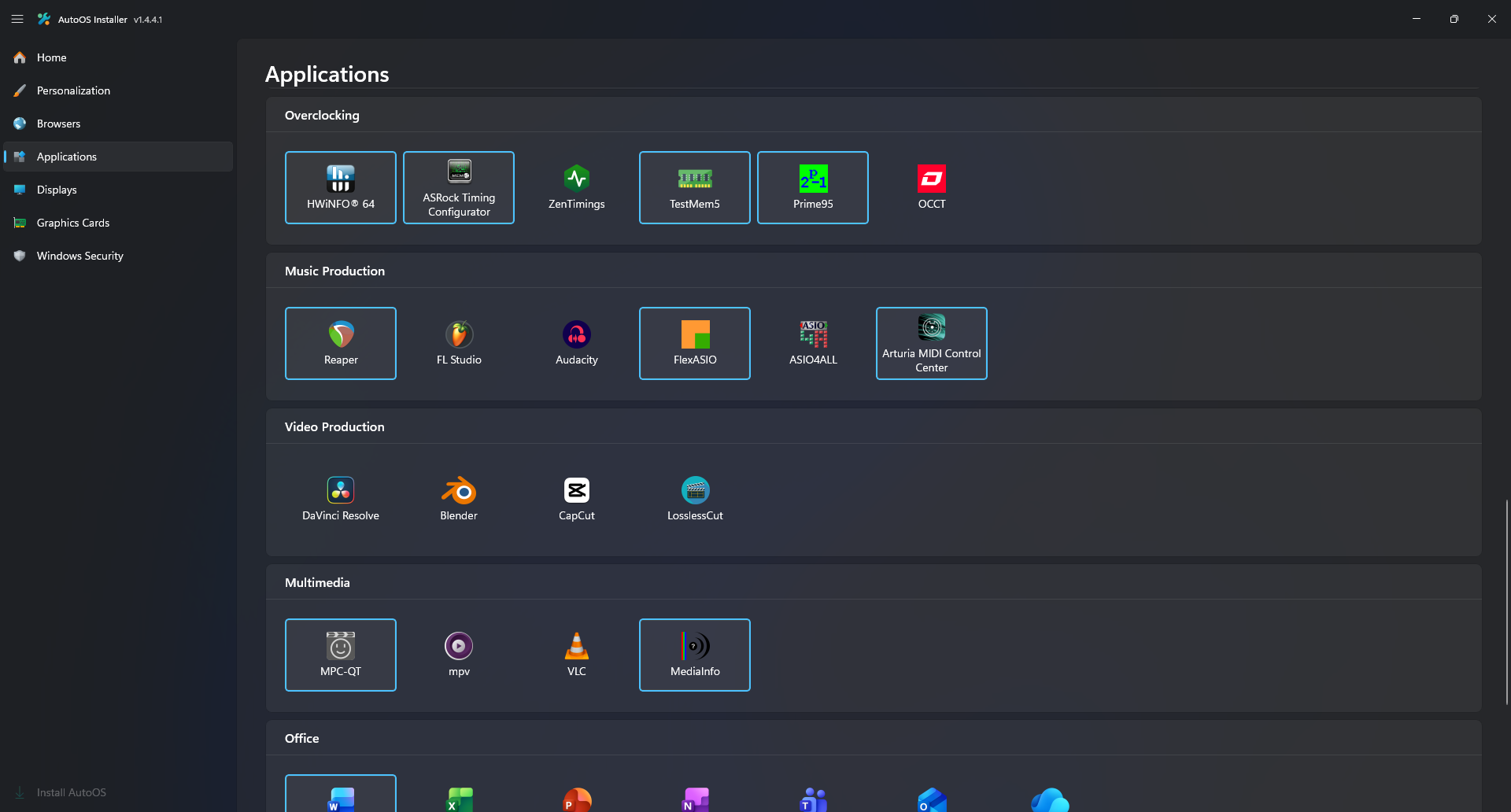
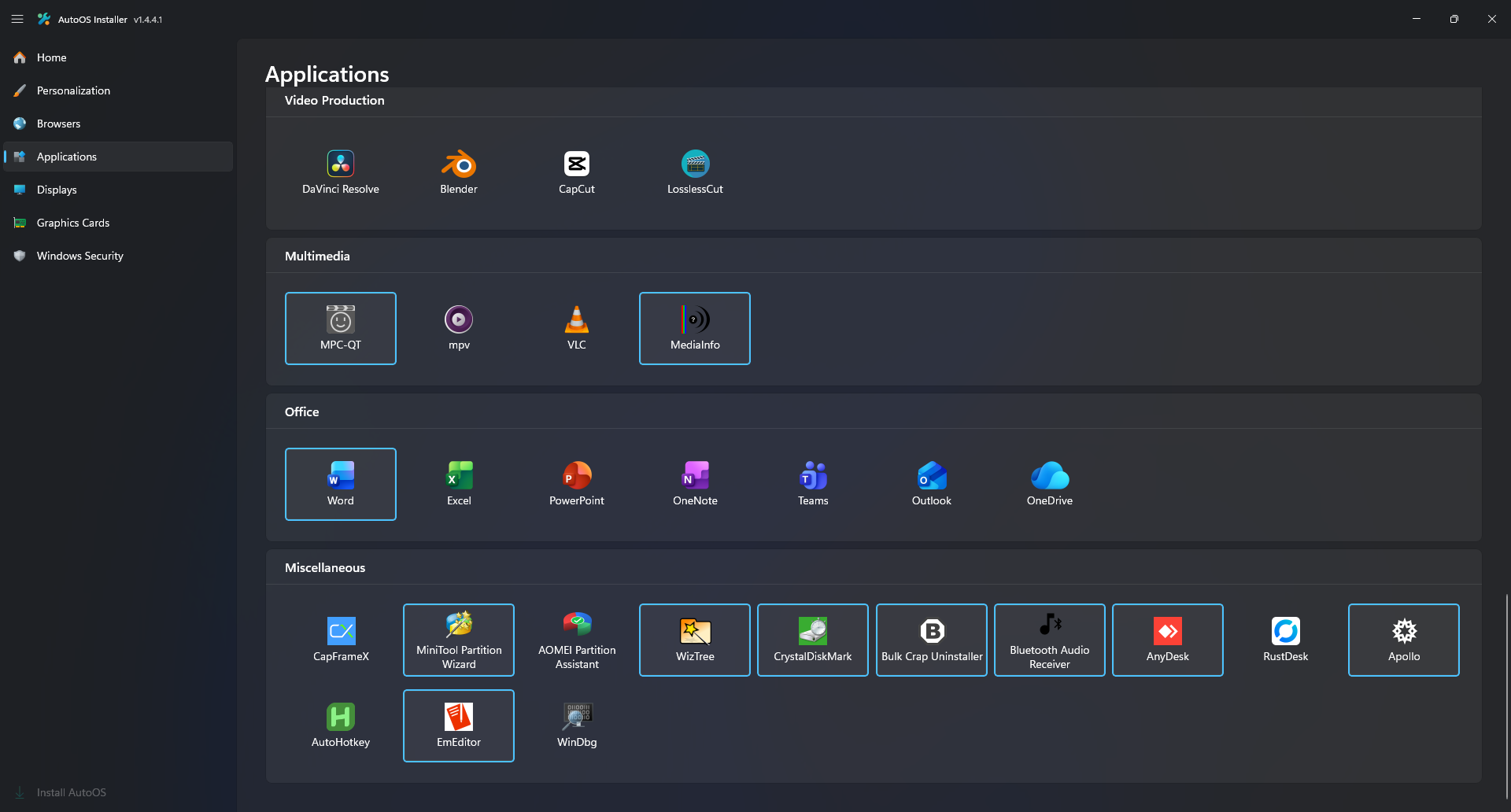
Choose your Applications:
- Select
Discord, which comes preconfigured withVencord,OpenAsarand all settings. - Select
Epic Games, Steam or Riot Gamesto have your accounts and games imported from your old Installation. - Use
Logitech Onboard Memory ManageroverLogitech G HUBif you have a Logitech Mouse.
Displays
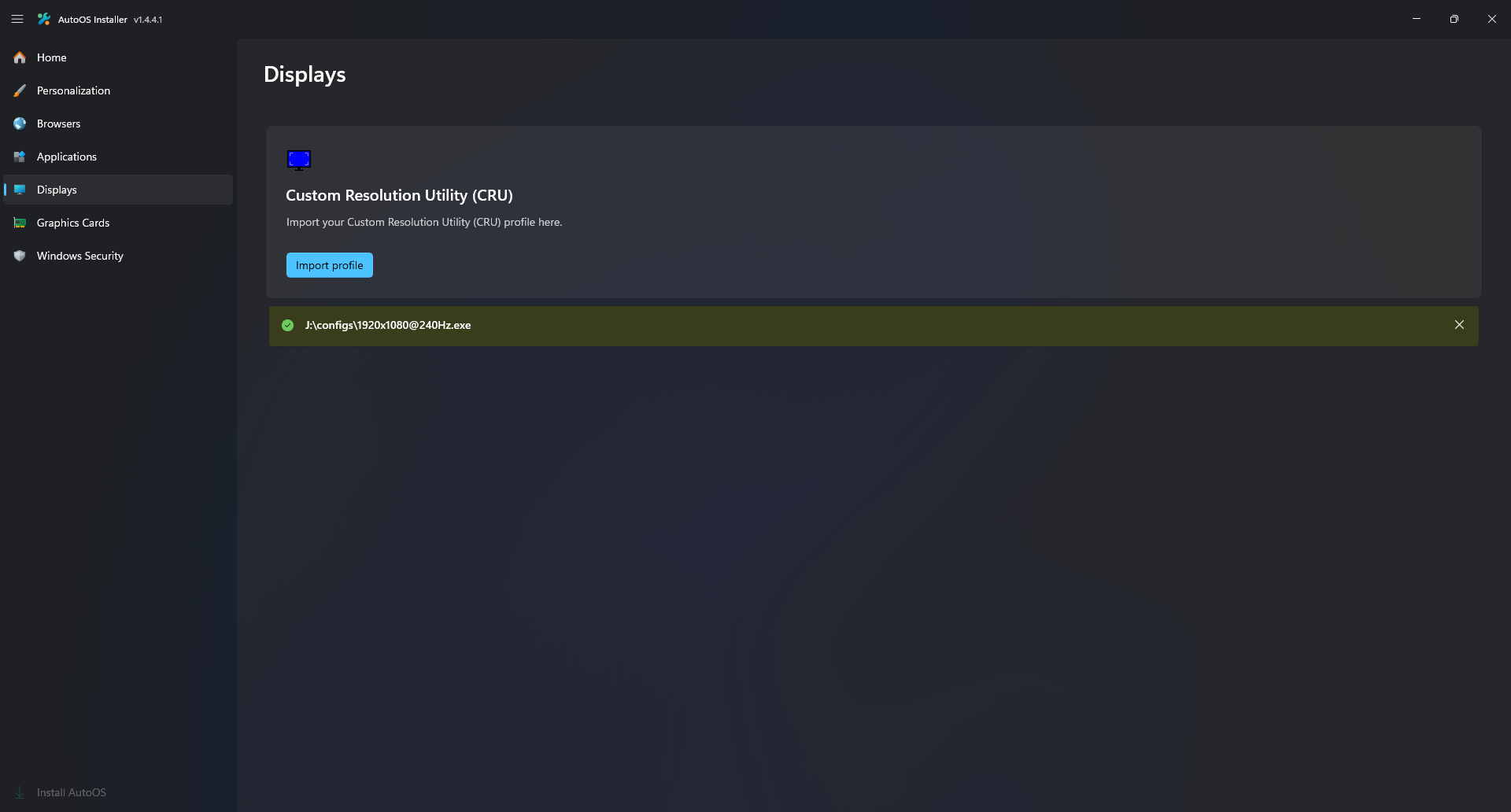
Import a pre-configured Custom Resolution Utility (CRU) profile (optional):
Graphics Cards
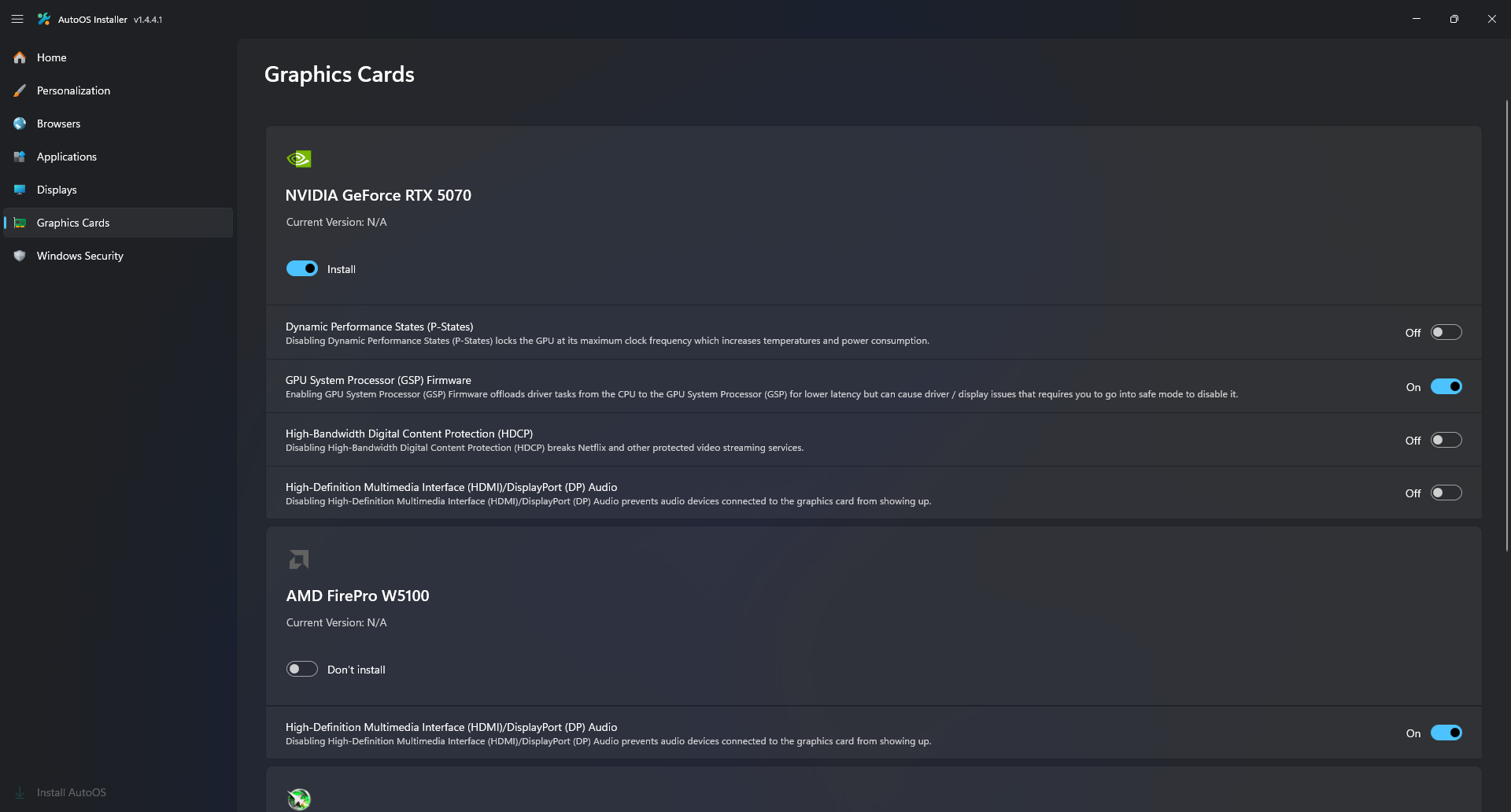
Select your Graphics Card preferences:
- On
Laptops, make sure to install all available GPU drivers. - On
PCs, you can choose to not install theiGPUdriver if you have adGPU. - Enable
High-Bandwidth Digital Content Protection (HDCP)if you watch DRM protected content likeNetflixetc. - Disable
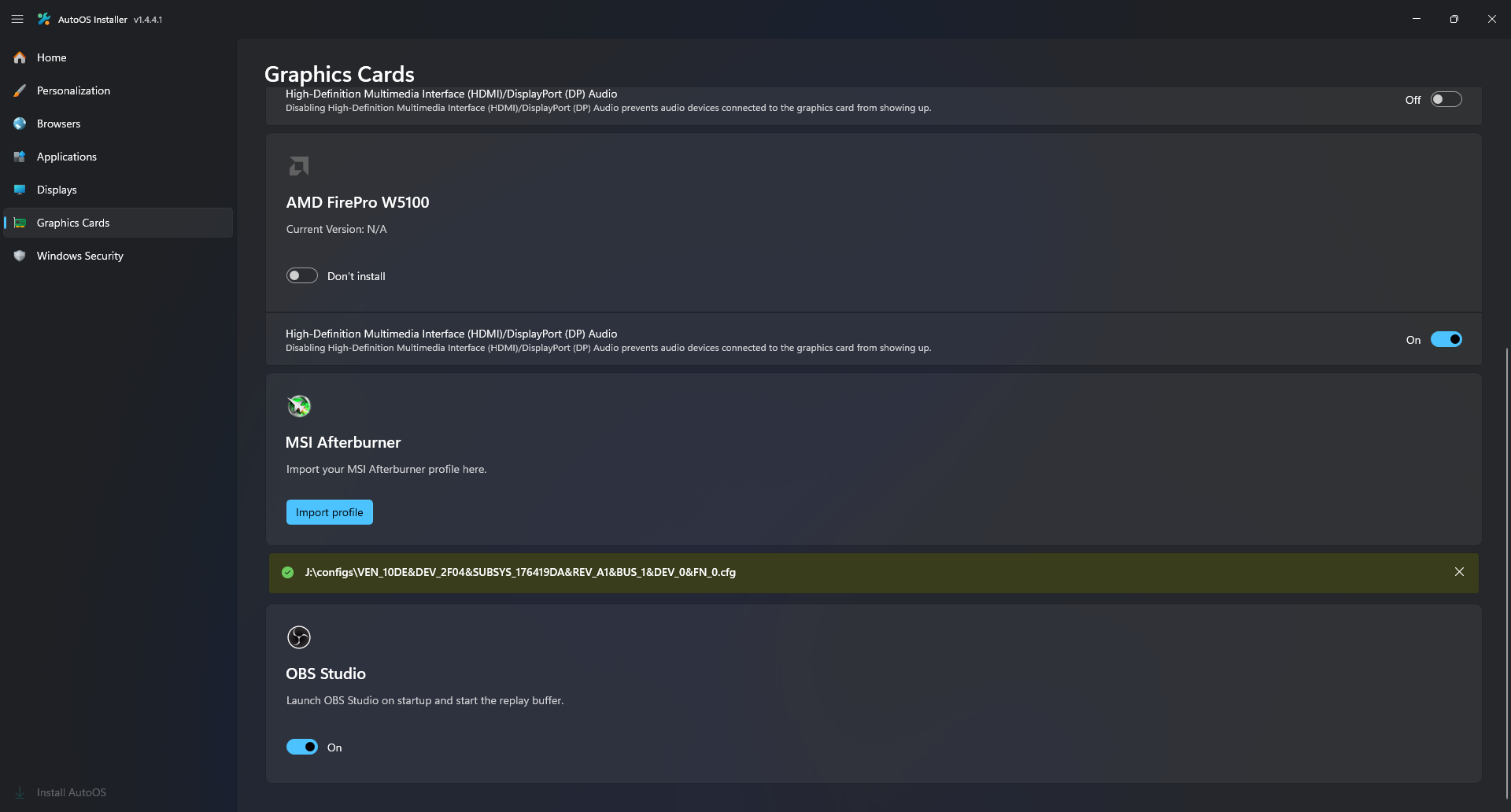
High-Definition Multimedia Interface (HDMI)/DisplayPort (DP) Audioif you don't use headphones or speakers connected to your monitor or audio receiver. - Import a pre-configured
MSI Afterburner Profile(optional). - Enable the
OBS Studiotoggle if you want to haveclips(30sec,Alt + F10).
Windows Security
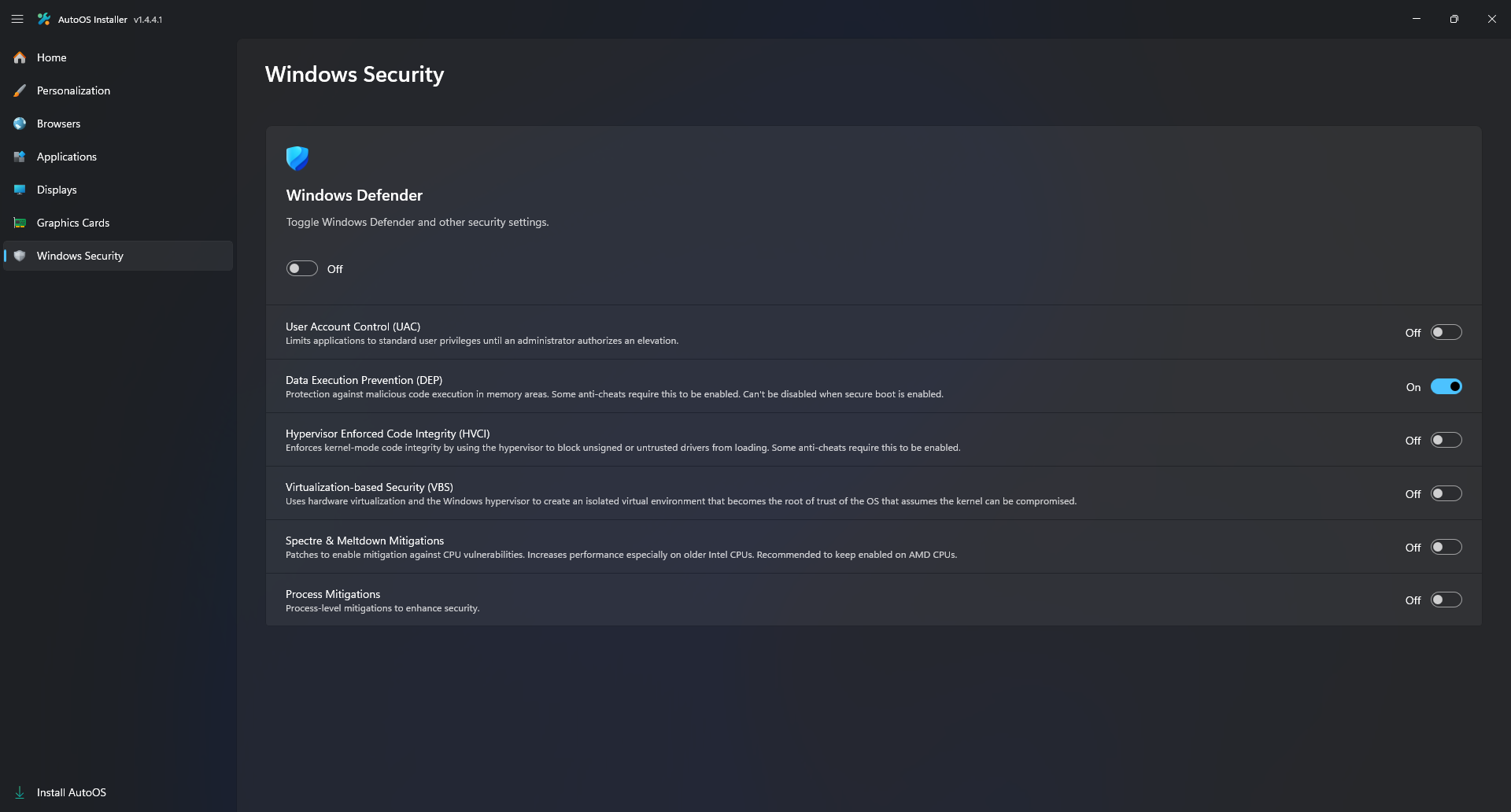
Choose your Windows Security settings:
- Enable
HVCIandVBSif you playFACEITorValorant.
Install AutoOS
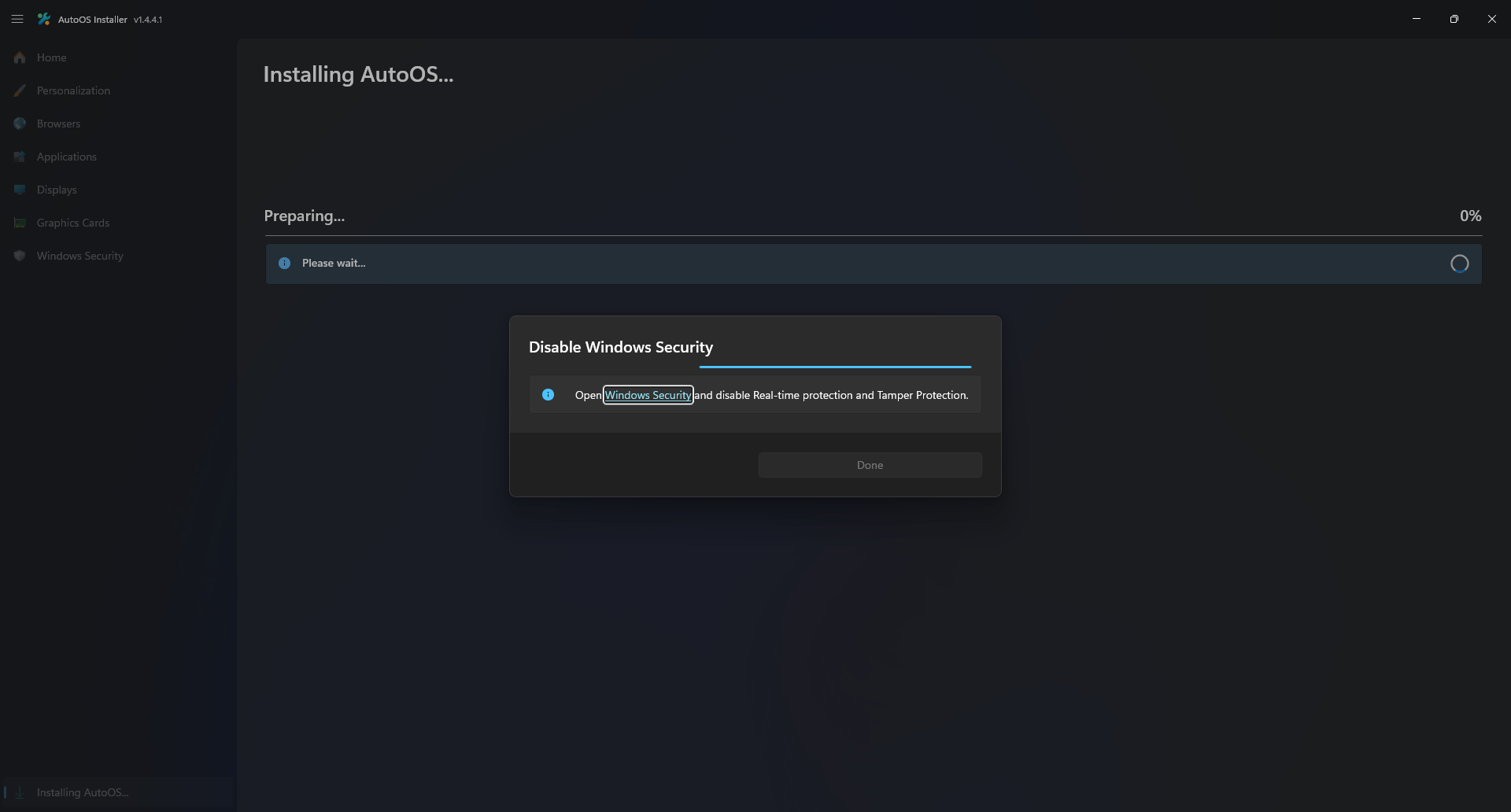
Start the AutoOS Installation:
- Click on the
hyperlinkto openWindows Securityif prompted and disableReal-time protectionandTamper protection. - Now everything will be configured automatically.
- This process will usually take around 15-45 minutes depending on your internet speed.
Note
You may experience a blank screen in the App after installing the Graphics Driver.
To fix this, resize the window, click the navigation pane button a few times or just wait until it rerenders the UI.
Important
After AutoOS Installer has finished and restarted your PC, open the AutoOS app and click on the AutoOS User Guide tile on the Home tab and follow the instructions for AutoOS Settings.