VSCode Conventional Commits
August 9, 2026 · View on GitHub





Conventional Commits for VSCode.
Features
This extension helps you to fill in commit message according to Conventional Commits.
- Support
commitlint configs. See
Supported Commitlint Rules for details.
- Now supports
commitlint
promptmetadata to display custom descriptions and titles in the VS Code picker.
- Now supports
commitlint
- Support auto commit and push after typing messages. See Commit Workflow for details.
- Support project level scope management.
- Support gitmojis.
- Support VSCode workspaces.
- Support tags for adding metadata (e.g.,
[release]) to commit headers.
Usage

You can access VSCode Conventional Commits in two ways:
Command + Shift + PorCtrl + Shift + P, enterConventional Commits, and pressEnter.- Click the icon on the Source Control menu. See the image below.

Extension Configuration
| name | description | default |
|---|---|---|
conventionalCommits.autoCommit | Control whether the extension should commit files after: forming the message or closing the editor tab. When #git.enableSmartCommit# enabled and #git.smartCommitChanges# was set to all, It allows to commit all changes when there are no staged changes.And set #git.postCommitCommand# to sync to run git.sync after commit. | true |
conventionalCommits.emojiFormat | Specify which format will be shown in the gitmoji. | code |
conventionalCommits.gitmoji | Control whether the extension should prompt for a gitmoji. | true |
conventionalCommits.lineBreak | Specify which word will be treated as line breaks in the body.Blank means no line breaks. | "" |
conventionalCommits.promptBody | Control whether the extension should prompt for the body section. | true |
conventionalCommits.promptFooter | Control whether the extension should prompt for the footer section. | true |
conventionalCommits.promptCI | Control whether the extension should prompt for skipping CI run. | false |
conventionalCommits.promptScopes | Control whether the extension should prompt for the scope section. | true |
conventionalCommits.scopes | Specify available selections in the scope section. | [] |
conventionalCommits.promptTag | Control whether the extension should prompt for the tag section. | false |
conventionalCommits.tags | Specify available selections in the tag section. | [] |
conventionalCommits.showEditor | Control whether the extension should show the commit message as a text document in a separate tab. | false |
conventionalCommits.showNewVersionNotes | Control whether the extension should show the new version notes. | true |
conventionalCommits.silentAutoCommit | Control that auto commit should be silent, without focusing source control panel. | false |
conventionalCommits.editor.keepAfterSave | Control whether the extension should keep the editor tab open after saving the commit message. | false |
conventionalCommits.storeScopesGlobally | Control whether the extension should store the defined scopes within your user settings. Uncheck to store in workspace settings. | false |
conventionalCommits.storeTagsGlobally | Control whether the extension should store the defined tags within your user settings. Uncheck to store in workspace settings. | false |
Commit Workflow
The recommended workflow automatically add, commit and push files by default.
If you want the extension to only fill in the message, disable autoCommit
configuration.
The Recommended Workflow
- Active the extension.
- Type messages.
The extension will automatically add the changed files, perform the commit and push the commit to remote.
How To Configure autoCommit
- Enable
Settings > conventionalCommits.autoCommitconfiguration of the extension. The extension enablesSettings > conventionalCommits.autoCommitby default. - Enable
Settings > git.enableSmartCommitand setSettings > git.smartCommitChangestoallto commit all changes when there are no staged changes. - Set
Settings > git.postCommitCommandtosyncto rungit.syncafter commit.
Supported Commitlint Rules
-
body-full-stop -
body-leading-blank -
body-max-length -
body-max-line-length -
body-min-length -
footer-leading-blank -
footer-max-length -
footer-max-line-length -
footer-min-length -
header-case -
header-full-stop -
header-max-length -
header-min-length -
references-empty -
scope-enum -
scope-case -
scope-empty -
scope-max-length -
scope-min-length -
subject-case -
subject-empty -
subject-full-stop -
subject-max-length -
subject-min-length -
type-enum -
type-case -
type-empty -
type-max-length -
type-min-length -
signed-off-by
FAQ
Q: How do I add a line break in messages?
A: Set lineBreak configuration to \n. When you're typing, enter \n as
a line break.
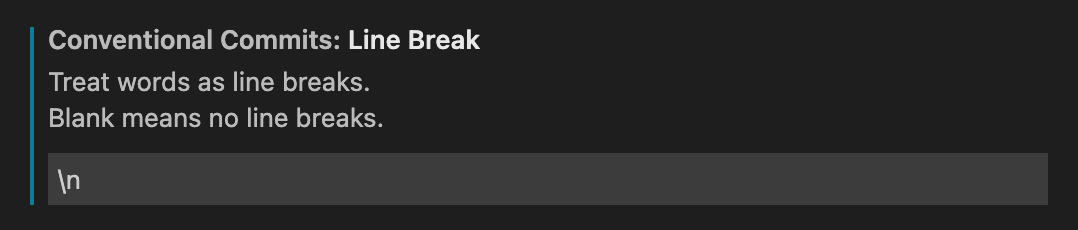
Or \\n in JSON format.

Q: How do I resolve repo not found error?
A: See issue discussion #15.
Q: How do I use commitlint in showEditor mode?
A: The extension - vscode-commitlint will helpful!
Q: Why do I see an error like
No "exports" main defined in .../node_modules/conventional-changelog-conventionalcommits/package.json
(or ERR_PACKAGE_PATH_NOT_EXPORTED), and type/scope suggestions are empty?
A: This is a known, currently-open upstream bug in commitlint
(commitlint#4864):
@commitlint/config-conventional sets its parserPreset to
conventional-changelog-conventionalcommits, but that package's v10.x releases
ship an ESM-only exports field with no require/default condition, which
Node cannot resolve. Pin conventional-changelog-conventionalcommits to 9.3.1
in your project to work around it, e.g. via "resolutions" in package.json
for Yarn:
{
  "resolutions": {
    "conventional-changelog-conventionalcommits": "9.3.1"
  }
}
or "overrides" for npm:
{
  "overrides": {
    "conventional-changelog-conventionalcommits": "9.3.1"
  }
}
Troubleshooting
- Switch to the VSCode
OUTPUTtab, selectConventional Commits. - Copy all the output. Before sharing it, make sure you have removed all private information.

Contribution
- The vscode task needs to install the extension - vscode-tsl-problem-matcher.
- The effect of code changes needs to reactivate the extension. Just restart the task.
Tests
yarn testruns the unit test suite (vitest).yarn test:e2eruns the end-to-end suite: it builds the extension bundle, launches a real VS Code instance against a temporary git repo, drives the conventional-commits flow non-interactively, and asserts a real commit lands onHEAD. Sources live undere2e-test/. The first run downloads a VS Code build into.vscode-test/(network access required).
Team Members
Financial Contributors
Become a financial contributor and help us sustain our community. [Contribute]
Individuals

Organizations
Support this project with your organization. Your logo will show up here with a link to your website. [Contribute]
