TTM
August 10, 2026 · View on GitHub



TTM — Tiny Terminal Manager
Lightweight SSH bookmark manager built with Bubble Tea.
Manage, sync and connect to your servers — all from the terminal.
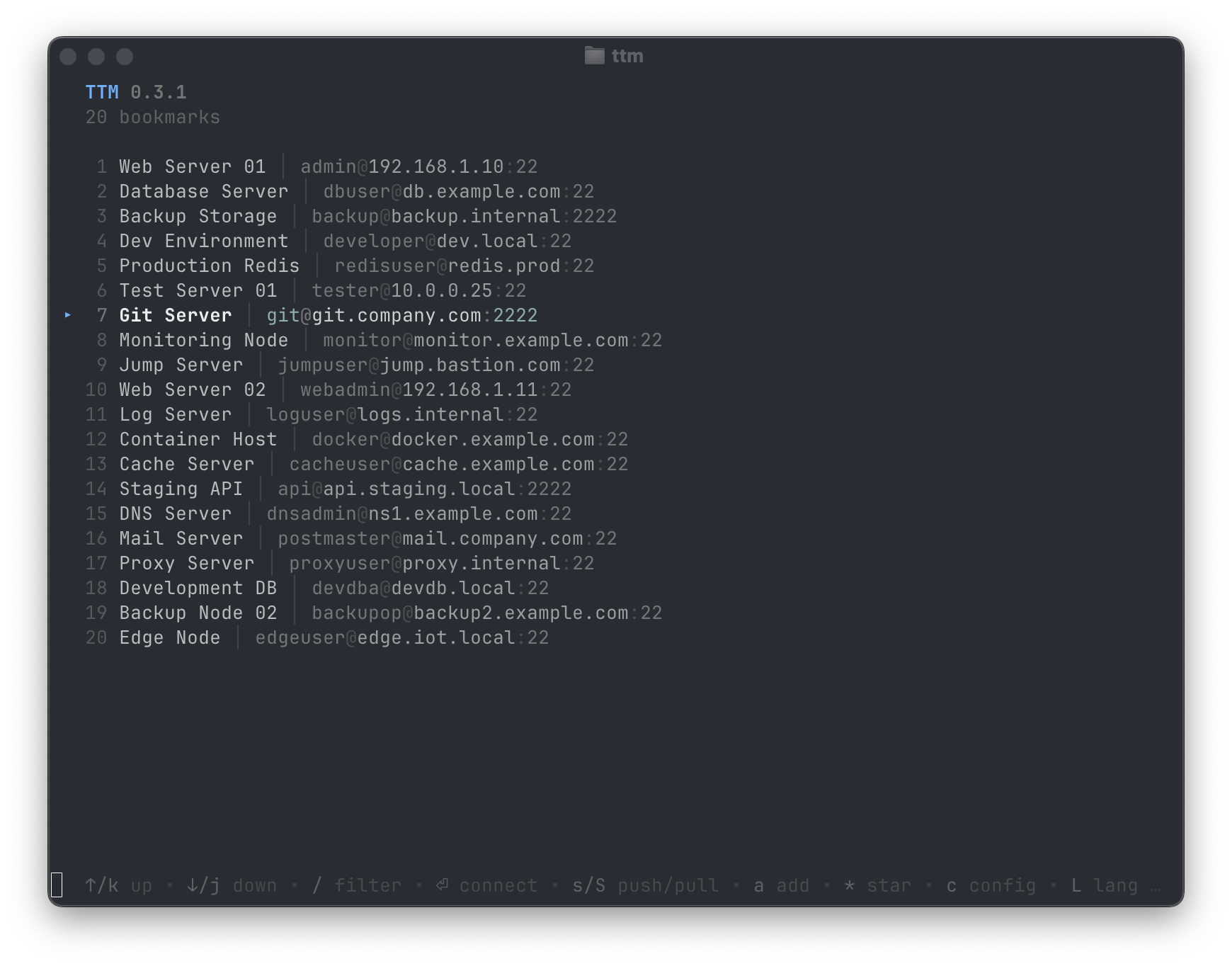
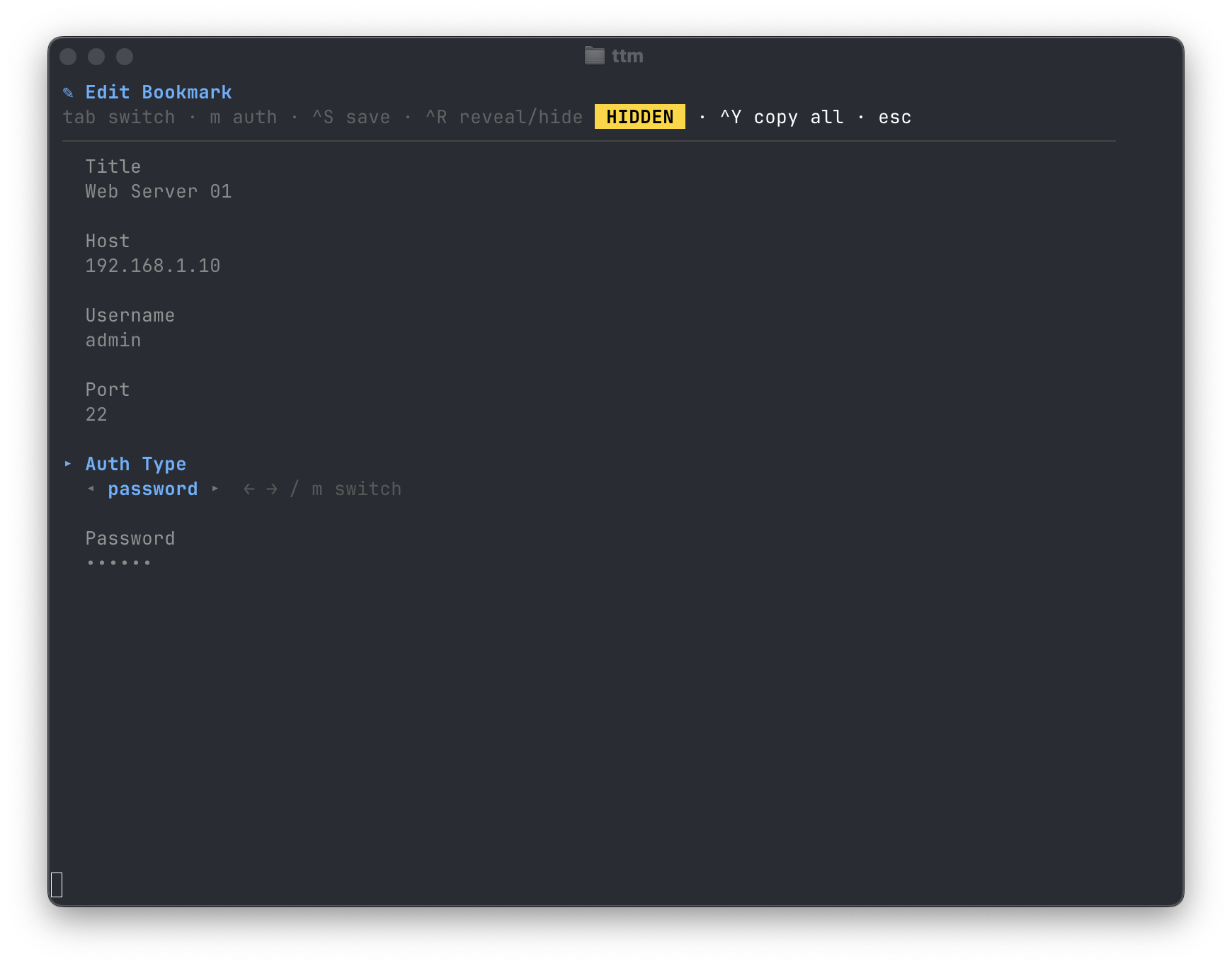
English
Features
- Full TUI — no config files to hand-edit, everything is in the interface
- SSH connect — password, private key, or keyboard-interactive auth
- Bookmark management — add, edit, delete, star/favorite
- Gist sync — push/pull bookmarks via GitHub or Gitee Gist
- In-app config — set token and gist ID without leaving the TUI
- Filter & paginate — fuzzy search across bookmarks
- Private key input modes — paste key text or provide a key file path (resolved on save, ≤256KB)
- Clipboard-aware copy —
Ctrl+Ysupports system clipboard with terminal fallback - Config export/import — share config across machines via
Ctrl+Bexport +--import-config - i18n — English / 中文, toggle with
L - Update check — press
uto check for new releases, with download progress bar - Cross-platform — macOS, Linux, Windows, Android (Termux)
- Copy SSH command — press
yto copy the standard SSH command for the selected bookmark (e.g.ssh user@host -p 22), with Termux OSC52 fallback; the command is shown in the tip bar for manual copy too - Remote file transfer — double-press
Ctrl+Gduring an SSH session to upload or download files/directories via SCP protocol (reuses existing connection, no re-authentication; remote path supports Tab completion; downloads default to ~/Downloads with customizable save directory)
Installation
Homebrew (macOS / Linux):
brew install vst93/tap/ttm
Shell script (macOS / Linux / Termux):
curl -fsSL https://raw.githubusercontent.com/vst93/ttm/refs/heads/main/cmd/install.sh | bash
China mirror:
curl -fsSL https://cdn.jsdelivr.net/gh/vst93/ttm@main/cmd/install.sh | bash
| Option | Description |
|---|---|
--help | Show all options |
--lang en | Use English (default) |
--lang zh | 使用中文 |
--install-dir <dir> | Install to custom directory |
--force | Continue even if checksum fails |
--skip-github | Skip GitHub direct download, use mirrors only |
--preview | Install latest pre-release version |
Windows (PowerShell):
irm https://raw.githubusercontent.com/vst93/ttm/main/cmd/install.ps1 | iex
Or with CDN mirror (faster in China):
irm https://cdn.jsdelivr.net/gh/vst93/ttm@main/cmd/install.ps1 | iex
| Environment Variable | Description |
|---|---|
SKIP_GITHUB=1 | Skip GitHub direct download, use mirrors only |
FORCE_INSTALL=1 | Continue even if checksum fails |
INSTALL_DIR=path | Install to custom directory |
TTM_LANG=zh | Use Chinese interface |
NO_SHORTCUTS=1 | Skip creating desktop/start menu shortcuts |
TTM_PREVIEW=1 | Install latest pre-release version |
Install pre-release version:
# Shell (macOS / Linux / Termux)
curl -fsSL https://raw.githubusercontent.com/vst93/ttm/refs/heads/main/cmd/install.sh | bash -s -- --preview

# Windows (PowerShell)
$env:TTM_PREVIEW=1; irm https://raw.githubusercontent.com/vst93/ttm/main/cmd/install.ps1 | iex
Tip: If GitHub access is limited in your region, use
SKIP_GITHUB=1to skip direct GitHub downloads and use CDN mirrors instead.
CDN Mirror (jsdelivr):
The installation script uses cdn.jsdelivr.net as a CDN mirror for faster downloads in regions with limited GitHub access. You can also use the CDN mirror directly:
# Use CDN mirror for installation
irm https://cdn.jsdelivr.net/gh/vst93/ttm@main/cmd/install.ps1 | iex

# Or with options
$env:SKIP_GITHUB=1; $env:TTM_LANG="zh"; irm https://cdn.jsdelivr.net/gh/vst93/ttm@main/cmd/install.ps1 | iex
Example with options:
$env:SKIP_GITHUB=1; $env:TTM_LANG="zh"; irm https://raw.githubusercontent.com/vst93/ttm/main/cmd/install.ps1 | iex
Or download ttm-windows-*.zip from Releases, extract ttm.exe, add to PATH.
Build from source:
git clone https://github.com/vst93/ttm.git && cd ttm
make build
Quick Start
ttm
c— Open config editor, set GitHub/Gitee token and gist IDa— Add a new bookmark (host, user, port, auth type)Enter— Connect to the selected servers/S— Push or pull bookmarks via Gist
Configuration
Config directory: ~/.config/ttm/ (Linux), ~/Library/Application Support/ttm/ (macOS), %APPDATA%\ttm\ (Windows)
| File | Description |
|---|---|
config.json | Platform, token, gist ID, locale |
bookmarks.json | Bookmark entries |
{
  "platform": "github",
  "token": "ghp_xxxxxxxxxxxx",
  "gistId": "abcdef1234567890abcdef1234567890",
  "locale": "en"
}
Export / Import: Press c → Ctrl+B to export config as a base64-encoded import command. Run ttm --import-config <base64> on another machine to import (details displayed, confirmation required).
Clipboard notes: In remote SSH/tmux sessions, clipboard falls back to terminal channel if system clipboard is unavailable. Enable tmux passthrough with set -g set-clipboard on.
Private key path input: The Private Key field accepts either raw key text or a file path. On save, if the value reads as a file (≤256KB), TTM stores the content. If reading fails, the path text is preserved with a tip.
Gist Sync
c— Open config editor- Select platform (
github/gitee) - Enter Personal Access Token (needs
gistscope) - Enter Gist ID (leave empty to auto-create on first push)
Ctrl+Sto savesto push,Sto pull
Keybindings
Main list:
| Key | Action | Key | Action |
|---|---|---|---|
Enter | Connect | a | Add bookmark |
e | Edit bookmark | d | Delete bookmark |
* | Star / unstar | s / S | Push / Pull Gist |
c | Config editor | u | Check updates |
y | Copy SSH command | L | Toggle EN / 中文 |
/ | Filter | j / k ↑ / ↓ | Navigate |
h / l ← / → | Page | ? | Help |
q | Quit |
Editor shortcuts: Ctrl+S save, Ctrl+R reveal/hide secrets, Ctrl+Y copy field, Ctrl+U clear field, Ctrl+V paste, Ctrl+B export config.
SSH session shortcuts:
| Key | Action |
|---|---|
| `Ctrl+G$ \times 2 | \text{Open} \text{transfer} \text{dialog} (\text{copy} \text{scp} \text{command}, \text{upload}, \text{or} \text{download}) |
$Esc/Ctrl+C` | Cancel ongoing transfer |
Tab | Auto-complete remote path (in download dialog) |
Transfer dialog flow:
- Double-press
Ctrl+Gduring an SSH session - Choose:
1copy scp command to clipboard,2upload local file/directory,3download remote file/directory - If uploading: confirm remote directory (auto-detected), enter local path, confirm before transfer
- If downloading: enter remote path (Tab to complete), choose local save directory (default ~/Downloads), confirm before transfer
- Progress bar shows transfer speed and ETA
- Supports both single files and recursive directory transfer
Platform Compatibility
| Feature | Linux/macOS Server | Windows Server |
|---|---|---|
| Upload/Download | ✅ Full support | ❌ Not supported (use scp command instead) |
| Tab path completion | ✅ | ❌ |
| Auto-detect remote directory | ✅ | ❌ Falls back to home directory |
Local terminal notes:
- Windows Terminal — fully supported (ANSI escape sequences enabled by default)
- Old cmd.exe — UI may display incorrectly; recommend upgrading to Windows Terminal
- Termux (Android) — fully supported
License
中文
功能特性
- 全 TUI 界面 — 无需手动编辑配置文件,所有操作均在界面内完成
- SSH 连接 — 支持密码、私钥、键盘交互三种认证方式
- 书签管理 — 新增、编辑、删除、收藏
- Gist 同步 — 通过 GitHub 或 Gitee Gist 推送 / 拉取书签
- 应用内配置 — 无需离开 TUI 即可设置 Token 和 Gist ID
- 搜索与分页 — 模糊过滤书签列表
- 私钥输入模式 — 支持粘贴私钥文本或填写私钥文件路径(保存时解析,≤256KB)
- 剪贴板感知复制 —
Ctrl+Y优先系统剪贴板,可用时回退终端通道 - 配置导入导出 — 通过
Ctrl+B导出 +--import-config跨机器共享配置 - 双语 — English / 中文,按
L切换 - 版本检查 — 按
u检查新版本,下载时显示进度条 - 跨平台 — macOS、Linux、Windows、Android (Termux)
- 复制 SSH 命令 — 按
y复制选中书签的标准 SSH 命令(如ssh user@host -p 22),兼容 Termux OSC52;命令同时显示在提示栏,支持手动选中复制 - 远程文件传输 — SSH 会话中双击
Ctrl+G,可上传或下载文件/目录(SCP 协议,复用已有连接,远程路径支持 Tab 补全,下载默认 ~/Downloads 可自定义)
安装
Homebrew (macOS / Linux):
brew install vst93/tap/ttm
脚本安装(macOS / Linux / Termux):
curl -fsSL https://raw.githubusercontent.com/vst93/ttm/refs/heads/main/cmd/install.sh | bash
国内加速:
curl -fsSL https://cdn.jsdelivr.net/gh/vst93/ttm@main/cmd/install.sh | bash
| 参数 | 说明 |
|---|---|
--help | 显示所有选项 |
--lang en | 使用英文(默认) |
--lang zh | 使用中文 |
--install-dir <dir> | 安装到指定目录 |
--force | 校验失败时继续安装 |
--skip-github | 跳过 GitHub 直连,仅使用镜像下载 |
--preview | 安装预览版 |
Windows (PowerShell):
irm https://raw.githubusercontent.com/vst93/ttm/main/cmd/install.ps1 | iex
国内镜像:
irm https://cdn.jsdelivr.net/gh/vst93/ttm@main/cmd/install.ps1 | iex
| 环境变量 | 说明 |
|---|---|
SKIP_GITHUB=1 | 跳过 GitHub 直连,仅使用镜像下载 |
FORCE_INSTALL=1 | 校验失败时继续安装 |
INSTALL_DIR=path | 安装到指定目录 |
TTM_LANG=zh | 使用中文界面 |
NO_SHORTCUTS=1 | 不创建桌面/开始菜单快捷方式 |
TTM_PREVIEW=1 | 安装预览版 |
安装预览版:
# 脚本安装(macOS / Linux / Termux)
curl -fsSL https://raw.githubusercontent.com/vst93/ttm/refs/heads/main/cmd/install.sh | bash -s -- --preview

# Windows (PowerShell)
$env:TTM_PREVIEW=1; irm https://raw.githubusercontent.com/vst93/ttm/main/cmd/install.ps1 | iex
提示: 如果您所在地区 GitHub 访问受限,建议使用
SKIP_GITHUB=1跳过 GitHub 直连下载,仅使用 CDN 镜像。
CDN 镜像 (jsdelivr):
安装脚本使用 cdn.jsdelivr.net 作为 CDN 镜像,在 GitHub 访问受限的地区可获得更快的下载速度。您也可以直接使用 CDN 镜像:
# 使用 CDN 镜像安装
irm https://cdn.jsdelivr.net/gh/vst93/ttm@main/cmd/install.ps1 | iex

# 或带参数
$env:SKIP_GITHUB=1; $env:TTM_LANG="zh"; irm https://cdn.jsdelivr.net/gh/vst93/ttm@main/cmd/install.ps1 | iex
带参数示例:
$env:SKIP_GITHUB=1; $env:TTM_LANG="zh"; irm https://raw.githubusercontent.com/vst93/ttm/main/cmd/install.ps1 | iex
或从 Releases 下载 ttm-windows-*.zip,解压 ttm.exe,添加到 PATH。
从源码构建:
git clone https://github.com/vst93/ttm.git && cd ttm
make build
快速开始
ttm
c— 打开配置编辑器,设置 GitHub/Gitee 令牌和 Gist IDa— 新增书签(主机、用户、端口、认证方式)Enter— 连接选中服务器s/S— 通过 Gist 推送或拉取书签
配置说明
配置文件路径:~/.config/ttm/(Linux)、~/Library/Application Support/ttm/(macOS)、%APPDATA%\ttm\(Windows)
| 文件 | 说明 |
|---|---|
config.json | 平台、令牌、Gist ID、语言 |
bookmarks.json | 书签数据 |
{
  "platform": "github",
  "token": "ghp_xxxxxxxxxxxx",
  "gistId": "abcdef1234567890abcdef1234567890",
  "locale": "zh"
}
导出 / 导入: 按 c → Ctrl+B 导出配置为 base64 编码的导入命令。在其他机器运行 ttm --import-config <base64> 即可导入(展示配置详情,确认后写入)。
剪贴板说明: 远程 SSH/tmux 会话中,系统剪贴板不可用时自动回退终端通道。tmux 建议开启 set -g set-clipboard on。
私钥路径输入: Private Key 字段可填写私钥文本或文件路径。保存时若读取文件成功(≤256KB)则存入内容,失败则保留路径文本并给出提示。
Gist 同步
c— 打开配置编辑器- 选择平台(
github/gitee) - 输入 Personal Access Token(需要
gist权限) - 输入 Gist ID(留空则首次推送时自动创建)
Ctrl+S保存s推送,S拉取
快捷键
主列表:
| 按键 | 功能 | 按键 | 功能 |
|---|---|---|---|
Enter | 连接 | a | 新增书签 |
e | 编辑书签 | d | 删除书签 |
* | 标星 / 取消 | s / S | 推送 / 拉取 Gist |
c | 配置编辑器 | u | 检查更新 |
y | 复制 SSH 命令 | L | 切换 EN / 中文 |
/ | 过滤 | j / k ↑ / ↓ | 导航 |
h / l ← / → | 翻页 | ? | 帮助 |
q | 退出 |
编辑器快捷键: Ctrl+S 保存、Ctrl+R 显示/隐藏敏感字段、Ctrl+Y 复制字段、Ctrl+U 清空字段、Ctrl+V 粘贴、Ctrl+B 导出配置。
SSH 会话快捷键:
| 按键 | 功能 |
|---|---|
| `Ctrl+G$ \times 2 | 打开传输对话框(复制 \text{scp} 命令、上传、下载) |
$Esc/Ctrl+C` | 取消正在进行的传输 |
Tab | 自动补全远程路径(下载对话框中) |
传输流程:
- SSH 会话中双击
Ctrl+G - 选择:
1复制 scp 命令、2上传本地文件/目录、3下载远程文件/目录 - 如上传:确认远程目录(自动检测),输入本地路径,确认后传输
- 如下载:输入远程路径(Tab 补全),选择本地保存目录(默认 ~/Downloads),确认后传输
- 进度条显示传输速度和剩余时间
- 支持单文件和递归目录传输
平台兼容性
| 功能 | Linux/macOS 服务器 | Windows 服务器 |
|---|---|---|
| 上传/下载 | ✅ 完全支持 | ❌ 不支持(请用 scp 命令代替) |
| Tab 路径补全 | ✅ | ❌ |
| 自动检测远程目录 | ✅ | ❌ 降级为 home 目录 |
本地终端说明:
- Windows Terminal — 完全支持(默认启用 ANSI 转义序列)
- 老版 cmd.exe — 界面可能显示异常,建议升级到 Windows Terminal
- Termux(Android) — 完全支持