notepadpp-wakatime
June 29, 2023 · View on GitHub
Metrics, insights, and time tracking automatically generated from your programming activity.
Installation
Via Plugins Admin (only if you have installed)
-
Inside Notepad++ open the Plugins Admin (
Plugins→Plugins Admin). -
Search for
WakaTimeand then check the box in the list of plugins. -
Click the
Installbutton. -
Restart Notepad++.
-
Enter your api key, then press
enter. -
Use Notepad++ like you normally do and your time will be tracked for you automatically.
-
Visit https://wakatime.com to see your logged time.
Manually
-
Create a directory named WakaTime into Notepad++ plugins folder
- Usually
C:\Program Files (x86)\Notepad++\plugins\(for 32 bit) andC:\Program Files\Notepad++\plugins\(for 64 bit)
- Usually
-
Download a release version and copy the included WakaTime.dll to the plugins/WakaTime sub-folder at your Notepad++ installation directory.
Compatibility
This plugin requires at least
- Notepad++ 32-bit or 64-bit
- Windows
- .Net Framework 4.8 or above
It's supported on
- Notepad++ 7.6.3 and above
Screen Shots
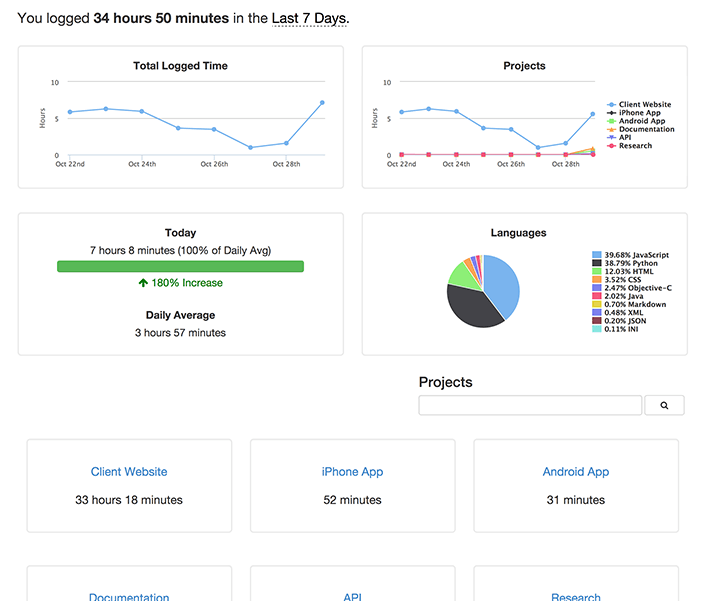
Troubleshooting
WakaTime for Notepad++ logs to %appdata%\WakaTime\notepadpp-wakatime.log.
Turn on debug mode (click the WakaTime icon in Notepad++) then check your log file.
WakaTime Core logs to %homepath%\.wakatime\wakatime.log. Check there after looking in your Notepad++ WakaTime log file.
Can't read WakaTime config file
Make sure you %homepath%\.wakatime.cfg is UTF-8 encoded without BOM.
More help can be found at https://github.com/wakatime/wakatime-cli/blob/develop/TROUBLESHOOTING.md.