README.md
March 31, 2026 · View on GitHub
🎨 Tmux Power
Yet another powerline theme for tmux.



✨ Features
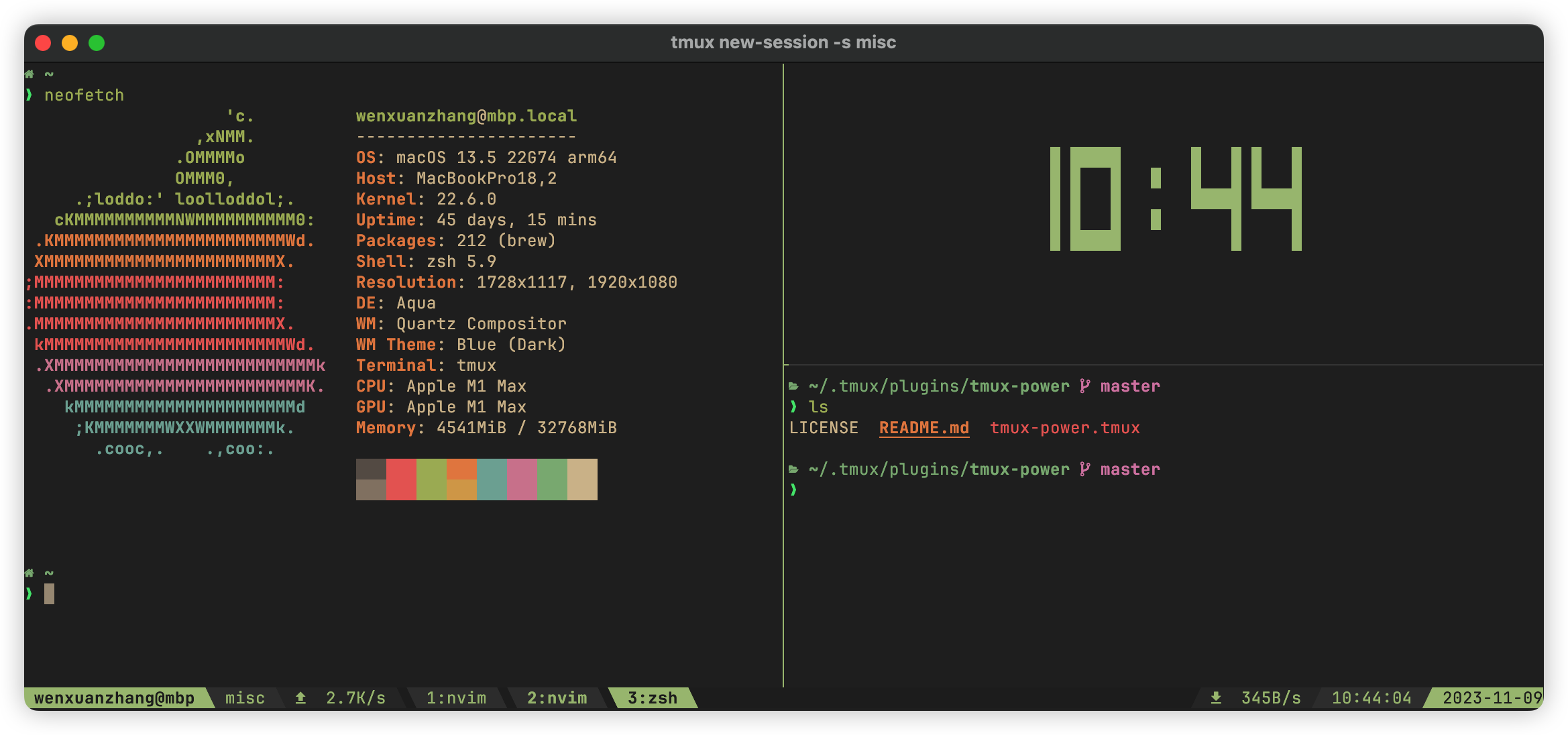
- Powerline aesthetic — arrow separators with smooth gradient color transitions
- 9 built-in themes — or define your own colors
- Fully configurable sections — 8 status segments that accept any tmux format string
- lualine-inspired flexible configuration model
- Per-section style control (bold, italics, etc.)
- Empty sections are automatically skipped with correct arrow transitions
- Fast — theme loads in a single batch, minimal impact on tmux startup time
- Plugin ecosystem — works with tmux-net-speed, tmux-prefix-highlight, tmux-web-reachable, and more
📥 Installation
Install manually
Clone the repo somewhere and source it in .tmux.conf:
run-shell "/path/to/tmux-power.tmux"
NOTE: Options should be set before sourcing.
Install using TPM
set -g @plugin 'wfxr/tmux-power'
🎨 Themes
Gold (default)
set -g @tmux_power_theme 'gold'
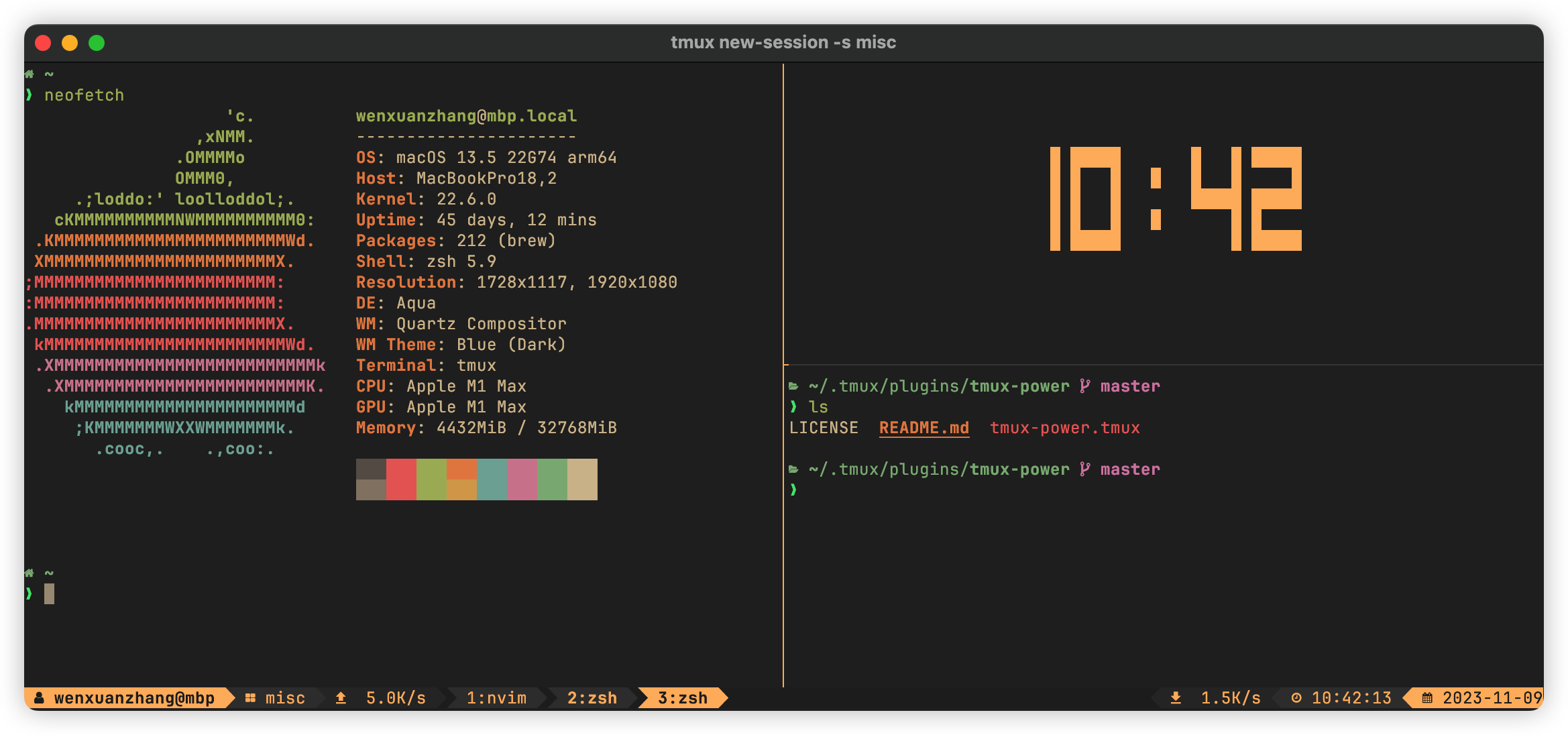
Everforest
set -g @tmux_power_theme 'everforest'
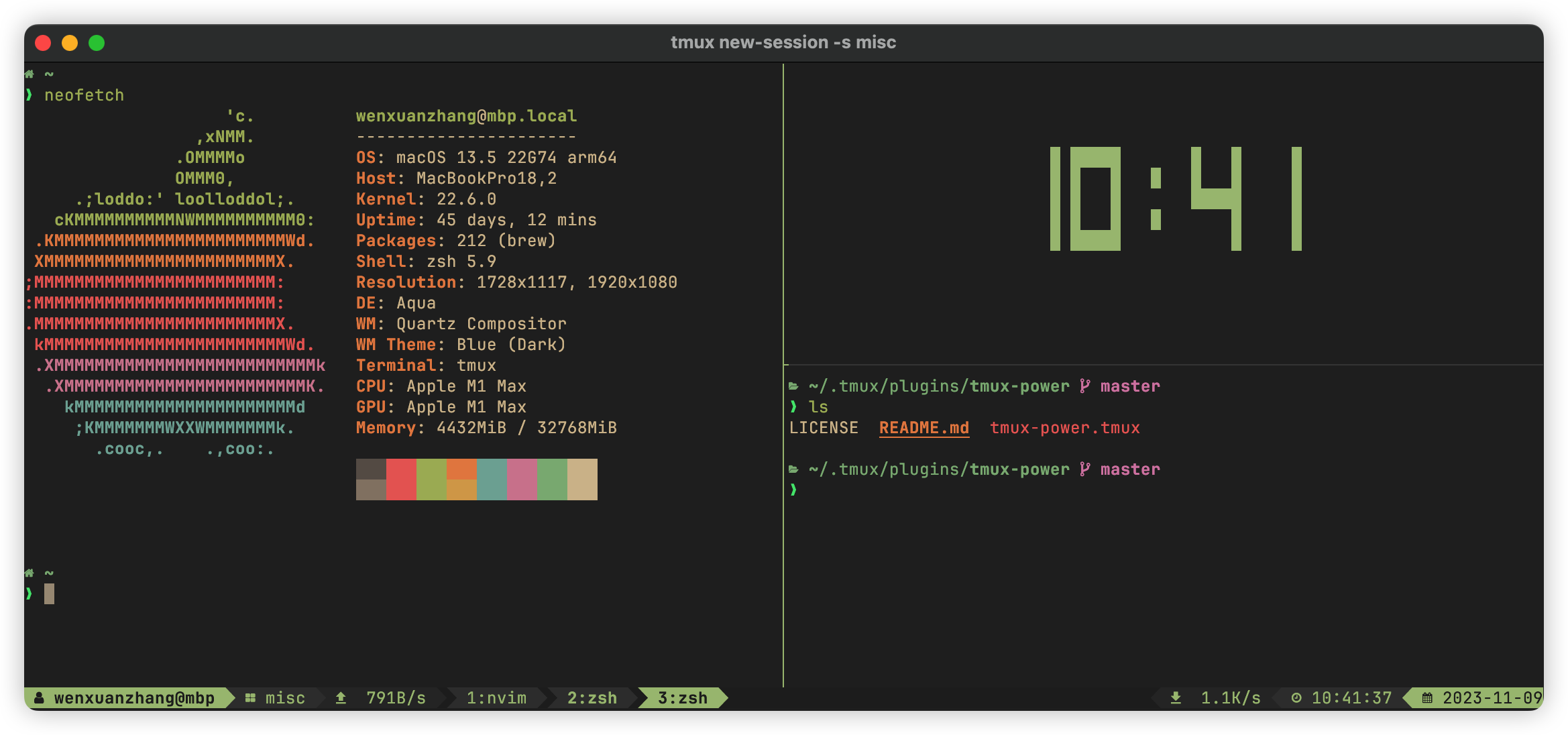
Moon
set -g @tmux_power_theme 'moon'
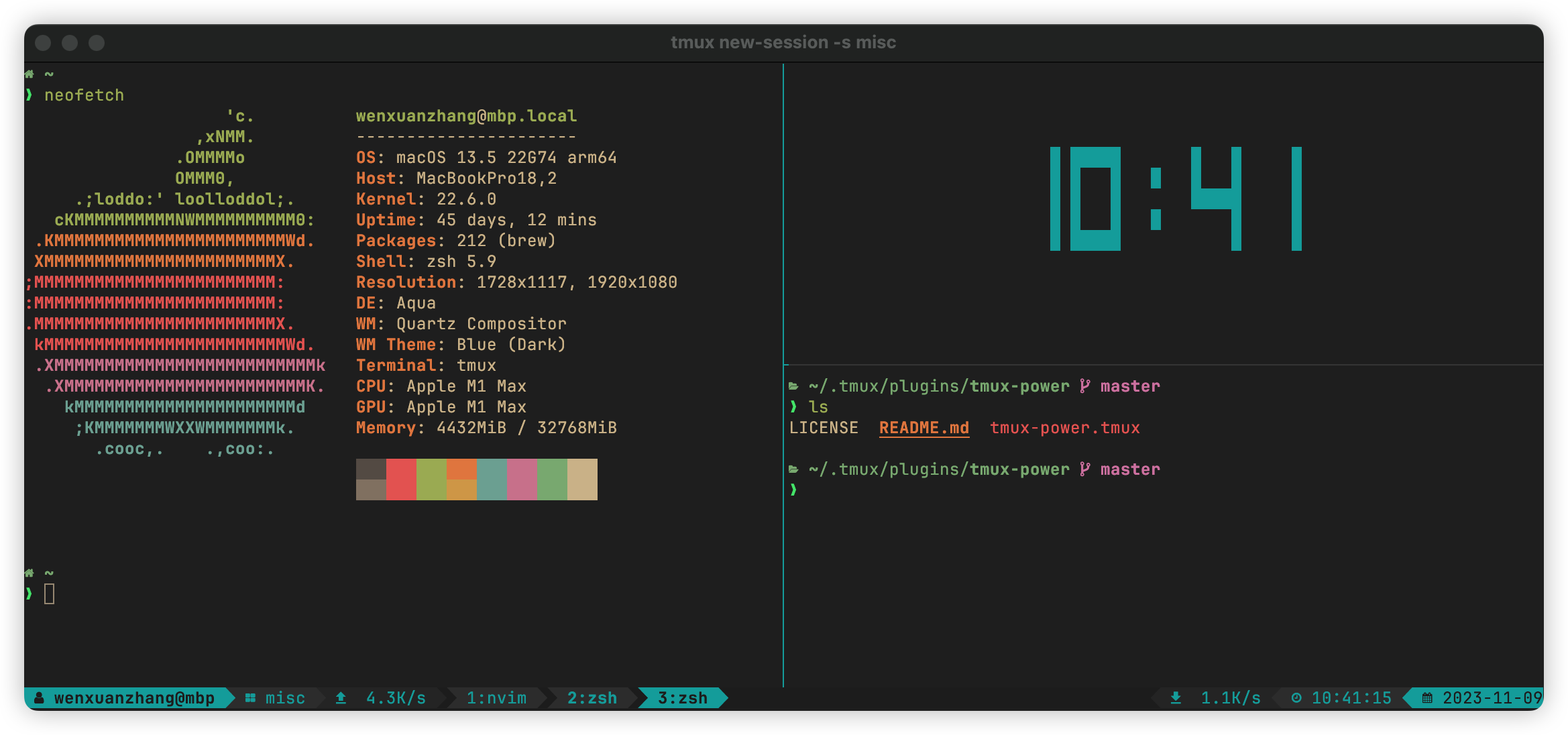
Coral
set -g @tmux_power_theme 'coral'
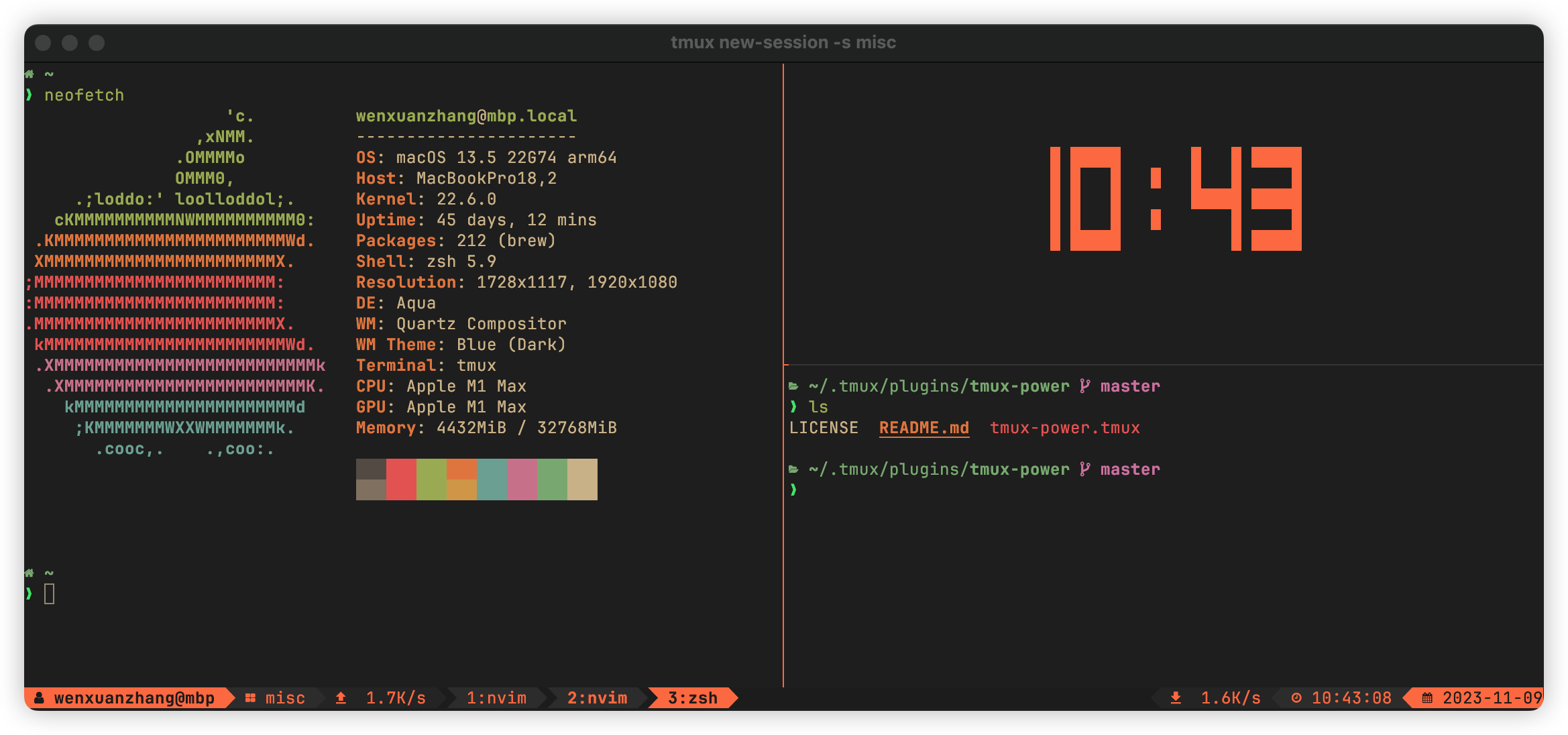
Snow
set -g @tmux_power_theme 'snow'
Forest
set -g @tmux_power_theme 'forest'
Violet
set -g @tmux_power_theme 'violet'
Redwine
set -g @tmux_power_theme 'redwine'
Sky
set -g @tmux_power_theme 'sky'
⚙ Customizing
Upgrading from v1? The section-based model replaces the old
show_*/*_icon/use_boldoptions. See the migration guide for a complete mapping from old options to new ones.
Sections
The status bar is composed of configurable sections. Left sections go from outer to inner (a → d),
right sections go from inner to outer (w → z). Empty sections are automatically skipped with
correct arrow transitions. Section contents use tmux status formats, so values like #{USER}, #h,
#S, and %T are expanded by tmux at render time.
+---+---+---+---+--------------------------------------+---+---+---+---+
| A | B | C | D |           ...windows...              | W | X | Y | Z |
+---+---+---+---+--------------------------------------+---+---+---+---+
The defaults are:
set -g @tmux_power_right_arrow_icon ''
set -g @tmux_power_left_arrow_icon ''
set -g @tmux_power_left_a ' #{USER}@#h' # user@host
set -g @tmux_power_left_b ' #S' # session name
set -g @tmux_power_left_c ''
set -g @tmux_power_left_d ''
set -g @tmux_power_right_w ''
set -g @tmux_power_right_x ''
set -g @tmux_power_right_y ' %T' # time
set -g @tmux_power_right_z ' %F' # date
Each section can also have a style (e.g. bold, italics), applied via a _style suffix:
set -g @tmux_power_left_a_style  'bold'  # default
set -g @tmux_power_right_z_style 'bold'
Window and prefix-highlight styles are configurable through the same plugin option model:
set -g @tmux_power_window_current_style   'bold'  # default
set -g @tmux_power_window_last_style      'bold'  # default
set -g @tmux_power_window_activity_style  'bold'  # default
set -g @tmux_power_window_bell_style      'bold'  # default
set -g @tmux_power_prefix_highlight_style 'bold'  # default
To disable bold for the current window, window flags, and prefix highlight:
set -g @tmux_power_window_current_style   'none'
set -g @tmux_power_window_last_style      'none'
set -g @tmux_power_window_activity_style  'none'
set -g @tmux_power_window_bell_style      'none'
set -g @tmux_power_prefix_highlight_style 'none'
Advanced users can still overwrite native tmux options after the plugin loads, but the
@tmux_power_* settings above are the supported tmux-power interface.
As an example, the following configurations can generate the theme shown in the first screenshot:
set -g @plugin 'wfxr/tmux-power'
set -g @plugin 'wfxr/tmux-net-speed'
set -g @tmux_power_theme 'everforest'
set -g @tmux_power_right_arrow_icon ''
set -g @tmux_power_left_arrow_icon ''
set -g @tmux_power_left_a '#{USER}@#h'
set -g @tmux_power_left_b '#S'
set -g @tmux_power_left_c ' #{upload_speed}'
set -g @tmux_power_right_x ' #{download_speed}'
set -g @tmux_power_right_y '%T'
set -g @tmux_power_right_z '%F'
Theme colors
You can define your favourite colors if you don't like any of above.
# You can set it to a true color in '#RRGGBB' format
set -g @tmux_power_theme '#483D8B' # dark slate blue

# Or you can set it to 'colorX' which honors your terminal colorscheme
set -g @tmux_power_theme 'colour3'

# The following colors are used as gradient colors
set -g @tmux_power_g0 "#262626"
set -g @tmux_power_g1 "#303030"
set -g @tmux_power_g2 "#3a3a3a"
set -g @tmux_power_g3 "#444444"
set -g @tmux_power_g4 "#626262"
Shell command integration
Section contents support tmux's #(cmd) syntax, so you can embed the output of any shell command.
For example, to show weather in the status bar:
set -g @tmux_power_right_w '#(curl -s "wttr.in?format=1" | sed -e "s/+//" -e "s/ \+/ /")'
Other options
set -g @tmux_power_status_interval 1 # status bar refresh interval in seconds
The default arrows/icons and examples that include icon glyphs use characters from nerd-fonts.
📦 Plugin support
Any tmux plugin that exposes #{...} format tokens can be placed in a section.
Tip
If you use plugins that post-process status-left or status-right when they are sourced
(for example, tmux-battery), load wfxr/tmux-power before them in your TPM plugin list.
set -g @tmux_power_left_c ' #{upload_speed}'
set -g @tmux_power_right_x ' #{download_speed}'
# 'L' for left only, 'R' for right only and 'LR' for both
set -g @tmux_power_prefix_highlight_pos 'LR'
set -g @tmux_power_right_w '#(tmux-mem-cpu-load)'
🔗 Other plugins
You might also find these useful:
📃 License
MIT (c) Wenxuan Zhang