Antigravity Quota Watcher
January 21, 2026 · View on GitHub
Warning
Notice: Quota Not Refreshing (Always Shows 100%)
Some users have reported that the quota always shows 100% and doesn't refresh. This is likely due to changes in the official API mechanism.
Temporary Solution: Set your proxy node to a US-based server.
A plugin that displays AI model quota status in real-time in the Antigravity status bar.
Demo
Status Bar Display
|
Quota Details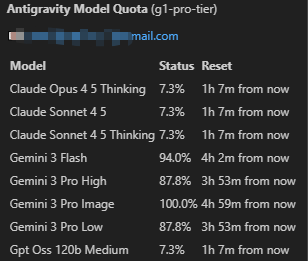
|
Config Page(Config Doc)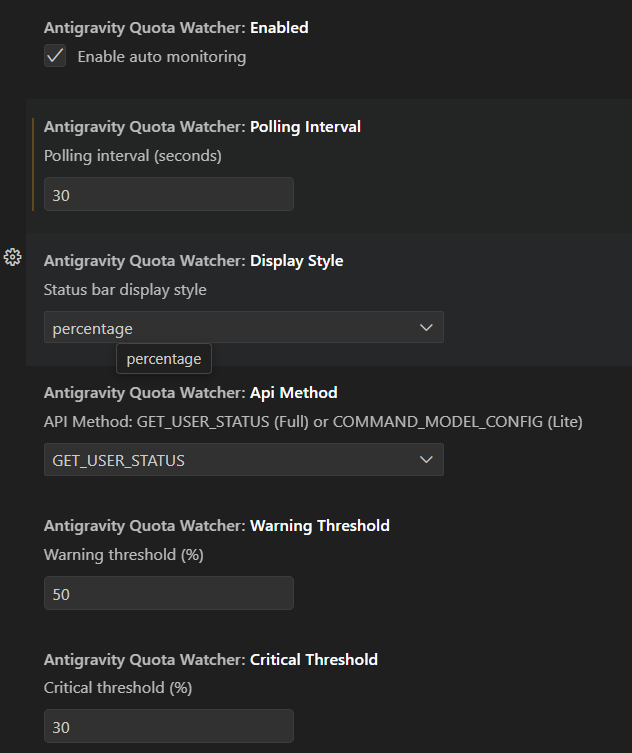
|
System Requirements




Installation
Method 1: Install from Open VSX Marketplace (Recommended)
Search for wusimpl Antigravity Quota Watcher @sort:name in the extension marketplace. Look for the plugin by author wusimpl and then just click install.

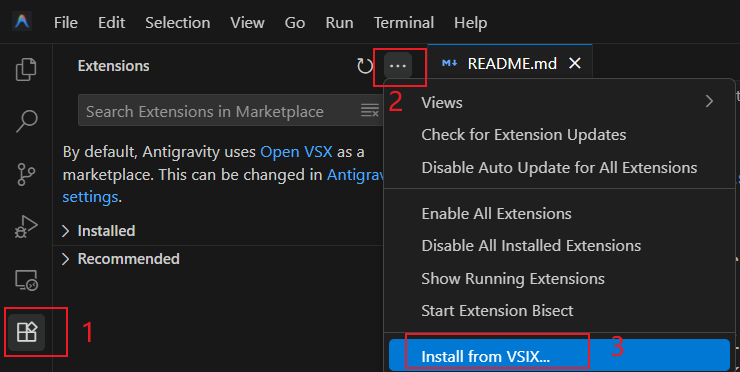
Method 2: Manual Installation
Download the extension, install it, and restart Antigravity.
Note
For Linux Distribution System, please make sure it supports one of these commands:lsof、netstat、ss.
Submitting Issues
Click to expand
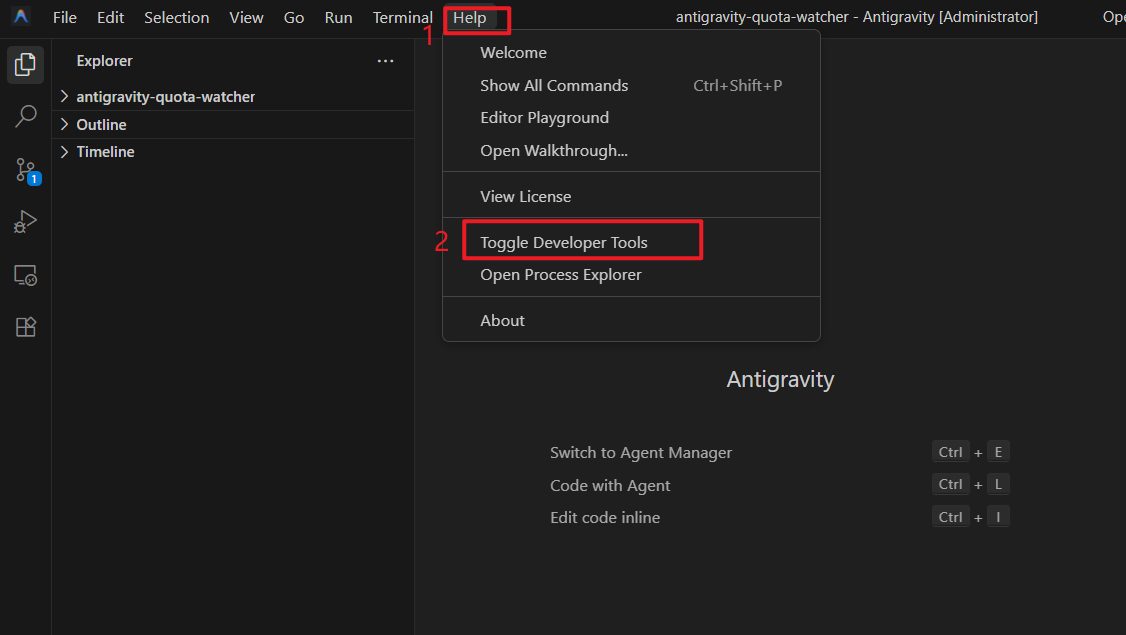
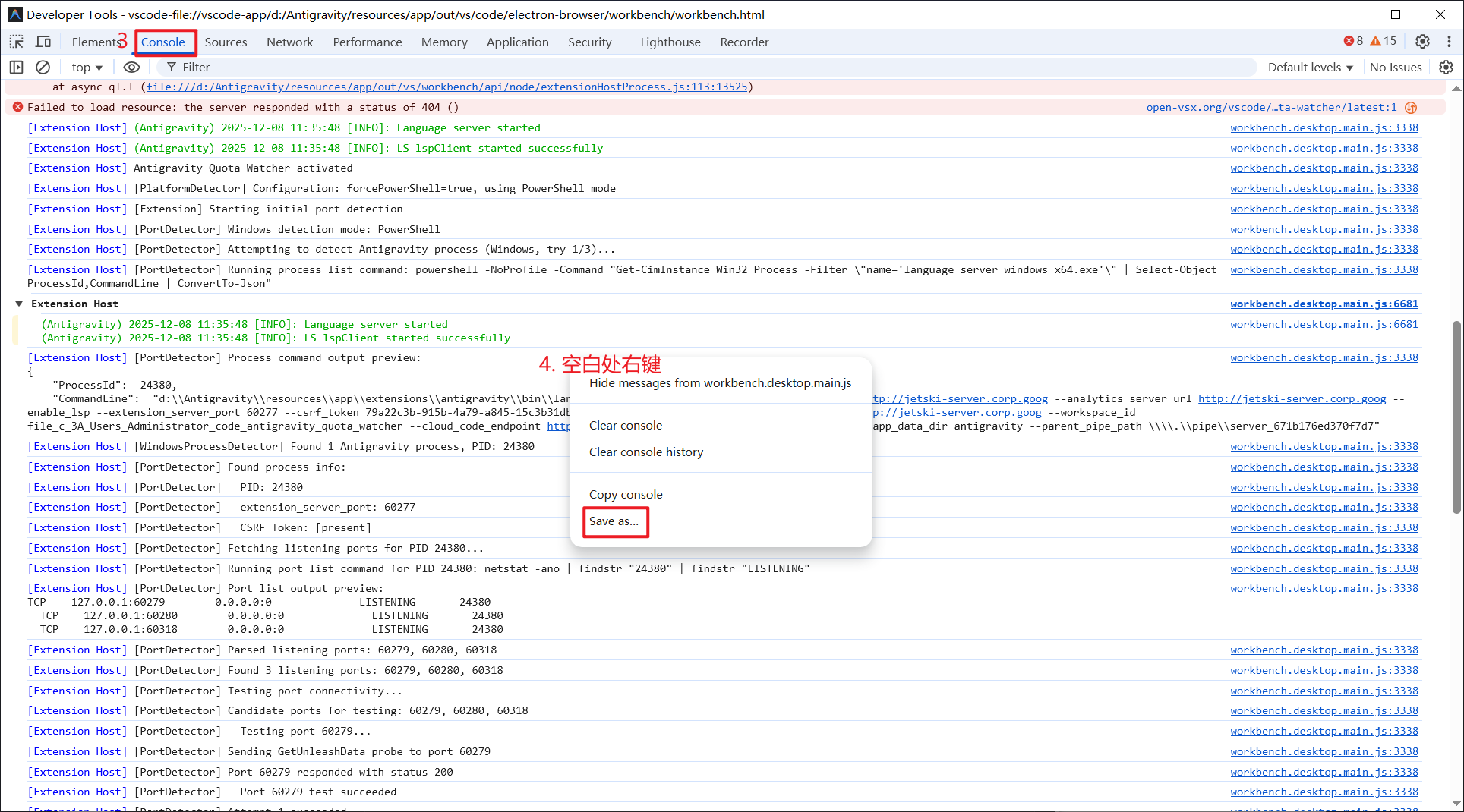
Please attach log files or log screenshots when submitting issues.
How to export logs:
Features
- Real-time Monitoring: Automatically detects and polls quota usage at regular intervals
- Status Bar Display: Shows current quota in the VS Code bottom status bar
- Smart Alerts: Automatically changes color when quota is low
- Auto Detection: No manual configuration needed, automatically detects Antigravity service port and authentication information
- Local Login Sync: Automatically detects Antigravity IDE login status and supports one-click import of local account credentials
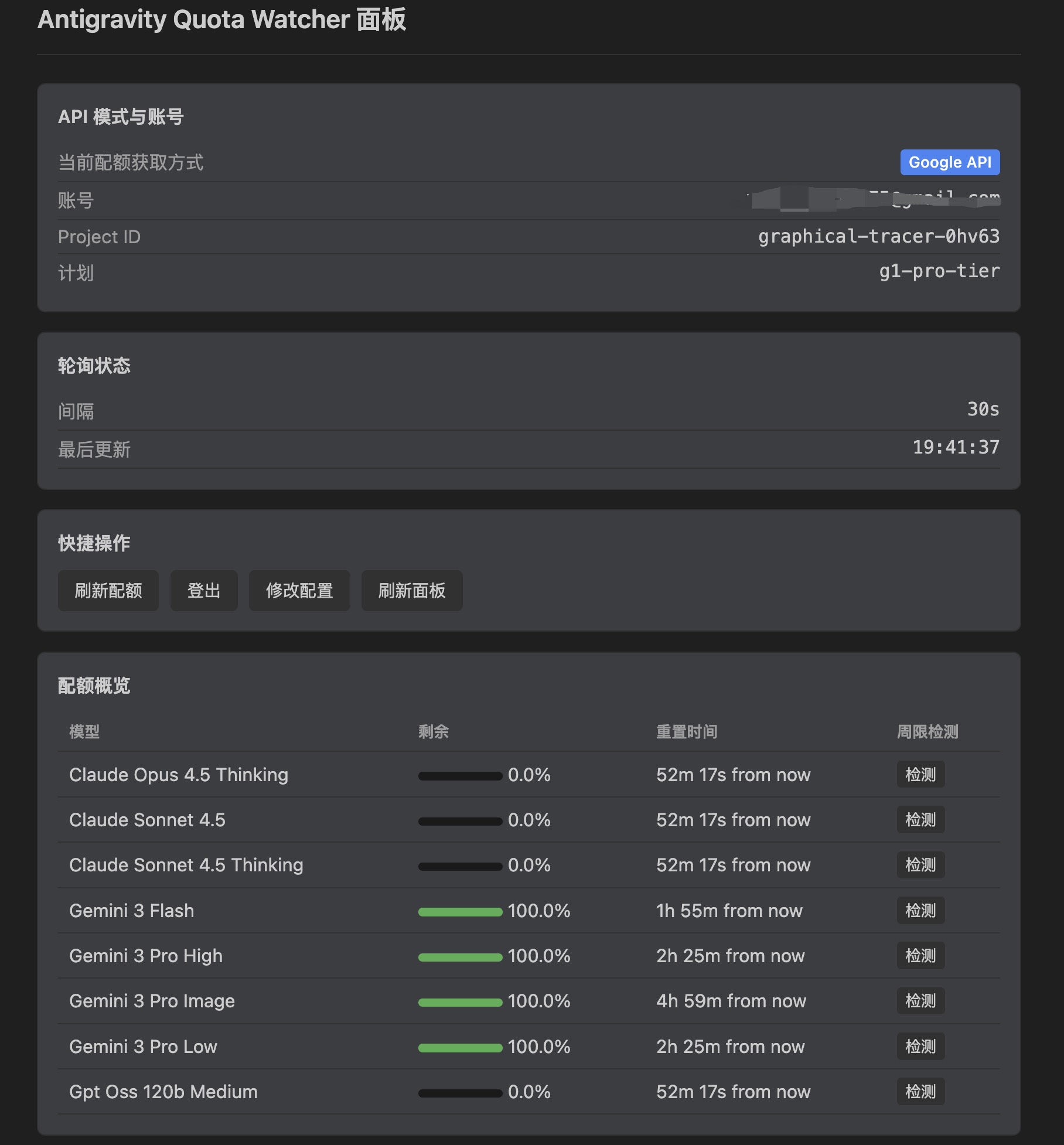
- Dashboard Panel: Provides quota overview, connection status, weekly limit detection and more
Dashboard
Open the Dashboard panel via command palette Antigravity Quota Watcher: Open Dashboard, which provides:
- Quota Overview: Displays all model quotas and reset times in a table
- Connection Status: Shows current API mode, port info, polling status, etc.
- Account Info: Displays current logged-in account and subscription plan
- Quick Actions: Refresh quota, re-detect port, login/logout, etc.
Weekly Limit Detection (click to expand)
In the Dashboard panel, you can check each model pool for weekly quota limits.
⚠️ Weekly limit detection sends a test request, which consumes a small amount of quota.
Quota Pools:
- Gemini 3.x Pool
- Claude / GPT Pool
- Gemini 2.5 Pool
Detection Logic:
                    Send test request (prompt: "Hi")
                                │
                                ▼
                        HTTP Status Code?
                                │
            ┌───────────────────┼───────────────────┐
            │                   │                   │
            ▼                   ▼                   ▼
           200                 429                Other
            │                   │                   │
            ▼                   ▼                   ▼
        ✅ Quota           Parse error          ❓ Unknown
            OK               .details              error
                                │
                                ▼
                            reason?
                                │
            ┌───────────────────┼───────────────────┐
            │                   │                   │
            ▼                   ▼                   ▼
      QUOTA_EXHAUSTED    RATE_LIMIT_       MODEL_CAPACITY_
            │              EXCEEDED           EXHAUSTED
            │                   │                   │
            ▼                   ▼                   ▼
        Reset time?        ⚠️ Too many        ⚠️ Server overloaded
            │                requests           Try again later
       ┌────┴────┐
       │         │
       ▼         ▼
      >5h       ≤5h
       │         │
       ▼         ▼
   ❌ Weekly  ⚠️ 5h rate
      limit      limit
Configuration Options
For detailed configuration instructions, please see: 📖 Configuration Documentation
Command Palette
The command palette allows you to manually invoke commands for troubleshooting and accessing less frequently used features.
Press Ctrl+Shift+P (Windows) or Cmd+Shift+P (Mac) to open the command palette. The following commands are available:
General Commands:
- Antigravity Quota Watcher: Refresh Quota - Manually refresh quota data
- Antigravity Quota Watcher: Open Dashboard - Open the Dashboard panel
Commands only for GET_USER_STATUS method:
- Antigravity Quota Watcher: Re-detect Port - Re-detect Antigravity service port
Commands only for GOOGLE_API method:
- Antigravity Quota Watcher: Login with Google - Login with Google account
- Antigravity Quota Watcher: Logout from Google - Logout from Google account
Status Bar Explanation
Click to expand
Status bar display format:
1. Progress Bar Mode
Display format: 🟢 Pro-L ████████ | 🔴 Claude ██░░░░░░
Visually shows the proportion of remaining quota.
2. Percentage Mode (Default)
Display format: 🟢 Pro-L: 80% | 🔴 Claude: 25%
Directly displays the percentage value of remaining quota.
3. Dots Mode
Display format: 🟢 Pro-L ●●●●○ | 🔴 Claude ●●○○○
Uses dots to visually represent remaining quota proportion, more concise and elegant.
Status Indicator Symbols
The dot symbol before each model indicates the current quota status:
- 🟢 Green: Remaining quota ≥ 50% (sufficient)
- 🟡 Yellow: Remaining quota 30%-50% (moderate)
- 🔴 Red: Remaining quota < 30% (insufficient)
- ⚫ Black: Quota exhausted (0%)
You can customize warningThreshold and criticalThreshold in settings to adjust the display level of status symbols.
Model Quota Details
Hover over the status bar to see remaining quota and next reset time for all models. Click the status bar to immediately refresh quota information.
Proxy Settings
Click to expand
Suitable for users who have not enabled TUN mode and use tools like Proxifier to proxy antigravity.
First, it should be clarified that antigravity has built-in proxy support, which can be controlled via the http.proxySupport setting:
| Value | Description |
|---|---|
override | Automatically use operating system proxy settings. If you have already set up a system proxy in your proxy software, antigravity will automatically detect and use it without additional configuration. |
on | Use the proxy manually configured in http.proxy |
fallback | Try direct connection first, then use proxy if it fails |
off | Do not use proxy at all |
The plugin will automatically inherit antigravity's proxy settings. If your antigravity is already able to access the network through a proxy normally, this plugin will also automatically use the same proxy without additional configuration.
In special cases, if you need to configure a proxy specifically for this plugin, you can use the plugin's independent proxy configuration feature:
Use environment variable proxy: Enable proxyEnabled and proxyAutoDetect, the plugin will automatically read HTTPS_PROXY or HTTP_PROXY environment variables.
OR
Manually specify proxy: Enable proxyEnabled, then fill in proxyUrl.
Notes
- First startup will delay 8 seconds before starting monitoring to avoid frequent requests
- If the status bar shows an error, use the "Re-detect Port" command to fix it
- Windows Users: If you encounter port detection errors, you can toggle the
forcePowerShelloption in settings. - This plugin is an unofficial tool and has no affiliation with Antigravity. This plugin relies on internal implementation details of the Antigravity language server, which may change at any time.
- This plugin supports VS Code fork IDEs (WindSurf, Kiro, VS Code, etc.) from V0.9.0. To watch model quotas in fork IDEs, switch to the GOOGLE_API method in settings. This method does not depend on the Antigravity local environment, making it also suitable for remote SSH projects.
Acknowledgments
- The Google API quota retrieval method comes from the Antigravity-Manager project. Thanks to the author for the contribution!
- Referenced the method for obtaining Antigravity local login account Token from anti-quota. Thanks to the author for the contribution!
- The weekly limit detection feature references the 2api method from gcli2api. Thanks to the author for the contribution!
Usage Agreement
This project is open-sourced under the MIT License. Please comply with the open-source license when using this project.
In addition, we hope you are aware of the following additional notes when using the code:
- When packaging or redistributing, please retain the source attribution: https://github.com/wusimpl/AntigravityQuotaWatcher
- Please do not use for commercial purposes. Use the code legally and compliantly.
- If the open-source license changes, it will be updated in this GitHub repository without separate notice.
License
MIT License