Tooling Operation
June 8, 2015 · View on GitHub
Save component
- This command is only enabled in salesforce code file of active project
- After code is updated, click
HaoIDE>Save to Serverin the context menu or press Ctrl+Alt+S - If the saving process failed, the console will be open and automatically hidden in 10 seconds, if you think 10 seconds is not enough to check the error message, you add it up to more by setting
delay_seconds_for_hidden_output_panel_when_failed
This command just supports ApexClass, ApexPage, ApexComponent and ApexTrigger, not support StaticResource, if you want to use it to update static resource, you should use Deploy to Server to see [Update StaticResource](#update-static-resource) Part in this page
Refresh component
- This command is only enabled in salesforce code file of active project
- After code is updated in UI or other IDE, press Ctrl+Alt+R or click
HaoIDE>Refresh From Serverto refresh it from server.
Delete component
- This command is only enabled in salesforce code file
- If you want to delete it from server, click
HaoIDE>Delete From Server
Refresh Multiply Components
Choose the components you want to refresh, and then Click HaoIDE > Refresh Selected Components in the Sidebar Menu
Delete Multiply Components
Choose the components you want to delete, and then Click HaoIDE > Delete Selected Components in the Sidebar Menu
New ApexClass
Click HaoIDE > New > New ApexClass, choose the predefined template, and then input the class name in the input panel at the bottom, after that, your class will be created.
New ApexPage
Click HaoIDE > New > New ApexPage, and then input the page name in the input panel at the bottom, after that, your page will be created.
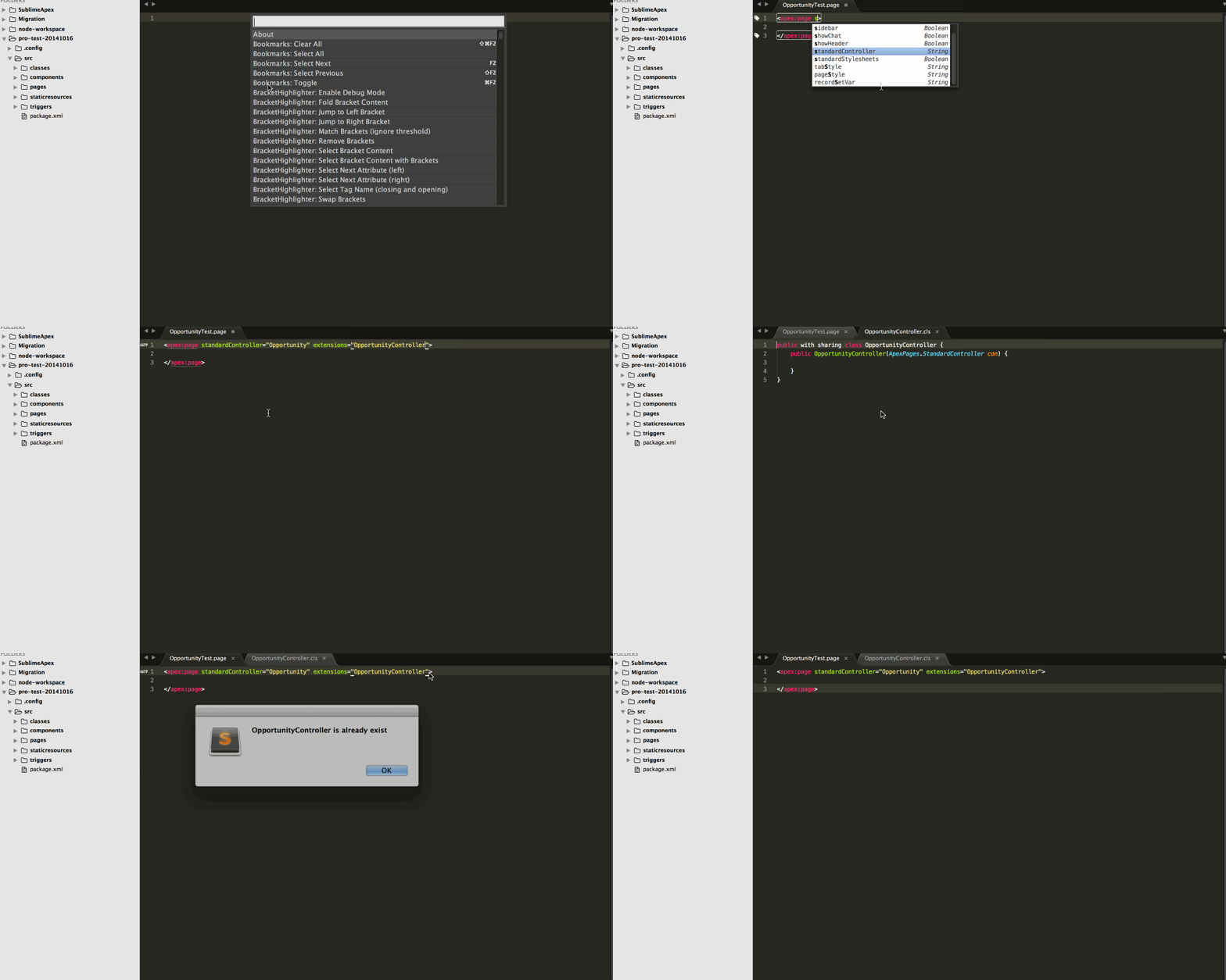
After you input # after extension or controller name in visualforce page, plugin will create it for you automatically, see demo
New ApexComponent
Click HaoIDE > New > New ApexComponent, and then input the component name in the input panel at the bottom, after that, your component will be created.
New ApexTrigger
Click HaoIDE > New > New ApexTrigger, choose the sobject on which you will create trigger, and then input the trigger name in the input panel at the bottom, after that, your trigger will be created.