🧭navigate-📝note.nvim
February 14, 2026 · View on GitHub


A Neovim plugin that merges navigation features (like those in arrow.nvim and harpoon) with note-taking capabilities
🎯Plugin Motivation
Navigating through project files and understanding them by taking notes is a crucial task for developers. While there are many tools available for navigation, such as arrow.nvim and harpoon, they often lack integrated note-taking capabilities aligned with navigation.
navigate-note.nvim aims to bridge this gap.
📐Design Philosophy
navigate-note.nvim creates a nav.md note in your project's root directory. This allows you to take notes and add links to files, facilitating navigation between them. By interleaving notes and file links, navigate-note aligns navigation with your understanding of the project.
📦Installation
-- Lazy.nvim
{
  "you-n-g/navigate-note.nvim",
  config=true,
}
For other configurations, please refer to more test configs.
🎥Demo
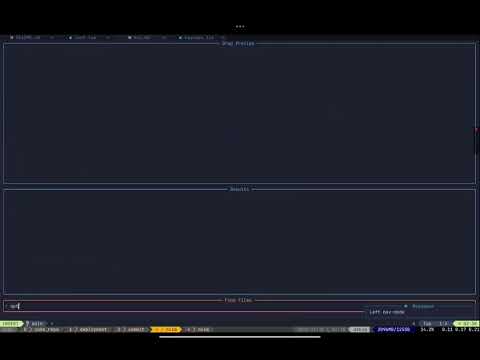
📖Features & Usage
-
Nav Mode
<m-h>: Switch to thenav.mdfile, your main hub for notes and navigation. If you're already innav.md, it takes you back to the last file you were on.<m-p>: Add the current file and line tonav.md. This is great for bookmarking important code sections.<m-cr>: Open the file and line under the cursor innav.md.
-
Tab Jumping and Preview
<tab>: Move to the nextfile:lineinnav.md.<s-tab>: Move to the previousfile:line.- A floating window shows a preview of the file content when you use
<tab>.
-
Fast Navigating
<numbers>: Jump to the i-th "file:line" entry.
-
Peeking Mode
- Get a quick look at file content without fully opening it.
- Use
<c-a>and<c-x>to change the line number in the preview.
-
Jump Mode
- Toggle between jumping to the file only or to the exact
file:linewith<m-l>. - In file-only mode, go to the start of the file; in file:line mode, go to the specific line.
- Toggle between jumping to the file only or to the exact
-
Tmux Integration
- Links in
nav.mdcan now be used to switch to specific Tmux sessions or windows. - Format:
[[T:session_name]]to switch to a session. - Format:
[[T:session_name.window_name]]to switch to a specific window within a session. - Format:
[[T:session_name.window_name.pane_index]]to switch to a specific pane within a window. - You can use
{current}as a placeholder for the current session, window, or pane.- Example:
[[T:{current}.{current}.{current}]]targets the currently active pane. - Example:
[[T:my_session.my_window.{current}]]targets the active pane in a specific window.
- Example:
- When you press
<m-cr>on such a link, the plugin will execute the correspondingtmuxcommand. - Sending Content to Tmux
- In normal mode, if
<m-cr>is pressed on a line containing afile:lineorT:session.windowlink, it will perform the existing jump or switch action. - If no link is found on the current line, the plugin will check if the cursor is within a code block (
```). If it is- the content of the current line will be sent to the nearest tmux target defined above it, and the plugin will switch to that tmux session/window.
- Note: If the target link does not specify a pane (e.g.,
[[T:session.window]]), content will be sent to the pane with the highest index (usually the last created or "other" pane). - In visual mode, pressing
<m-cr>will send the visually selected content to the nearest tmux target defined above the selection, and then switch to that tmux session/window.
- Default Tmux Target
- You can set a
default_tmux_targetin your configuration. If no[[T:...]]link is found above the cursor, the plugin will use this default target. - This can be a string or a function that returns a string.
- Example:
default_tmux_target = "T:{current}.gemini"
- You can set a
- In normal mode, if
- Links in
⚙️Advanced Setup
-- Lazy.nvim
{
  "you-n-g/navigate-note.nvim",
  opts = {
		filename = "nav.md", -- The filename of the markdown.
		width = 0.6, -- The width of the popup window when jumping in the file with <tab>.
    default_tmux_target = nil, -- The default tmux target (string or function, e.g., "T:session.window.pane") when no target is found in the file.
		keymaps = {
			nav_mode = {
				-- Navigation & Jumping
				next = "<tab>",
				prev = "<s-tab>",
				open = "<m-cr>",
				switch_back = "<m-h>", -- Switch back to the previous file from `nav.md`.
				-- Editing
				append_link = "<m-p>", -- (P)aste will more align with the meaning.
				-- Mode switching
				jump_mode = "<m-l>", -- When we jump to a file, jump to the file only or jump to the exact file:line.
			},
			add = "<localleader>na",
			open_nav = "<m-h>", -- Switch to `nav.md`.
		},
		link_surround = {  -- sometime you may want to change the link format in case of conflict with other formatting conversion.
			left = "[[", -- The left delimiter for links.
			right = "]]" -- The right delimiter for links.
		},
		context_line_count = { -- It would be a total of `2 * context_line_count - 1` lines.
			tab = 8,
			vline = 2,
		},
    enable_block = false, -- enable block navigation; block navigation indicates only the block under the cursor will display the peeking window; mark the block with --- or ***
  }
}
More detailed configuration are listed here. You can find my latest and preferred configuration here as an example.
☑️TODO
- Bug:
- Do not override the previous filename
- Directly open
nav.mdwill not enter nav mode - Wrong position when displaying tab floating with peeking mode
- Feature:
- Detailed Helper
- Peeking mode
- better left sign(reference)
- dynamic adjusting context length
🔨Development
Contributions to this project are welcome.
You can test the plugin in UI with minimal config with
If you prefer to run tests without a user interface, you can execute make test to initiate the test suite.
🔗Related Projects
- arrow.nvim: A navigation tool for Neovim.
- harpoon: Another navigation tool for Neovim.