Hostly
April 29, 2026 · View on GitHub
Language: English | 中文简体
Hostly (Minimalist Hosts Switcher)
An ultra-lightweight, high-performance Hosts management tool built on Tauri v2 + Rust. By removing the frontend framework (migrating to Vanilla JS), we have pushed size and performance to the extreme.
🤖 Special Note: This project was deeply designed and implemented with the help of the AI agent, pursuing ultimate simplicity and efficiency.
✨ Core Features
- 🚀 Lightning Fast: Built with JS + Native CSS. Single-file app size is ~1MB with millisecond cold-start.
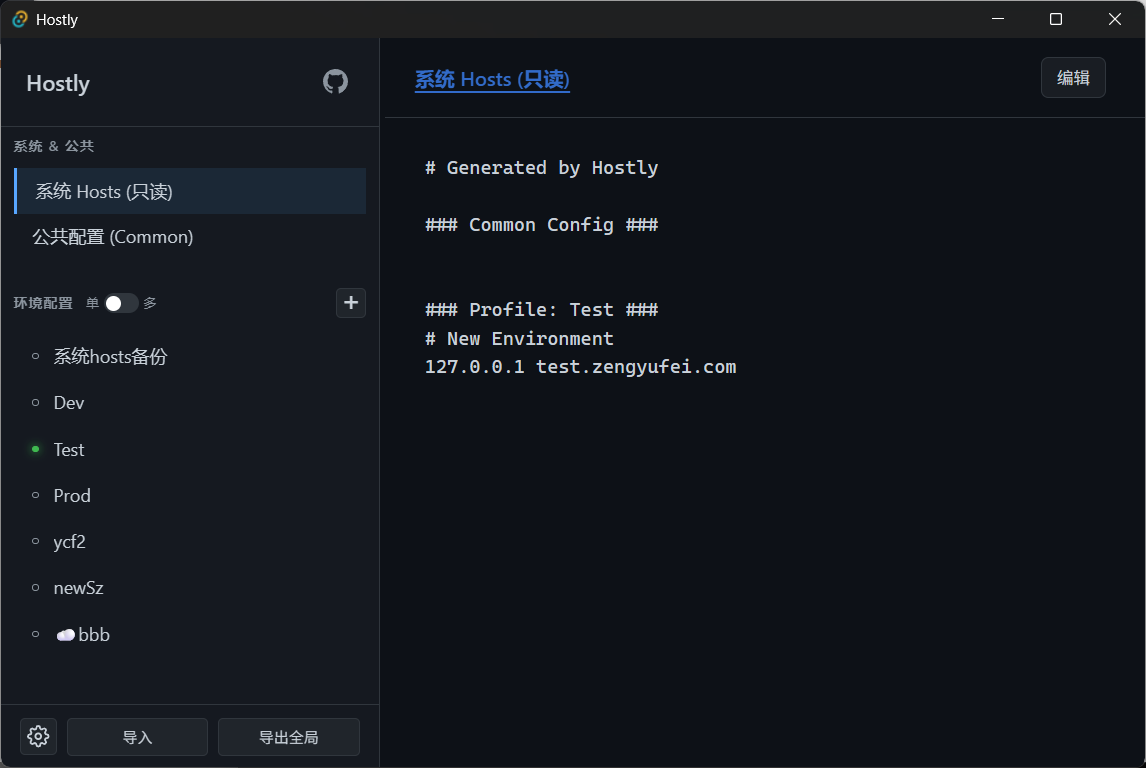
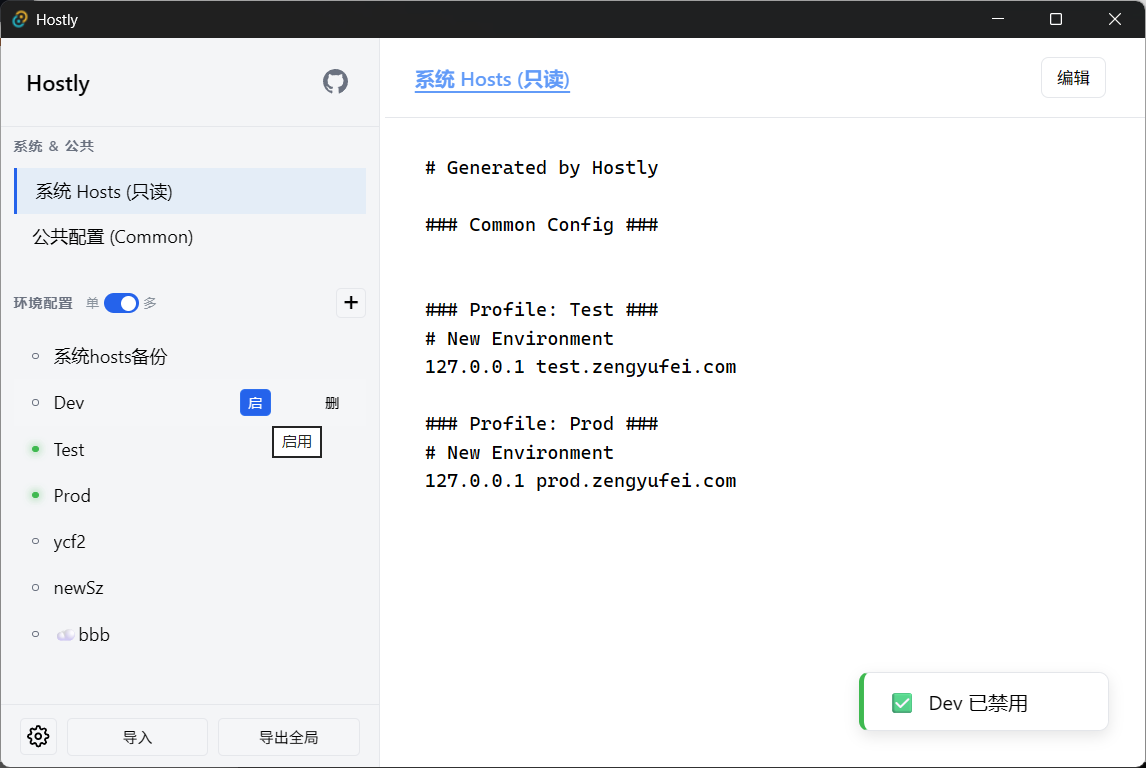
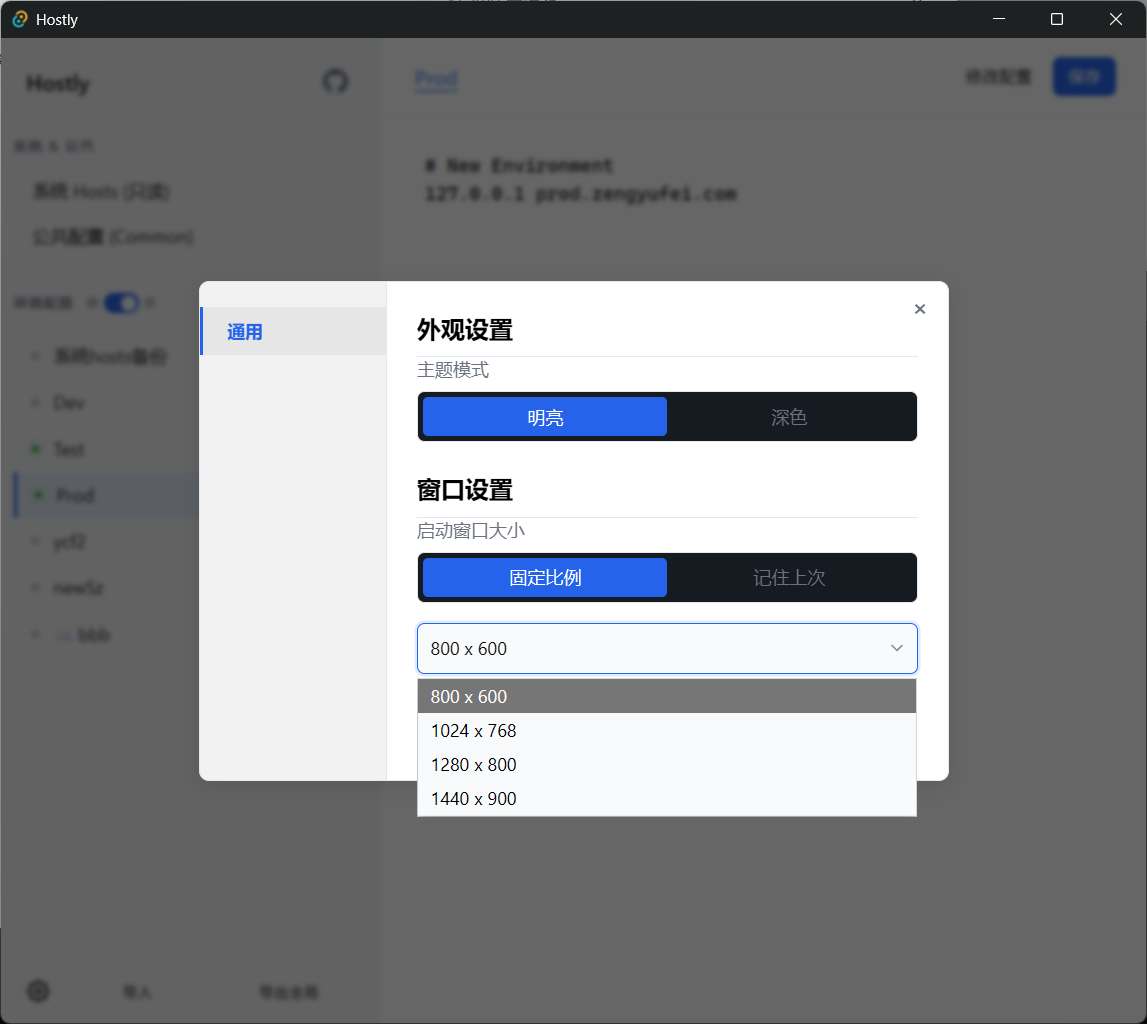
- 🎨 Modern UI & Personalization: Supports sidebar drag-to-resize, built-in Light/Dark themes, and window size memory.
- ⚡ Optimized Startup Experience: Startup performance and visuals optimized for various system environments.
- 🔔 Non-Intrusive Feedback: Built-in lightweight Toast notification system — say goodbye to disruptive confirmation dialogs.
- 🛡️ Smart Privilege Escalation: Automatically detects admin privileges and escalates on demand, supporting direct editing of the system Hosts file.
- ⚙️ Dual-Mode Operation: Fully supports GUI visual operation and professional CLI command-line invocation.
- 🤖 Headless CLI: Provides a standalone
hostly-corebinary, designed for server/CI environments with zero GUI dependencies. - 🔄 Migration Support: Supports importing SwitchHosts configurations for a seamless transition.
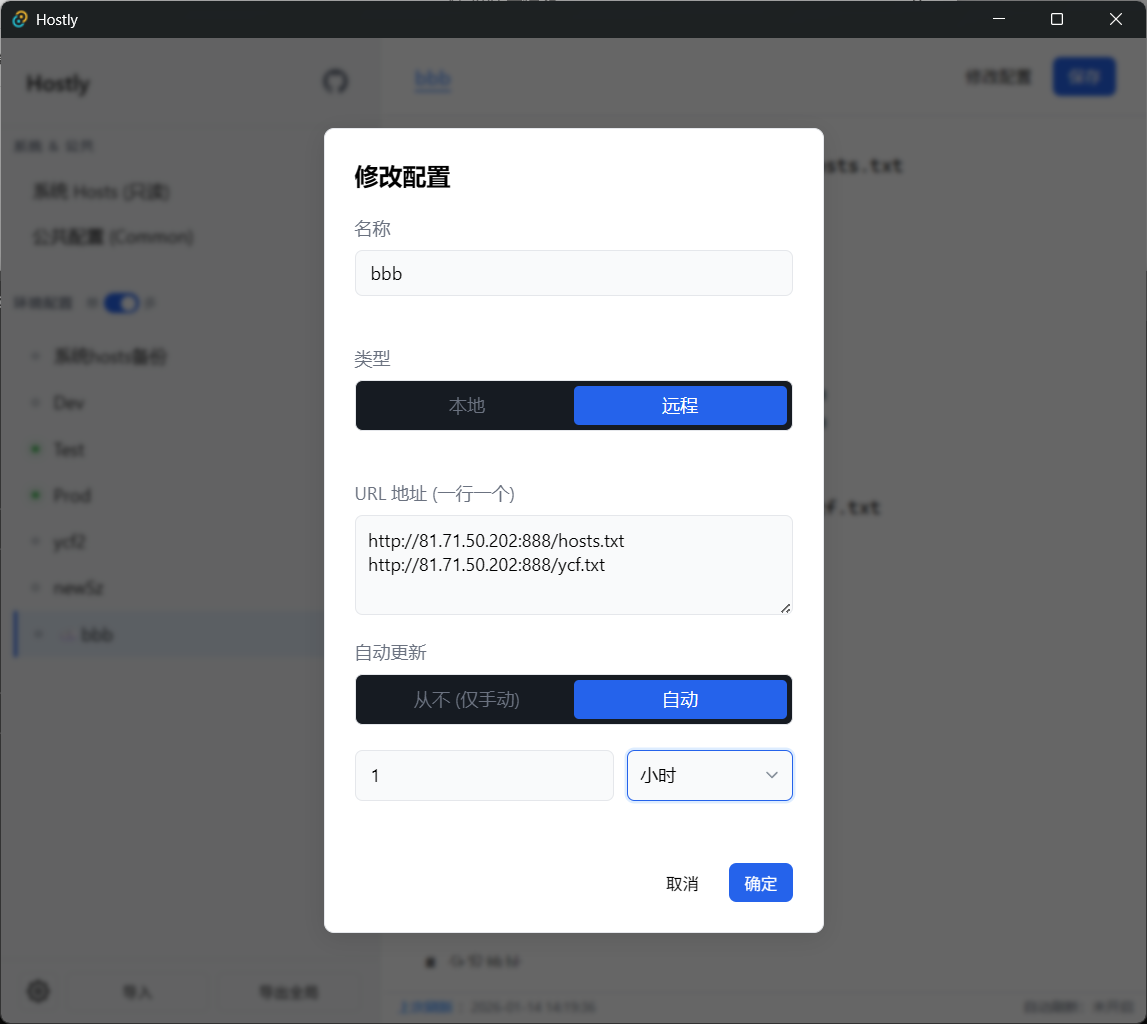
- ☁️ Remote Subscriptions: Supports adding remote Hosts sources (HTTP/HTTPS), silently auto-updated by a background scheduler.
- 🍎 Universal Architecture Support: Builds for macOS (Intel & Apple Silicon), as well as Windows and Linux.
- 🔌 Data Portability: Supports full configuration import/export as text files.
🧩 Feature Details
- UI Interaction:
- Drag to Resize: Drag the left divider to customize sidebar width; the app remembers your preference.
- Theme Follow: Automatically applies the system or last-used theme on startup for a smooth visual experience.
- Sidebar Layout: Unified management of "System Backup", "Public Config", and "Custom Environments".
- Multi-Mode Support:
- Single-Select Mode: Mutually exclusive switching to keep hosts clean.
- Multi-Select Mode: Multiple environments can be stacked and activated simultaneously.
- Command Line (CLI): Full sub-command support, available in two modes:
hostly: Distributed with the GUI, suitable for desktop users, supportsopen/list/exportand more.hostly-core: Pure CLI version, smaller footprint, no GUI dependency, ideal for automation scripts.
- Remote Config & Auto-Update:
- Subscriptions: Add a URL to subscribe to a remote config with a customizable update interval (default: 1 hour).
- Interactive Status Bar: When a remote config is selected, the bottom status bar shows live update status with a one-click force-refresh button.
- Background Scheduling: Built-in smart scheduler (activates 5 seconds after startup) silently performs updates in the background without blocking the UI.
🚀 Quick Start
Build & Run
# After cloning the project
npm install

# Enter development mode
npm run tauri dev

# Build release package (output in src-tauri/target/release/)
npm run tauri build
Common CLI Commands
You can use hostly, hostly-core, or the released Windows CLI binaries to run the following commands:
Tip: On Windows,
hostly-cli-elevated-win-x64.exeautomatically requests UAC elevation.hostly-cli-win-x64.exemust be run as Administrator manually.
| Command | Description | Example |
|---|---|---|
list | List all configurations and their status | hostly list |
open | Activate one or more environments | hostly open --names Dev Test --multi |
close | Deactivate a specified environment | hostly close --names Dev |
multi / single | Toggle global selection mode | hostly multi |
export | Export configuration or backup | hostly export --target global.json |
import | Import configuration or backup | hostly import --target global.json single.txt or an http/https URL |
migration | Migrate a SwitchHosts backup | hostly migration --target swV4_backup.json |
Example:
hostly-cli-elevated-win-x64.exe import ycf --target hosts.txt --open --singleSwitches to single-select mode, imports hosts.txt into "ycf" and activates it. Creates "ycf" if it doesn't exist.
Example:
hostly-cli-elevated-win-x64.exe import ycf --target hosts.txt --open --multiSwitches to multi-select mode, imports hosts.txt into "ycf" and activates it. Creates "ycf" if it doesn't exist.
Example:
hostly-cli-elevated-win-x64.exe import ycf --target http://localhost:8080/hosts.txt --open --multiSwitches to multi-select mode, imports the remote hosts.txt into "ycf" and activates it. Creates "ycf" if it doesn't exist.
🛠️ FAQ
Q: Why is the generated app so small?
A: Because we use the browser's native DOM operations and native CSS directly, with zero dependency on any heavy third-party libraries (like React/Vue/Tailwind, etc.), achieving the ultimate minimal runtime overhead and file size (~1MB).
Q: Which download is recommended?
A:
- Windows GUI: Regular users are recommended to download
hostly-gui-elevated-win-x64.exe. If you want a non-elevating GUI build, downloadhostly-gui-win-x64.exeand right-click → Run as Administrator when needed.- Windows CLI: Use
hostly-cli-elevated-win-x64.exefor automatic UAC prompts, orhostly-cli-win-x64.exeif you prefer to manage Administrator privileges manually.- macOS (Apple Silicon / M1/M2...): Download the version with the
aarch64oruniversalsuffix.- macOS (Intel): Download the version with the
x86_64oruniversalsuffix.
⚠️ macOS Users Note: If you see "app is damaged and can't be opened", this is due to unsigned app security restrictions. Run the following command in Terminal to fix it:
xattr -cr /Applications/Hostly.app
Q: Can't open with double-click or getting a permission error?
A: Please check which version you are using:
- hostly-gui-elevated-win-x64.exe: Has built-in auto-elevation logic; a UAC prompt will appear on startup — click "Yes" to allow.
- hostly-cli-elevated-win-x64.exe: Has built-in auto-elevation logic for CLI commands and will relaunch through UAC when needed.
- hostly-gui-win-x64.exe / hostly-cli-win-x64.exe: These builds do not include auto-elevation. You must right-click → Run as Administrator, or go to Properties → Compatibility → check "Run this program as an administrator" for permanent elevation.
Q: Getting "Permission Denied" on macOS or Linux?
A: Modifying the system hosts file is a privileged operation.
- Linux: Run with
sudo ./hostly-core-linux-x64.- macOS: The GUI version will automatically prompt for a password. For CLI, ensure you have run with
sudoor have the appropriate permissions beforehand.
Q: Why does a new window briefly pop up and close after running a CLI command?
A: This is because the main process was launched without admin privileges. To gain the necessary permissions, it spawns a new admin child process to execute the command. This is normal Windows security behavior. --
Q: How do I migrate my SwitchHosts backup?
A:
- GUI: Click the "Import" button in the sidebar and directly select the SwitchHosts backup JSON file — it will be auto-detected.
- CLI: Use the dedicated migration command:
hostly migration --target sw_backup.json. --
📄 License
MIT