SvgToImage!
October 5, 2022 · View on GitHub
A program to convert SVG images to PNG/JPEG/TIFF/TGA, written in Java using the Processing creative coding framework!
Processing Libraries made by very the friendly community this program puts to use!:
:)
This was probably the second time in my life I wrote actual software that could be used by the common man on a day-to-day basis.
Licensing:
The "GNU GPLv3" is the license this program is distributed under. You may also refer to newer versions of the GNU GPL!

One instance of the license itself is available at https://raw.githubusercontent.com/Brahvim/SvgToImage/main/LICENSE. You should get it in the zip file you download.
Things needed before installation:
Please make sure you have Java installed! The Oracle JDK you would usually get from https://java.com/download should work, but I recommend using OpenJDK binaries from https://adoptium.net/temurin/releases.
This should fix issues where the application does not start at all.
Please make sure the "Package Type" is "JRE" and you have chosen correct settings for your computer!
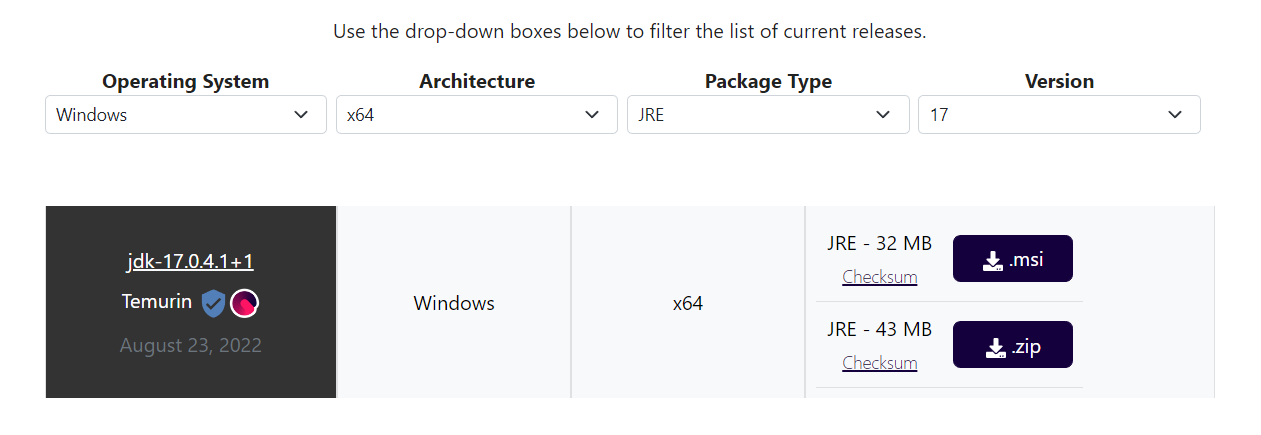
You are recommended to use the latest version of the JRE, but for guaranteed compatibility with this application, you may choose to use JRE 8.
How to install SvgToImage:
-
Please select a version from: https://github.com/Brahvim/SvgToImage/tags
-
Unzip the file you downloaded,
-
Open the folder you got from unzipping. You may see another folder named the same. If so, open it as well.
-
You will see a file with the
.jarfile extension. This is the program. -
For your convenience, please move the folder the JAR file is in, along with all of its other contents, to a folder such as
C:/Windows/Program Files(or whatever is equivalent on the operating system you are using), or some other folder of your choice other than yourDownloadsfolder, since it is usually filled with clutter.
How to use:
Drag-and-drop an SVG file (.svg extension only! Please rename the file to change the extension if needed.) onto this window:
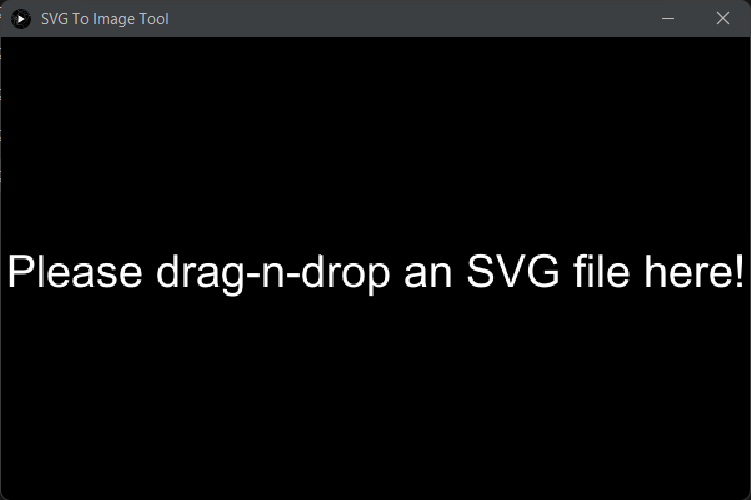
Another window with some options will appear.
Here, specify the width and height (resolution) of the image, and the file format you want it in.
Click "Export and view." to export the file. The explorer program (at least on Microsoft Windows) should open automatically. A file with the same name as the one you put will appear, with a different extension, in a folder named "data", which is in the same folder where the program is.
If you export multiple times, the file names are suffixed with (1), (2) and vice-versa.
To convert another file, simply drag-and-drop it onto the window that previews your output.
You can also try out the "Disable style?" option, which basically, removes colors from the image (using Processing's PShape class's disableStyle() method).
Troubleshooting, and known problems:
First of all: Please report any problem not listed by creating a new GitHub issue. You will need a GitHub account.
The program does not start!
Please install Java properly.
If you get this error:
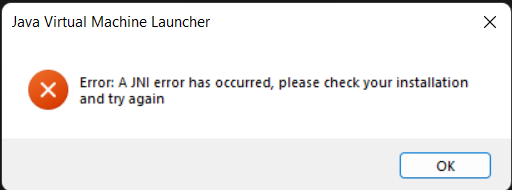
Please see: the Things needed before installation section.
No explorer window starts up...
This maybe because you are not using the Microsoft Windows operating system. This feature might be added someday.
A file named svg.svg appears in the data folder!
This is a rare error, but if it happens, delete svg.svg. In an early (un-released) developement version of SvgToImage,
this error occured because the user would input a file not of the SVG format. In all stable versions of the program, this generally should not occur.
The preview does not display / displays incorrectly!
Click on the preview window. This should force the program to recalculate the image display.
Plans:
- CLI Mode! Since I provide the application as a single JAR file and not as a Launch4j wrapped executable,
I can actually make a command line version, code for which is can bee seen in
CliMode.pde