veld
July 19, 2025 · View on GitHub
veld
A modern, tileable, terminal-based file manager built with Python and Textual.


About
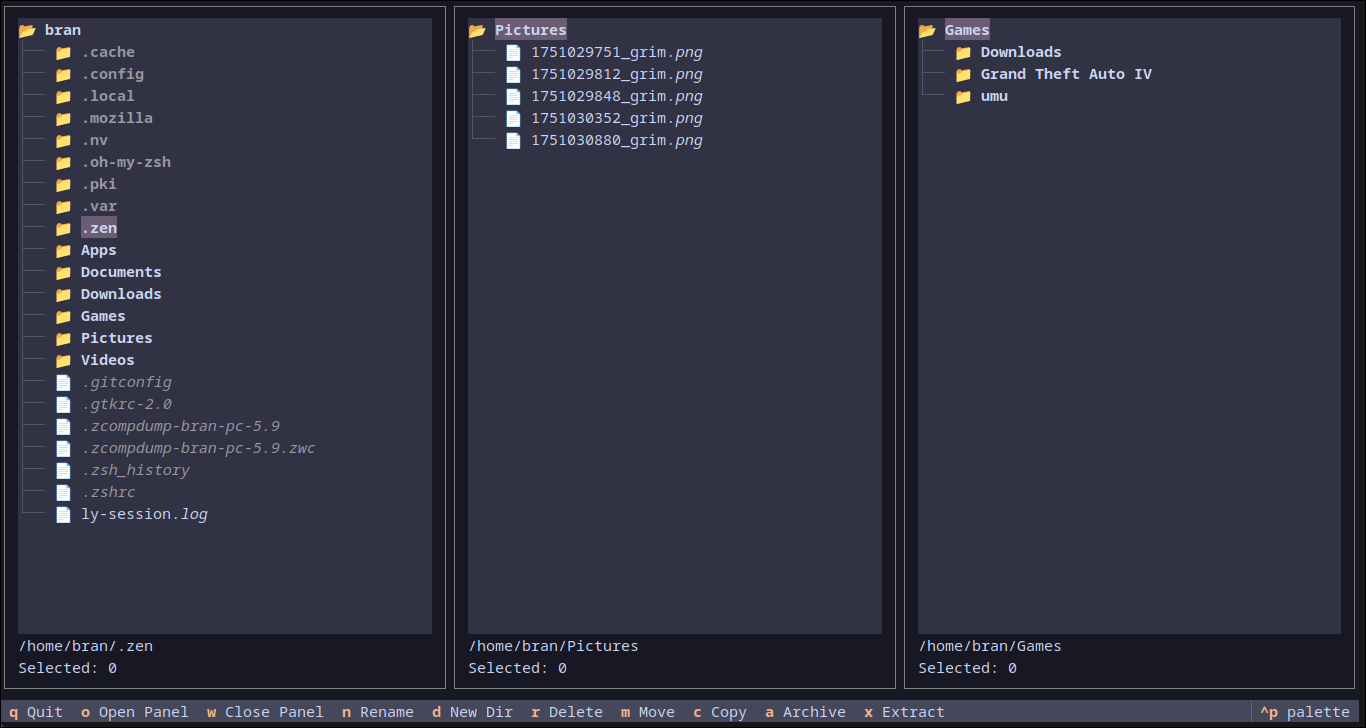
veld is a powerful, modern file manager that runs directly in your terminal. Inspired by classic TUIs like Ranger and Midnight Commander, veld offers a fresh take with an emphasis on simplicity, ease of use, and multi-panel navigation.
✨ Features
- 🗂️ Tileable Panels: Open multiple directory views side-by-side to streamline your workflow.
- 📂 Toggle-able File Previews: Automatically see a preview of the highlighted file—text, code, and even images. Press a key to hide it when you need more space.
- 🔍 Recursive File Search: Instantly find files and directories within the current panel.
- ⌨️ Intuitive Navigation: Navigate your filesystem and switch between panels with familiar, ergonomic keybindings.
- ⚙️ Powerful File Operations: Perform common operations like copy, move, delete, and rename in the active panel.
- ዚ Archive Management: Create and extract zip/tar archives directly within the file manager.
- 🎨 Customizable Keybindings: Don't like the defaults? Change every keybinding by editing a simple configuration file.
- 🐧 Cross-Platform: Built with Python and Textual,
veldruns on Linux, macOS, and Windows. - Vim Mode: Queue up file operations and execute them in a batch, Vim-style.
🚀 Installation
You need Python 3.9+ and pip installed.
Install the latest development version directly from GitHub:
pip install git+https://github.com/BranBushes/veld-fm.git
Or using uv:
uv pip install git+https://github.com/BranBushes/veld-fm.git
This will install veld and make the veld command available in your terminal.
💻 Usage
Once installed, you can run veld from anywhere in your terminal. You can also provide an optional starting directory for the first panel.
# Start in the default home directory
veld

# Start in the ~/Documents directory
veld ~/Documents
Navigating Panels
Use Tab and Shift+Tab to cycle focus between open panels. The active panel is highlighted with a colored border.
Vim Mode
Veld includes an optional Vim-style command mode for batching file operations.
- Enter Command Mode: Press
:to open the command input. :vim- Toggles Vim Mode on or off.:w- Executes (writes) all queued actions.:c- Clears all queued actions.
When Vim Mode is active, a list of queued actions will appear in the bottom-right corner.
⌨️ Keybindings
Keybindings are organized by function and can be fully customized (see Configuration section).
Application & Panel Management
| Key | Action |
|---|---|
| q | Quit the application |
| o | Open a new panel (prompts for path) |
| O (Shift+o) | Open panel at selected directory |
| w | Close the active panel |
| p | Toggle the preview panel |
| backspace | Close the search panel |
| : | Enter Command Mode |
File & Directory Operations
| Key | Action |
|---|---|
| enter | Open file or directory (default app) |
| e | Open file with... (prompts for command) |
| space | Toggle file selection |
| f | Find files/directories |
| n | Rename a file |
| d | Create a directory |
| r | Delete selected files (queues in Vim Mode) |
| m | Move selected files |
| c | Copy selected files (queues in Vim Mode) |
| a | Archive selected items |
| x | Extract highlighted archive |
🔧 Configuration
On the first run, a config file is created at ~/.config/veld-fm/config.toml. You can edit this file to change keybindings.
🧑💻 For Developers
To set up a development environment:
git clone https://github.com/BranBushes/veld-fm.git
cd veld-fm
./setup.sh # This creates a venv and installs in editable mode
source .venv/bin/activate
Made with ❤️ from Bangladesh!