PSWriteColor - PowerShell module
September 5, 2026 · View on GitHub










PSWriteColor - PowerShell module
Write-Color is a wrapper around Write-Host allowing you to create nice looking scripts, with colorized output. More information for this project at my Evotec website.
Support This Project
If you find this project helpful, please consider supporting its development. Your sponsorship will help the maintainers dedicate more time to maintenance and new feature development for everyone.
It takes a lot of time and effort to create and maintain this project. By becoming a sponsor, you can help ensure that it stays free and accessible to everyone who needs it.
To become a sponsor, you can choose from the following options:
Your sponsorship is completely optional and not required for using this project. We want this project to remain open-source and available for anyone to use for free, regardless of whether they choose to sponsor it or not.
If you work for a company that uses our .NET libraries or PowerShell Modules, please consider asking your manager or marketing team if your company would be interested in supporting this project. Your company's support can help us continue to maintain and improve this project for the benefit of everyone.
Thank you for considering supporting this project!
ChangeLog
- 1.0.3 - 2025.04.21
- 📃 Improves
HorizontalCenterby AU-Mark
- 📃 Improves
- 1.0.2 - 2025.04.21
- 📃 Added
HorizontalCenterby AU-Mark
- 📃 Added
- 1.0.1 - 2023.04.30
- 🐛 Fixes UTF8 issue when publishing to PowerShell Gallery
- 1.0.0 - 2023.04.23
- 📃 Converted tabs to spaces in code (no difference in output)
- 📃 Updated documentation
- 💡 Added
NoConsoleOutputto allow only writting to file, and skipping console output - 🐛 Removed throwing exceptions when couldn't write to file (
Write-Warningwill be triggered instead)
- 0.87.3 - 2021.04.12
- 💡 Disabled
WhatIffunctionality for Out-File which would prevent logging to file - 💡 Added
LogRetry(2) to provide option to retry logging to file up to X number of times in case issue with saving to file occurs (race condition)
- 💡 Disabled
- 0.87.2 - 2020.07.20
- 📦 Added a space for LogTime and ShowTime
- 📦 Signed module
- 0.87.1 - 2020.06.19
- 🐛 Resolves issue with nuget download (changed version from 0.87 to 0.87.1). As per link it requires version to be longer.
- 0.87.0 - 2020.01.12
- 🐛 Throw errors when can't save to file with LogFile. Before it would use Write-Output which could deliver unpredictable results
Quick install
Install-Module -Name "PSWriteColor" -Force
Import-Module PSWriteColor
How output works
Write-Color joins the supplied text segments without inserting separators and writes each segment with its assigned color. When there are fewer colors than segments, the remaining segments use the first color. Background colors, when supplied, must have the same count as foreground colors. Write-Colour is an alias; wc is not exported.
The command writes host output on PowerShell's information stream and returns no objects on the success pipeline. Use it for status messages and prompts, rather than data that another command needs to process. -NoNewLine lets the next message continue on the same console line.
-LogFile appends the original joined text to a literal filename, optionally prefixed with a timestamp. Console spacing, padding, and -NoNewLine do not change log entries. Parent directories must exist. -LogRetry is the maximum number of attempts, including the first; exhausted attempts produce warnings. Logging still runs under $WhatIfPreference, and -NoConsoleOutput suppresses only console output.
Fixed-width rows
Write-Color '1. ', 'Start backup' -Color Yellow, White -PadRight 32
Write-Color ' MENU ' -PadCenter 32 -PadCharacter '-' -Color Cyan
Write-Color 'Total: ', '42' -Color Gray, Green -PadLeft 32
Choose one positive padding width. Padding applies to the combined text without truncating longer messages, and center padding puts an odd extra character on the right. Padding and filled -LinesBefore/-LinesAfter rows use the first foreground and background colors. Indentation and timestamps sit outside the requested width.
-HorizontalCenter centers the text, including padding, in the visible host window before adding indentation or a timestamp. Blank rows keep their existing position at the start of the line. Hosts without window dimensions emit the text without added centering spaces. Width calculations count string characters for single-line text; ANSI sequences, tabs, multiline layout, and wide Unicode characters require caller-managed display-width handling.
Development
The module supports Windows PowerShell 5.1 and PowerShell 7. From a checkout, import ./PSWriteColor.psd1 to exercise the source. With Pester 5.7.1 installed, run Invoke-Pester ./Tests. The tests cover the imported command, host output, logging, padding, and centering.
Build and documentation generation use PSPublishModule. Regenerate command help from Public/Write-Color.ps1 with:
./Build/Manage-Module.ps1 -ConfigurationGateMode Documentation
This updates Docs and en-US without signing or publishing. Do not edit generated command help directly. For an unsigned local build, use ./Build/Manage-Module.ps1 -SignModule $false -SkipInstall; normal builds retain the configured certificate-based signing.
Publishing is an explicit mode. Documentation, Manifest, and the default Build mode do not publish or read publishing keys. Publish builds and signs the module, then publishes to PowerShell Gallery and the EvotecIT/PSWriteColor GitHub releases:
./Build/Manage-Module.ps1 -ConfigurationGateMode Publish -SkipInstall `
    -PowerShellGalleryApiKeyPath '/path/to/PowerShellGalleryAPI.txt' `
    -GitHubApiKeyPath '/path/to/GitHubAPI.txt'
The key-file parameters have Windows workstation defaults under C:\Support\Important; pass the appropriate local paths on other machines. The configured signing certificate is the Evotec Services certificate ending in 6DD30F1A, valid through December 2028. Signed builds require access to its private key on the signing workstation. -RunMode is an alias for -ConfigurationGateMode.
Existing command names, parameter positions, defaults, and first-color fallback are retained. The fixes intentionally change edge cases: negative spacing and nonpositive LogRetry values are rejected, log paths no longer expand wildcards, and horizontal centering uses the visible window with corrected rounding. New padding parameters can also make previously abbreviated parameter names ambiguous; use full names or the documented aliases in scripts.
Examples
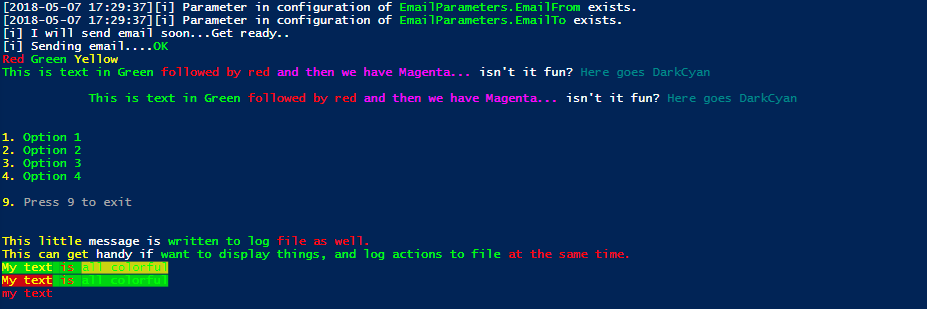
# Example 1
Write-Color "[i] ", "Parameter in configuration of ", "EmailParameters.EmailFrom", " exists." -Color White, White, Green, White -ShowTime
Write-Color "[i] ", "Parameter in configuration of ", "EmailParameters.EmailTo", " exists." -Color White, White, Green, White -ShowTime
# Example 2
Write-Color "[i] ", "I will send email soon...", "Get ready.." -Color White
Write-Color "[i] ", "Sending email...." -Color White, White -NoNewLine
<#
    Do Something....
#>
if ($true) {
    Write-Color -Text "OK" -Color Green
}
# Example 3
Write-Color -Text "Red ", "Green ", "Yellow " -Color Red, Green, Yellow
Write-Color -Text "This is text in Green ",
"followed by red ",
"and then we have Magenta... ",
"isn't it fun? ",
"Here goes DarkCyan" -Color Green, Red, Magenta, White, DarkCyan
Write-Color -Text "This is text in Green ",
"followed by red ",
"and then we have Magenta... ",
"isn't it fun? ",
"Here goes DarkCyan" -Color Green, Red, Magenta, White, DarkCyan -StartTab 3 -LinesBefore 1 -LinesAfter 1
Write-Color "1. ", "Option 1" -Color Yellow, Green
Write-Color "2. ", "Option 2" -Color Yellow, Green
Write-Color "3. ", "Option 3" -Color Yellow, Green
Write-Color "4. ", "Option 4" -Color Yellow, Green
Write-Color "9. ", "Press 9 to exit" -Color Yellow, Gray -LinesBefore 1
$LogPath = Join-Path ([IO.Path]::GetTempPath()) 'PSWriteColor.log'
Write-Color -LinesBefore 2 -Text "This little ", "message is ", "written to log ", "file as well." `
        -Color Yellow, White, Green, Red, Red -LogFile $LogPath -TimeFormat "yyyy-MM-dd HH:mm:ss"
Write-Color -Text "This can get ", "handy if ", "want to display things, and log actions to file ", "at the same time." `
        -Color Yellow, White, Green, Red, Red -LogFile $LogPath
# Example 4 with backgrund colors and usage of aliases
Write-Color -T "My text", " is ", "all colorful" -C Yellow, Red, Green -B Green, Green, Yellow
Write-Color -T "My text", " is ", "all colorful" -C Yellow, Red, Green -B Red, Green, Green
# Example 5 with aliases
Write-Colour -t "my text" -C Red