MediaSFUOpen
July 25, 2026 · View on GitHub









MediaSFUOpen is the unified open-source Community Edition server for MediaSFU. Built on top of Node.js, Express, Socket.IO, and Mediasoup 3, MediaSFUOpen powers sub-30ms ultra-low latency WebRTC video conferencing, audio streaming, screen sharing, collaborative whiteboards, breakout rooms, and AI voice/telephony agent integration.
🌐 The MediaSFU Ecosystem & Official SDK Suite
MediaSFU provides a multi-platform real-time media stack spanning web frameworks, native mobile OSs, gaming engines, PSTN telephony, and multimodal AI agents.
| Platform / SDK | Package Registry | Source Repository | Description |
|---|---|---|---|
| React.js | mediasfu-reactjs (npm) | MediaSFU-ReactJS | WebRTC SDK & prebuilt UI components for React |
| React Native (Expo) | mediasfu-reactnative-expo (npm) | MediaSFU-ReactNative-Expo | WebRTC SDK tailored for Expo cross-platform apps |
| React Native (CLI) | mediasfu-reactnative (npm) | MediaSFU-ReactNative | WebRTC SDK for native React Native iOS & Android |
| Flutter | mediasfu_sdk (pub.dev) | MediaSFU_SDK_Flutter | Cross-platform Flutter WebRTC package |
| Angular | mediasfu-angular (npm) | MediaSFU-Angular | WebRTC SDK for Angular applications |
| Vue.js | mediasfu-vue (npm) | MediaSFU-Vue | WebRTC SDK for Vue 3 applications |
| Core / Shared | mediasfu-shared (npm) | MediaSFU-Shared | Core WebRTC state engine & signal protocol |
| Kotlin (Android) | Native Android SDK | MediaSFU-Kotlin | Native Android WebRTC SDK for Kotlin |
| Swift (iOS) | Native iOS SDK | MediaSFU-Swift | Native iOS WebRTC SDK for Swift |
| Unity | Unity Package Manager | MediaSFU-Unity | 3D / AR / VR spatial WebRTC audio & video SDK |
| VOIP Telephony | — | MediaSFU/VOIP | SIP / PSTN telephony bridge & reference suite |
| AI Multimodal Agents | — | MediaSFU/Agents | Multimodal AI voice & vision agent framework |
Interactive AI Agent Playgrounds
- BYO API Keys Workspace: agents.mediasfu.com/playground
- Hosted Agent Playground: agentsmediasfu.com
📞 AI Phone Agents at $0.10 per 1,000 Minutes
MediaSFU powers cost-efficient AI voice agents over traditional telephony networks.
- 🇺🇸 +1 (785) 369-1724 — Mixed Support Demo
- 🇬🇧 +44 7445 146575 — AI Conversation Demo
- 🇨🇦 +1 (587) 407-1990 — Technical Support Demo
- 🇨🇦 +1 (647) 558-6650 — Friendly AI Chat Demo
Traditional providers charge ~$0.05 per minute ($50 per 1,000 mins). MediaSFU charges $0.10 per 1,000 minutes — up to 500x cheaper.
- ✅ Deploy AI Phone Agents in 30 Minutes
- ✅ Works with ANY SIP Provider (Twilio, Telnyx, Zadarma, Bandwidth, etc.)
- ✅ Seamless AI-to-Human Handoffs
- ✅ Real-Time Call Analytics & Transcription
📖 Complete SIP/PSTN & Telephony Documentation →
Cloud/NAT users (AWS/GCP/Azure): After setting your public
ip, ensure mediasoup transports advertise it by settingannouncedIpinlistenIps(see the installation step for the exact before/after snippet).
💡 Key Features
- Sub-30ms WebRTC Media Routing: Powered by
mediasoup 3for multi-stream simulcast video and opus audio. - Screen Sharing & Real-Time Annotations: Share high-resolution screens with live interactive canvas overlays.
- Collaborative Whiteboard: Multi-user interactive drawing canvas with shape tools and state synchronization.
- Breakout Rooms: Dynamically segment large meetings into smaller focused sub-rooms.
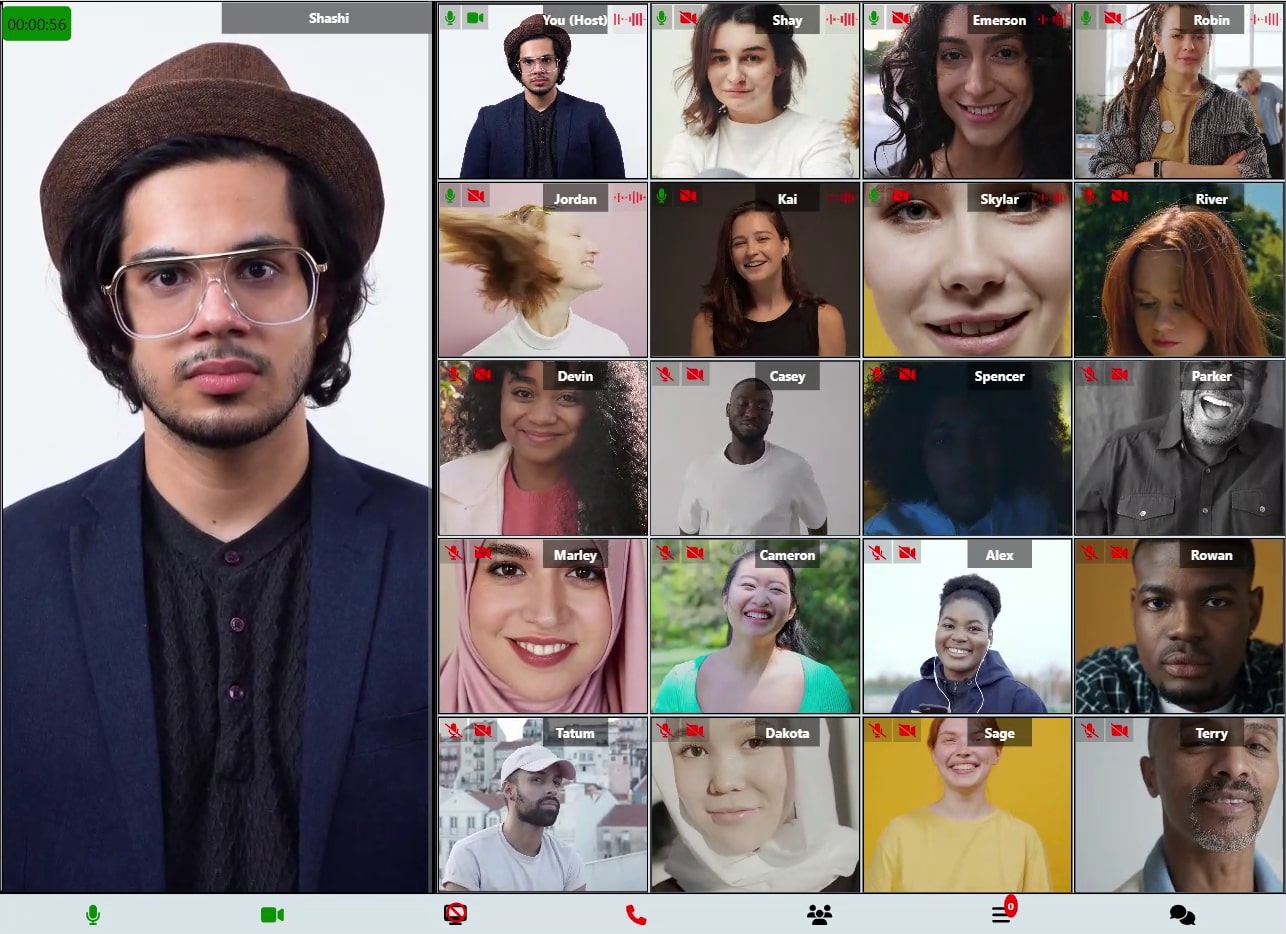
- Smart Grid & Pagination: Responsive grid layout supporting up to 100 HD or 200 SD concurrent participants.
- Real-Time Polls & Direct/Group Chat: Engage audience with live polling and end-to-end socket messaging.
- Virtual Backgrounds & Video Effects: Integrated MediaPipe Selfie Segmentation for background blur and custom images.
- Track-Based Cloud Recording & Egress: Customizable server-side recording with track isolation, watermarks, and name tags.
- Waiting Room & Access Controls: Manage host permissions, entry requests, and co-host responsibilities.
- SIP / PSTN Integration: Bridge WebRTC conference rooms directly to traditional phone networks.
🚀 Installation & Deployment
Prerequisites
- Node.js:
v18.xorv20.x - npm:
v9.xor higher - Build Tools:
python3,make,g++(required for compiling nativemediasoupworker binaries)
1. Localhost Setup (Development with SSL)
WebRTC media capture (getUserMedia) requires a secure context (HTTPS or localhost).
-
Generate Local SSL Certificates:
# Execute local SSL setup
npm run localssl
# Or execute bash script directly
chmod +x localssl.sh && ./localssl.sh
This generates
local.com.keyandlocal.com.peminside./ssl/. -
Start Server:
npm run dev:localAccess the app at:
https://localhost:3000
2. Production Deployment (Ubuntu Linux)
For a detailed step-by-step video guide, watch the MediaSFUOpen Installation Guide on YouTube.
Step 1: System Packages & Node.js Setup
sudo apt-get update && sudo apt-get upgrade -y
curl -fsSL https://deb.nodesource.com/setup_18.x | sudo -E bash -
sudo apt-get install -y nodejs nginx certbot python3-certbot-nginx
Step 2: Firewall Port Configuration
MediaSFU relies on specific ports for HTTP signaling and WebRTC UDP/TCP media transport:
# OpenSSH & Web
sudo ufw allow OpenSSH
sudo ufw allow http
sudo ufw allow https
sudo ufw allow 3000

# Mediasoup WebRTC Media Transport Ports
sudo ufw allow 40000:49999/udp
sudo ufw allow 40000:49999/tcp

sudo ufw --force enable
Step 3: Cloud & NAT IP Configuration (index.js)
If hosting on AWS EC2, GCP, Azure, or behind a NAT router, ensure Mediasoup advertises your server's Public IP to WebRTC clients:
Set environment variables in .env or edit index.js:
LISTEN_IP=0.0.0.0
ANNOUNCED_IP=your_server_public_ip
PORT=3000
In index.js:
const webRtcTransport_options = {
  listenIps: [
    {
      ip: process.env.LISTEN_IP || "0.0.0.0",
      announcedIp: process.env.ANNOUNCED_IP || "your_server_public_ip",
    },
  ],
  enableUdp: true,
  enableTcp: true,
  preferUdp: true,
};
Step 4: Nginx Reverse Proxy Setup
Edit /etc/nginx/sites-available/default:
server {
    server_name example.mediasfu.com;

    location / {
        proxy_pass http://localhost:3000;
        proxy_http_version 1.1;
        proxy_set_header Upgrade $http_upgrade;
        proxy_set_header Connection 'upgrade';
        proxy_set_header Host $host;
        proxy_set_header X-Real-IP $remote_addr;
        proxy_set_header X-Forwarded-For $proxy_add_x_forwarded_for;
        proxy_cache_bypass $http_upgrade;
    }
}
Issue Let's Encrypt SSL certificate:
sudo certbot --nginx -d example.mediasfu.com
sudo systemctl restart nginx
-
Obtain SSL certificates using Certbot:
sudo certbot --nginx -d example.mediasfu.com -
Final Nginx configuration:
The final Nginx configuration should look like this:
server {
    root /var/www/html;
    server_name example.com demo.example.com; #your domain details

    location / {
        proxy_pass http://localhost:3000; #whatever port your app runs on
        proxy_set_header X-Real-IP $remote_addr; # Capture client's real IP
        proxy_set_header X-Forwarded-For $proxy_add_x_forwarded_for; # Capture client's forwarded IP(s)
        proxy_http_version 1.1;
        proxy_set_header Upgrade $http_upgrade;
        proxy_set_header Connection 'upgrade';
        proxy_set_header Host $host;
        proxy_cache_bypass $http_upgrade;
    }

    listen 443 ssl; # managed by Certbot
    ssl_certificate /etc/letsencrypt/live/example.com/fullchain.pem; # managed by Certbot
    ssl_certificate_key /etc/letsencrypt/live/example.com/privkey.pem; # managed by Certbot
    include /etc/letsencrypt/options-ssl-nginx.conf; # managed by Certbot
    ssl_dhparam /etc/letsencrypt/ssl-dhparams.pem; # managed by Certbot

}

server {
    if ($host = example.com) {
        return 301 https://$host$request_uri;
    } # managed by Certbot

    listen 80;
    server_name example.com demo.example.com;
    return 404; # managed by Certbot
}
Restart Nginx:
sudo systemctl restart nginxNote: Replace
example.comwith your domain details. You may need to enable the Nginx service to start on boot:sudo systemctl enable nginx -
Install PM2 globally:
sudo npm install pm2 -g -
Edit the
index.jsfile to specify your server's IP address:Open the
index.jsfile located in the root directory of your MediaSFUOpen installation.Find the section of code where the IP address is specified, usually near the beginning of the file.
Change the IP address to your server's public IP address.
Save the changes and close the file.
// Example: Change this line to your server's public IP address
// If on AWS/GCP/Azure behind NAT, use your Elastic/Public IP (not a private 10.x/172.31.x)
const ip = 'your_server_public_ip';
If you're deploying on AWS/GCP/Azure (NAT/Elastic IP), also update your mediasoup transport config so the announced public IP is used by clients:
```javascript // BEFORE listenIps: [ { ip: ip, announcedIp: null, }, ], // AFTER (cloud/NAT) listenIps: [ { ip: '0.0.0.0', announcedIp: ip, // your Elastic/Public IP here }, ], ``` Updating the IP address ensures that MediaSFUOpen binds to the correct network interface and listens on the appropriate IP address. -
🛡️ Edit the
index.jsfile to specify safe origins for secure Socket.IO ConnectionsTo restrict Socket.IO connections to specific origins for enhanced security, follow these steps:
Open the
index.jsfile located in your Node.js application's directory.Find the section of code where the safe origins are specified.
Add the origins you want to allow to the
safeOriginsarray.Save the changes and close the file.
// Example: Define safe origins
const safeOrigins = [`https://localhost:${PORT}`];
Replace with the origins you want to allow. You can add as many origins as needed to the array. Example:
const safeOrigins = ['https://example.com', 'http://localhost:3000']; -
Start the MediaSFU application using PM2:
sudo pm2 start index.js -
Access the application:
You can access your MediaSFU application at
/meeting/starton your domain. Starting a meeting is straightforward and easy. If you need help, refer to the documentation for a guide and full feature access. -
Replace images and HTML files:
If needed, you can replace the images located in the
publicandpublic_altfolders with your own images. Additionally, update the HTML files in the project to match your brand. -
Maximum Participants:
MediaSFU recommends a maximum of 100 participants on HD or 200 on SD video.
Once the installation is complete, your MediaSFU application will be running with SSL enabled, providing a secure streaming environment.
📹 Video Walkthroughs & Documentation
- 🎥 MediaSFUOpen Installation Guide
- 🎥 React SDK Setup Guide
- 🎥 Flutter SDK Setup Guide
- 🎥 React Native SDK Setup Guide
- 📖 Connecting SDKs to Server Guide (
CONNECT.md) - 📖 macOS Setup Guide (
macOS_SETUP.md) - 📖 Windows Setup Guide (
WINDOWS_SETUP.md)
📄 License & Links
Distributed under the MIT License. See LICENSE for more information.
These guides will cover:
- Installing Node.js and dependencies on macOS or Windows.
- Adjusting firewall settings or using system tools to open necessary ports.
- Obtaining or creating SSL certificates and configuring your application to run securely.
- Setting up reverse proxies (if needed) and local web servers.
- Using PM2 or platform-specific process managers.
- Any platform-specific instructions that differ from the Ubuntu production setup.
Cloud Recording & Egress
Cloud Recording and Egress are powerful features provided by MediaSFU.com as part of their MediaSFU Cloud services. These features enable functionalities such as cloud recording, capturing audio buffers, real-time image processing for machine learning (ML) applications (e.g., Large Language Models), and other egress purposes.
By default, MediaSFU is configured to support these egress capabilities. However, to utilize these features effectively, you need to perform specific configurations. This section provides detailed instructions on enabling cloud recording and configuring your client applications to connect securely to your MediaSFU server.
Overview
-
Enable Cloud Recording:
- Configure environment variables.
- Provide necessary API credentials.
- Set the operational mode (sandbox or production).
-
Connect Client Applications to MediaSFU Server:
- Configure
safeOriginsfor each client framework. - Utilize MediaSFU Keys for enhanced security.
- Refer to Quickstart Guides for specific frameworks.
- Configure
-
Security Best Practices:
- Implement authentication methods.
- Restrict cross-origin requests.
- Use SSL/TLS for encrypted communication.
1. Enable Cloud Recording
Cloud recording is a premium feature that allows you to record media streams for later playback, analysis, or processing.
Steps to Enable Cloud Recording:
-
Edit the
.envFile:Open the
.envfile located in the root directory of your MediaSFU installation. -
Set
ALLOWRECORDtotrue:Enable recording by modifying the
ALLOWRECORDenvironment variable.ALLOWRECORD=true -
Provide API Credentials:
Obtain a valid username and API key from MediaSFU.com. These credentials are essential for authenticating recording requests.
APIUSERNAME=your_mediasfu_username APIKEY=your_mediasfu_apikey -
Set the Operational Mode:
MediaSFU offers different modes to suit your development and production needs.
- sandbox: Ideal for development and testing. It allows requests from non-registered domains but comes with usage limitations.
- production: Designed for live deployments. It restricts requests to registered domains and offers unlimited usage.
MODE=sandboxor
MODE=productionNote: After editing the
.envfile, save the changes and restart your MediaSFU server to apply the new configurations.Sample
.envfile:-
Edit the
.envfile:Open the
.envfile located in the root directory of your MediaSFU installation. -
Set
ALLOWRECORDto true:Change the value of
ALLOWRECORDto true.ALLOWRECORD=true -
Provide API credentials:
You need a valid username and API key from MediaSFU.com to enable recording. You can obtain these credentials from MediaSFU.com.
- APIUSERNAME: Your MediaSFU username
- APIKEY: Your MediaSFU API key
APIUSERNAME=your_mediasu_username APIKEY=your_mediasfu_apikey -
Set the mode:
MediaSFU provides demo, sandbox, and production keys. You may use either the sandbox or production mode.
-
MODE: Choose either sandbox or production mode based on your needs.
- sandbox: Allows requests from non-registered domains but is limited.
- production: Only allows requests from registered domains and is unlimited.
MODE=sandboxMake sure to save the changes after editing the
.envfile and restart. -
-
Subscription Plans:
For detailed information about available subscription plans, visit MediaSFU Subscription Info.
Note:
The majority of subscription fees are designed to support large organizations and institutions that manage numerous users under a single profile. This structure allows for the efficient handling of sub-users, ensuring seamless scalability and robust support. The fees help cover the overhead costs associated with maintaining and servicing extensive client bases, providing reliable performance and dedicated resources to meet the needs of large-scale deployments.Additional Note:
If your organization does not require support for a large number of users, please contact our support team. We can credit your account and adjust your subscription to accommodate a reduced number of sub-user limits, ensuring you only pay for the resources you need.
Connecting Your MediaSFU SDKs to the Community Edition Server
To connect your MediaSFU SDKs to the Community Edition server, follow these steps:
Additional Resources
📡 Connecting Your MediaSFU SDKs to the Community Edition Server
To connect your MediaSFU SDKs to the Community Edition server, follow the guides below based on your preferred framework:
✅ Video Guides Available:
-
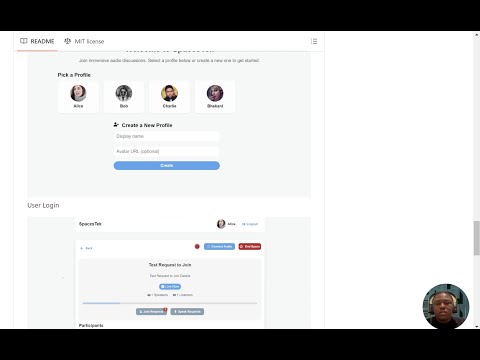
React SDK Setup: Watch the React SDK Setup Guide
-
Flutter SDK Setup: Watch the Flutter SDK Setup Guide

-
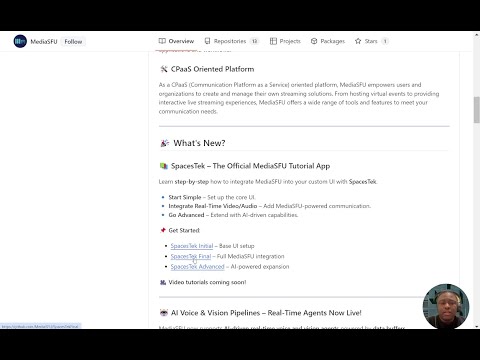
React Native SDK Setup (Expo & CLI): Watch the React Native SDK Setup Guide
🚧 Coming Soon:
- Angular SDK Setup (Coming Soon)
For additional instructions, refer to the Connecting SDKs Documentation.