README.md
June 8, 2026 · View on GitHub

MarkersExtractor (CLI & Library)




Marker metadata extraction and conversion tool and library for Final Cut Pro.
Core Features
- Accurately extract markers and captions from FCP's FCPXML/FCPXMLD data export format
- Ability to batch extract and render stills or animated GIFs based on each marker's timecode
- Ability to batch burn-in labels of each marker's metadata onto the stills or animated GIFs
- Fast, multi-threaded operation
Extract Profiles
- Notion (JSON) - Compatible with CSV2Notion Neo
- Airtable (JSON) - Compatible with Airlift
- Generic JSON
- Comma-separated values (CSV) - Compatible with spreadsheet applications
- Tab-separated values (TSV) - Compatible with spreadsheet application
- Microsoft Excel (XLSX)
- YouTube Chapters (TXT)
- Compressor Chapters (TXT)
- Markdown List (MD)
- SubRip Subtitle (SRT)
- Standard MIDI File - Compatible with most audio DAWs
Table of contents
Installation
First, ensure your system is configured to allow the tool to run:
Privacy & Security Settings
Navigate to the Privacy & Security settings and set your preference to App Store and identified developers.

Pre-Compiled CLI Binary
Download the latest release of the CLI universal binary here.
Extract the markers-extractor-cli-portable-x.x.x.zip file from the release.
Using Homebrew
$ brew install TheAcharya/homebrew-tap/markers-extractor
$ brew uninstall --cask markers-extractor
Upon completion, find the installed binary markers-extractor located within /usr/local/bin. Since this is a standard directory part of the environment search path, it will allow running markers-extractor from any directory like a standard command.
Pre-Compiled CLI Binary (macOS Installer)
Install
Download the latest release of the CLI installer package here.
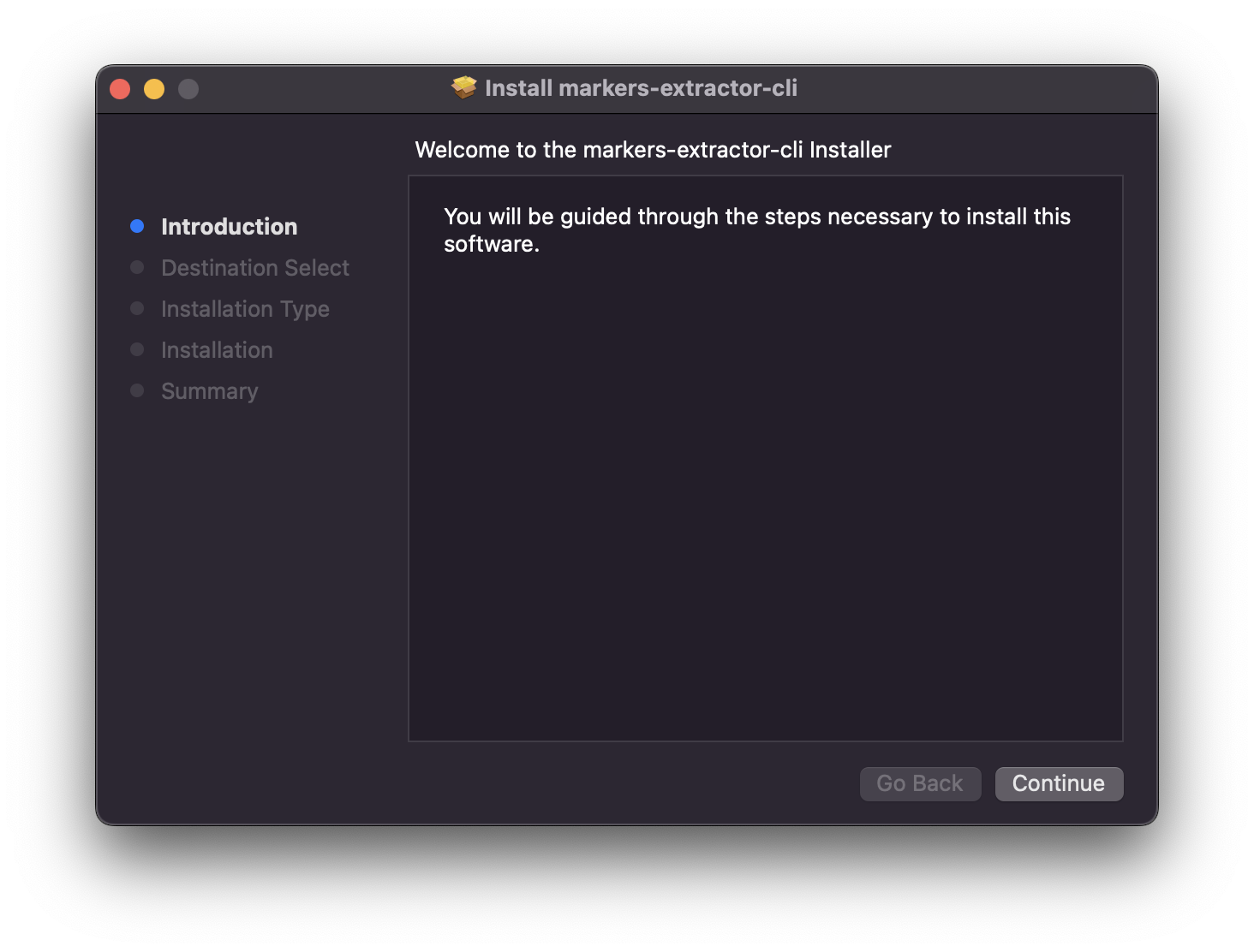
Use the markers-extractor-cli.pkg installer to install the command-line binary into your system. Upon completion, find the installed binary markers-extractor located within /usr/local/bin. Since this is a standard directory part of the environment search path, it will allow running markers-extractor from any directory like a standard command.
Uninstall
To uninstall, run this terminal command. It will require your account password.
sudo rm /usr/local/bin/markers-extractor
Compiled From Source
VERSION=0.4.6 # replace this with the git tag of the version you need
git clone https://github.com/TheAcharya/MarkersExtractor.git
cd MarkersExtractor
git checkout "tags/$VERSION"
swift build -c release
Once the build has finished, the markers-extractor executable will be located at .build/release/.
Usage
CLI
$ markers-extractor --help
OVERVIEW: Tool to extract markers from Final Cut Pro FCPXML/FCPXMLD.

https://github.com/TheAcharya/MarkersExtractor

USAGE: markers-extractor [<options>] <fcpxml-path> <output-dir>

ARGUMENTS:
  <fcpxml-path>           Input FCPXML file / FCPXMLD bundle.
  <output-dir>            Output directory.

GENERAL:
  --export-format <airtable | compressor | csv | json | markdown | midi | notion | srt | tsv | xlsx | youtube>
                          Metadata export format. (default: csv)
  --enable-subframes      Enable output of timecode subframes.
  --folder-format <short | medium | long>
                          Output folder name format. (default: medium)
  --id-naming-mode <timelineNameAndTimecode | name | notes>
                          Marker naming mode. This affects Marker IDs and image
                          filenames. (default: timelineNameAndTimecode)

MARKER FILTERING:
  --markers-source <markers | markersAndCaptions | captions>
                          Annotations to import. If captions are used, their
                          start timecode determines their position. (default:
                          markers)
  --exclude-role <name>   Exclude markers with a specified role. This argument
                          can be supplied more than once to apply multiple role
                          exclusions.
  --include-disabled      Include markers on disabled clips. By default,
                          disabled clips are ignored.

IMAGE:
  --image-format <png | jpg | gif>
                          Marker thumb image format. 'gif' is animated and
                          additional options can be specified with --gif-fps
                          and --gif-span. (default: png)
  --image-quality <0...100>
                          Image quality percent for JPG. (default: 85)
  --image-width <w>       Limit image width keeping aspect ratio.
  --image-height <h>      Limit image height keeping aspect ratio.
  --image-size-percent <1...100>
                          Limit image size to % keeping aspect ratio. (default
                          for GIF: 50)
  --gif-fps <0.1...60.0>  GIF frame rate. (default: 10.0)
  --gif-span <sec>        GIF capture span around marker. (default: 2.0)
  --use-chapter-marker-thumbnails
                          For chapter markers, use their thumbnail pin position
                          for thumbnail image generation.

LABEL:
  --label <id | name | type | checked | status | notes | reel | scene | take | position | clipType | clipName | clipIn | clipOut | clipDuration | clipKeywords | videoRole | audioRole | eventName | projectName | libraryName | iconImage | imageFileName | image | xmlPath>
                          Label to overlay on thumb images. This argument can
                          be supplied more than once to apply multiple labels.
  --label-copyright <text>
                          Copyright label. Will be appended after other labels.
  --label-font <name>     Font for image labels. (default: Menlo-Regular)
  --label-font-size <pt>  Maximum font size for image labels, font size is
                          automatically reduced to fit all labels. (default: 30)
  --label-opacity <0...100>
                          Label opacity percent (default: 100)
  --label-font-color <#RRGGBB / #RGB>
                          Label font color (default: #FFF)
  --label-stroke-color <#RRGGBB / #RGB>
                          Label stroke color (default: #000)
  --label-stroke-width <w>
                          Label stroke width, 0 to disable. (default: auto)
  --label-align-horizontal <left | center | right>
                          Horizontal alignment of image labels. (default: left)
  --label-align-vertical <top | center | bottom>
                          Vertical alignment of image labels. (default: top)
  --label-hide-names      Hide names of image labels.

LOG:
  --result-file-path <path>
                          Path including filename to create a JSON result file.
                          If this option is not passed, it won't be created.
  --log <log>             Log file path.
  --log-level <trace | debug | info | notice | warning | error | critical>
                          Log level. (values: trace, debug, info, notice,
                          warning, error, critical; default: info)
  --quiet                 Disable log.
  --no-progress           Disable progress logging.

MEDIA:
  --media-search-path <path>
                          Media search path. This argument can be supplied more
                          than once to use multiple paths. (default: same
                          folder as fcpxml(d))
  --no-media              Bypass media. No thumbnails will be generated.

MIDI FILE:
  --allow-utf8-midi       Allows UTF-8 text encoding when exporting a MIDI
                          file. Note that not all music software supports
                          reading UTF-8 text events from MIDI files.

OPTIONS:
  --version               Show the version.
  -h, --help              Show help information.
Examples
Basic creation of folders and shell script
For ease of use, usage and creation of shell scripts (.sh files) is recommended.
- Create a folder called
MarkersExtractoron your Desktop. - Place the latest pre-compiled binary with the folder.
- Within that folder, create two more additional folders,
RenderandOutput. Renderis where you place yourfcpxml(d)and media files. Make sure yourfcpxml(d)and media file have identical filename.Outputis where the marker data set files will be generated.- Create a file using any text editor. Name the script file with extension
.sh. - Copy and paste this syntax into the file, where
xxxis the name of of your user directory andzzzis the name of your.fcpxmldfile.#!/bin/sh TOOL_PATH="/Users/xxx/Desktop/MarkersExtractor/markers-extractor" FCPXML_PATH="/Users/xxx/Desktop/MarkersExtractor/Render/zzz.fcpxmld" OUTPUT_DIR="/Users/xxx/Desktop/MarkersExtractor/Output" ERROR_LOG="/Users/xxx/Desktop/MarkersExtractor/log.txt" $TOOL_PATH "$FCPXML_PATH" "$OUTPUT_DIR" \ --export-format notion --image-format png \ --result-file-path ./result.json \ --log-level debug --log $ERROR_LOG - Save the script file as
myscript.shwithin yourMarkersExtractorfolder. - To give execute permission to your script, open Terminal,
chmod +x /Users/xxx/Desktop/MarkersExtractor/myscript.sh - To execute your script, open Terminal,
sh /Users/xxx/Desktop/MarkersExtractor/myscript.sh - You can create and save multiple shell scripts for different modes and configurations.
- If the
--result-file-pathoption is supplied with a path including filename (ie:./result.json), the tool will create a JSON file at that path once the export is complete. See Result File Contents for details.
PNG Mode with Labels
#!/bin/sh

TOOL_PATH="/Users/xxx/Desktop/MarkersExtractor/markers-extractor"
FCPXML_PATH="/Users/xxx/Desktop/MarkersExtractor/Render/zzz.fcpxmld"
OUTPUT_DIR="/Users/xxx/Desktop/MarkersExtractor/Output"
ERROR_LOG="/Users/xxx/Desktop/MarkersExtractor/log.txt"

$TOOL_PATH "$FCPXML_PATH" "$OUTPUT_DIR" \
  --export-format notion --image-format png \
  --label name --label type --label notes --label position \
  --label-copyright "Road Runner & Coyote Productions" \
  --log-level debug --log $ERROR_LOG
Final Cut Pro

Output

GIF Mode with Labels
#!/bin/sh

TOOL_PATH="/Users/xxx/Desktop/MarkersExtractor/markers-extractor"
FCPXML_PATH="/Users/xxx/Desktop/MarkersExtractor/Render/zzz.fcpxmld"
OUTPUT_DIR="/Users/xxx/Desktop/MarkersExtractor/Output"
ERROR_LOG="/Users/xxx/Desktop/MarkersExtractor/log.txt"

$TOOL_PATH "$FCPXML_PATH" "$OUTPUT_DIR" \
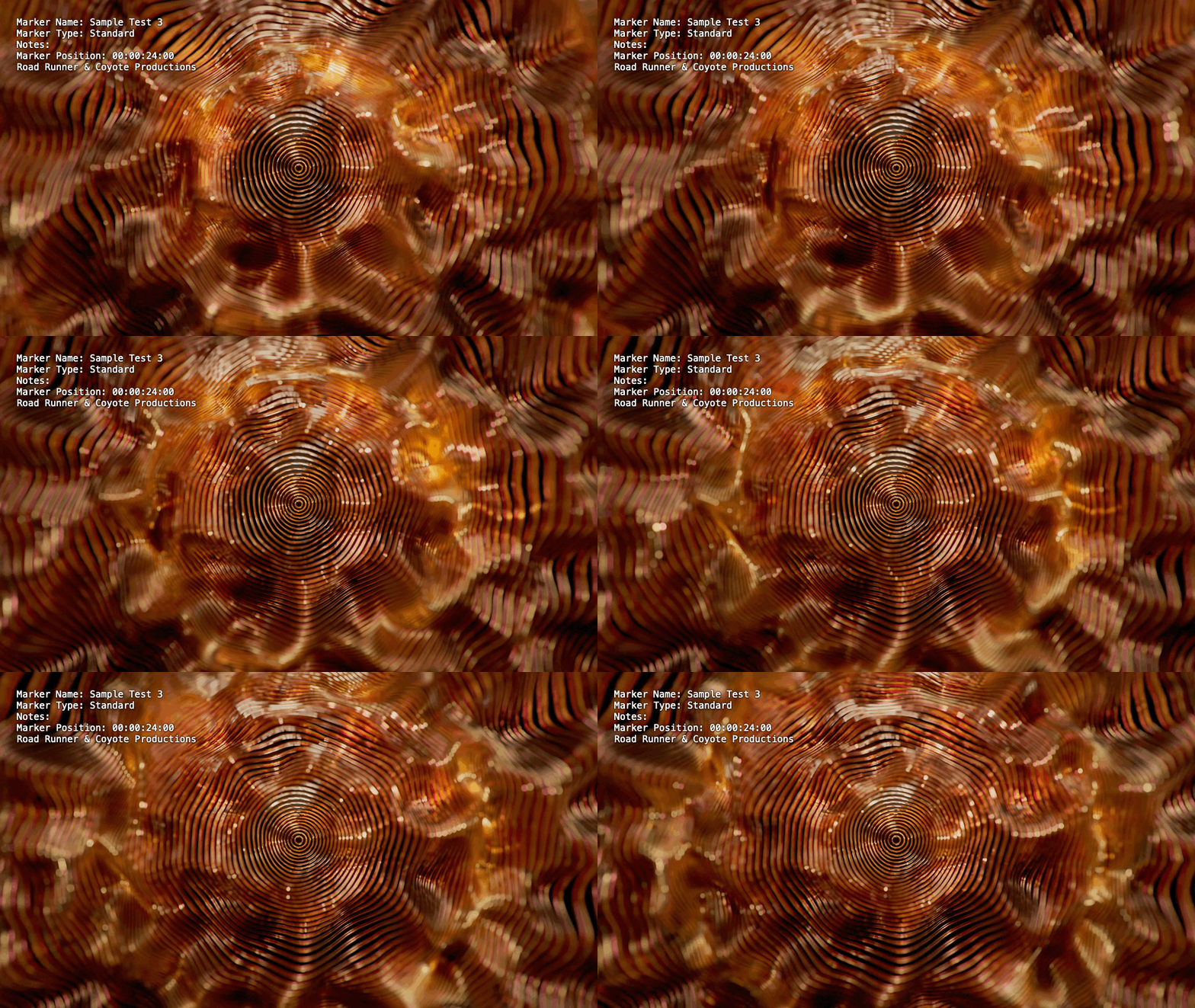
  --export-format notion --image-format gif \
  --label name --label type --label notes --label position \
  --label-copyright "Road Runner & Coyote Productions" \
  --label-font-size 15 \
  --log-level debug --log $ERROR_LOG
Final Cut Pro

Output
GIF Mode with Labels (Notes Naming Mode)
#!/bin/sh

TOOL_PATH="/Users/xxx/Desktop/MarkersExtractor/markers-extractor"
FCPXML_PATH="/Users/xxx/Desktop/MarkersExtractor/Render/zzz.fcpxmld"
OUTPUT_DIR="/Users/xxx/Desktop/MarkersExtractor/Output"
ERROR_LOG="/Users/xxx/Desktop/MarkersExtractor/log.txt"

$TOOL_PATH "$FCPXML_PATH" "$OUTPUT_DIR" \
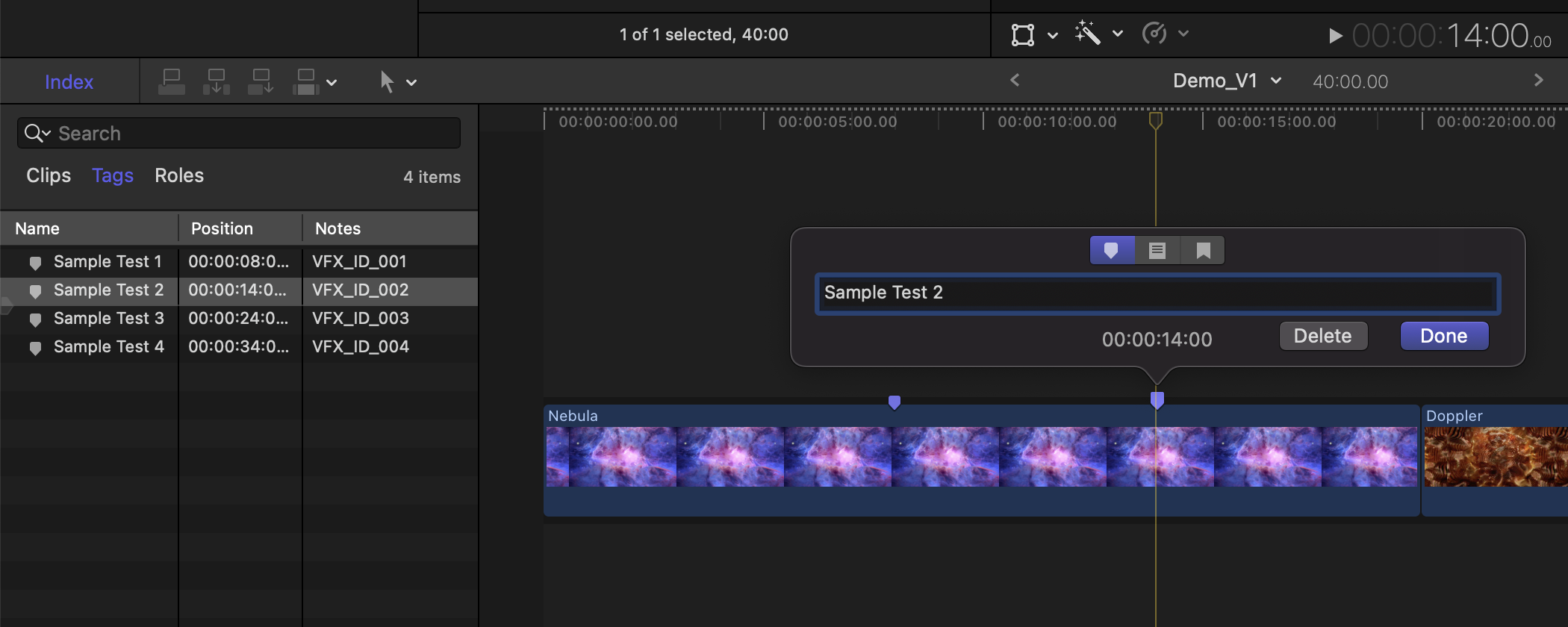
  --export-format notion --image-format gif --id-naming-mode notes \
  --label name --label type --label notes --label position \
  --label-copyright "Road Runner & Coyote Productions" \
  --label-font-size 15 \
  --log-level debug --log $ERROR_LOG
Final Cut Pro
Output

Finder

Result File Contents
If the --result-file-path option is supplied with a path including filename (ie: ./result.json), the tool will create a JSON file at that path once the export is complete.
It contains key pieces of information including the final output folder path, which may be needed if the tool is used in a shell script that requires chaining additional actions after the export completes.
The format is a dictionary using the following key names:
| Key Name | Value |
|---|---|
date | Date the extraction was performed (ISO8601 formatted). |
profile | The profile identifier passed to the CLI using the --export-format command line argument. |
exportFolder | The path to the output folder that the tool created where all exported files reside. |
csvManifestPath | The path to the CSV manifest file, if one was created by the profile. |
tsvManifestPath | The path to the TSV manifest file, if one was created by the profile. |
txtManifestPath | The path to the Plain Text manifest file, if one was created by the profile. |
mdManifestPath | The path to the Markdown manifest file, if one was created by the profile. |
jsonManifestPath | The path to the JSON manifest file, if one was created by the profile. |
midiFilePath | The path to the MIDI file, if one was created by the profile. |
xlsxManifestPath | The path to the XLSX file, if one was created by the profile. |
version | The MarkersExtractor version used to perform extraction. |
It is recommended to read this file with a JSON parser to obtain the values for keys. If using a shell script, it may be possible to grep the information.
Intended Behaviour & Logic
The tool operates on a single Final Cut Pro timeline. If the FCPXML data contains a project, the project's main timeline will be used. If a standalone clip is present instead of a project, the clip's timeline will be used.
Markers nested deep within compound, multicam or synchronized clips will be ignored.
Developer Library
To use this package in an application project, add it as a Swift Package Manager dependency using this URL:
https://github.com/TheAcharya/MarkersExtractor.git
To use this package in a Swift Package Manager (SPM) package, add it as a dependency:
let package = Package(
    name: "MyPackage",
    dependencies: [
        .package(url: "https://github.com/TheAcharya/MarkersExtractor.git", from: "0.4.6")
    ],
    targets: [
        .target(
            name: "MyTarget",
            dependencies: [
                .product(name: "MarkersExtractor", package: "MarkersExtractor")
            ]
        )
    ]
)
Check out MarkersExtractorCLI to see how to use the MarkersExtractor class.
Featured
Utilised By
Marker Data
Marker Data's Main Window

Credits
Original Idea and Workflow Architecture by Vigneswaran Rajkumar
Additional Work & Maintained by Steffan Andrews (0.2.0 ...)
Initial Work by Vladilen Zhdanov (0.1.0 ... 0.1.1)
Icon Design by Bor Jen Goh
License
Licensed under the MIT license. See LICENSE for details.
Reporting Bugs
For questions or suggestions about usage, you are welcome to open a discussions thread.
For reproducible bug reports, please file an issue.
Contributing
Code contributions are welcome. See CONTRIBUTING for details before contributing.