Keypress Notifications
May 26, 2026 · View on GitHub

Keypress Notifications







Never lose track of which shortcut you just pressed.
About the Project
The "Why"
VS Code gives you zero feedback about which keyboard shortcut you triggered. You pressed something — but what? This tiny blind spot compounds fast: during screencasts and tutorials, your audience can't follow your keystrokes. In pair-programming sessions, your colleague doesn't know what you just did. When streaming or presenting, viewers stare at a result with no context. And when you're learning new keybindings yourself, muscle memory can't form if nothing confirms you hit the right combo.
Keypress Notifications plugs that gap. Every time you trigger one of 42 common VS Code keybindings, a toast notification pops up — "You've pressed Ctrl+C" — so there's always on-screen confirmation of what happened.
Features
- Visual Feedback: On-screen toast notification confirms every triggered keybinding.
- Screencast & Stream Ready: Viewers see the shortcut label as you press it, without extra software.
- Pair Programming Friendly: Your keys are visible without any extra screen-share setup.
- Accessible: On-screen text confirmation of every action alongside screen reader support.
- Muscle Memory Builder: Instant reinforcement each time you press the right combo.
Tech Stack
- TypeScript
- Node.js
- VS Code Extension API
Visuals
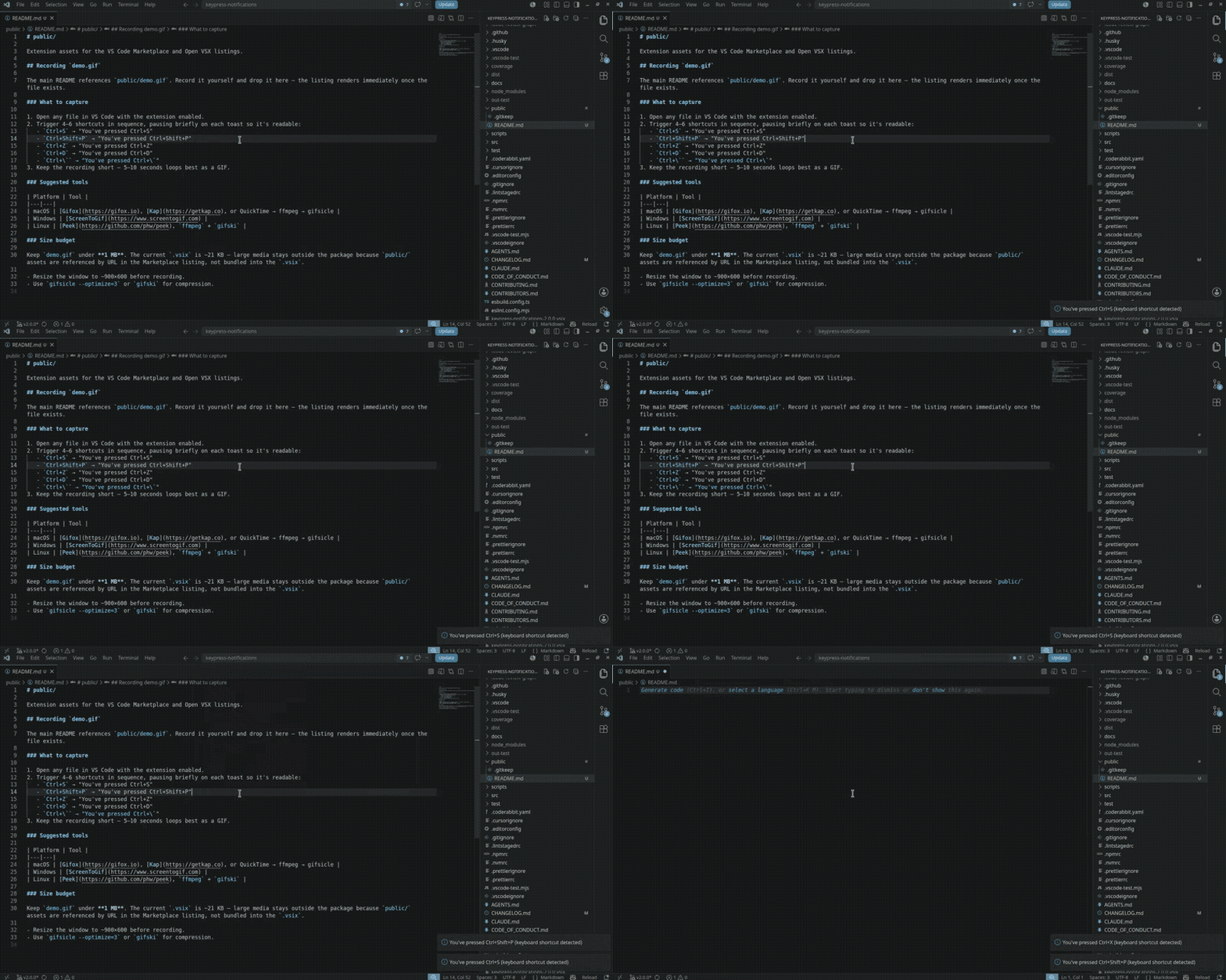
On-screen toast for every supported keybinding
Setup & Installation
Prerequisites
- VS Code: Version
1.111.0or later.
Install Commands
VS Code Marketplace (recommended):
ext install VijayGangatharan.keypress-notifications
Or search "Keypress Notifications" in the Extensions view (Ctrl+Shift+X).
Open VSX (VS Codium / other open-source VS Code builds): open-vsx.org/extension/VijayGangatharan/keypress-notifications
Command line:
code --install-extension VijayGangatharan.keypress-notifications
Usage
Quick Start
- Install from VS Code Marketplace
- Open any file in VS Code
- Press a supported shortcut (e.g.
Ctrl+Sto save) - See the toast notification — "You've pressed Ctrl+S"
That's it. No configuration needed for the default experience.
Commands
Open the Command Palette (Ctrl+Shift+P) and search for:
| Command | Description |
|---|---|
| Keypress Notifications: Enable | Turn notifications on |
| Keypress Notifications: Disable | Turn notifications off |
| Keypress Notifications: Show Status | Open the extension output channel |
Configuration
All settings live under the keypress-notifications.* namespace in your VS Code settings.json:
| Setting | Type | Default | Description |
|---|---|---|---|
enabled | boolean | true | Enable or disable notifications |
minimumKeys | number | 2 | Minimum number of keys in a combination before a notification fires |
excludedCommands | string[] | [] | Commands to suppress notifications for |
showCommandName | boolean | false | Include the VS Code command ID in the notification message |
logLevel | string | "info" | Logging verbosity: "debug", "info", "warn", or "error" |
Supported Shortcuts
The extension covers 42 common commands across the Editor, Explorer, Workbench, and Terminal.
Click to view all supported shortcuts
Editor
| Shortcut | Action |
|---|---|
| Ctrl+C | Copy |
| Ctrl+X | Cut |
| Ctrl+V | Paste |
| Ctrl+Z | Undo |
| Ctrl+Y | Redo |
| Ctrl+A | Select All |
| Ctrl+F | Find |
| Ctrl+H | Find & Replace |
| Alt+Up | Move Line Up |
| Alt+Down | Move Line Down |
| Shift+Alt+Up | Copy Line Up |
| Shift+Alt+Down | Copy Line Down |
| Ctrl+Shift+K | Delete Line |
| Ctrl+. | Quick Fix |
| Shift+Alt+F | Format Document |
| Ctrl+/ | Toggle Line Comment |
| Ctrl+D | Add Selection to Next Match |
Explorer
| Shortcut | Action |
|---|---|
| Ctrl+C | Copy File/Folder |
| Ctrl+X | Cut File/Folder |
| Ctrl+V | Paste File/Folder |
Workbench / Navigation
| Shortcut | Action |
|---|---|
| Ctrl+S | Save |
| Ctrl+K S | Save All |
| Ctrl+Shift+P | Command Palette |
| Ctrl+P | Quick Open |
| Ctrl+Shift+F | Find in Files |
| Ctrl+G | Go to Line |
| Ctrl+B | Toggle Sidebar |
| Ctrl+` | Toggle Terminal |
| Ctrl+J | Toggle Panel |
| Ctrl+W | Close Editor |
| Ctrl+Shift+N | New Window |
| Ctrl+N | New File |
| Ctrl+O | Open File |
| Ctrl+\ | Split Editor |
| Ctrl+Shift+T | Reopen Closed Editor |
| Ctrl+Shift+O | Go to Symbol |
| Ctrl+, | Open Settings |
| Ctrl+Shift+G | Source Control |
| Ctrl+Shift+X | Extensions |
| Ctrl+Shift+D | Debug |
| Ctrl+Shift+M | Problems |
Terminal
| Shortcut | Action |
|---|---|
| Ctrl+Shift+` | New Terminal |
Getting Help & Contributing
Troubleshooting
Notifications not appearing
- Check extension status: open Command Palette → Keypress Notifications: Show Status — look for
enabled: truein the output. - Enable the extension: Command Palette → Keypress Notifications: Enable.
- Check
minimumKeys: default is2, so single-key presses won't fire. Lower it in settings if needed. - Check
excludedCommands: the command may be in your exclusion list. - Unsupported shortcut: notifications only fire for the 42 curated keybindings above — arbitrary shortcuts are not wrapped.
Shortcut not in the list
The extension wraps a curated set of 42 common commands. To request coverage for a shortcut, open an issue with the VS Code command ID and your use case.Notifications are too noisy
- Add commands to
keypress-notifications.excludedCommands(use the VS Code command ID, e.g.editor.action.clipboardCopyAction). - Raise
keypress-notifications.minimumKeysto suppress shorter combos.
Contribution Guidelines
Contributions are welcome. See CONTRIBUTING.md for full guidelines, including how to set up the local development environment. Please open an issue to discuss significant changes before submitting a Pull Request.
Contact
Vijay Gangatharan
- 📧 Email: vijayanand431@gmail.com
- 🐙 GitHub Repository
Additional Sections
Roadmap
- Future updates will explore adding coverage for more VS Code keybindings based on user requests.
Credits / Acknowledgments
Thanks goes to these wonderful people (and AI assistants) for their contributions:
- Vijay Gangatharan
- Claude (Anthropic)
- The VS Code Extension API team for excellent documentation.
- All contributors and users who provide feedback.
License
This project is licensed under the MIT License.