jq Playground for VS Code
April 3, 2026 · View on GitHub
An interactive jq notebook inside your editor. Write filters, pick your data source, see results instantly.


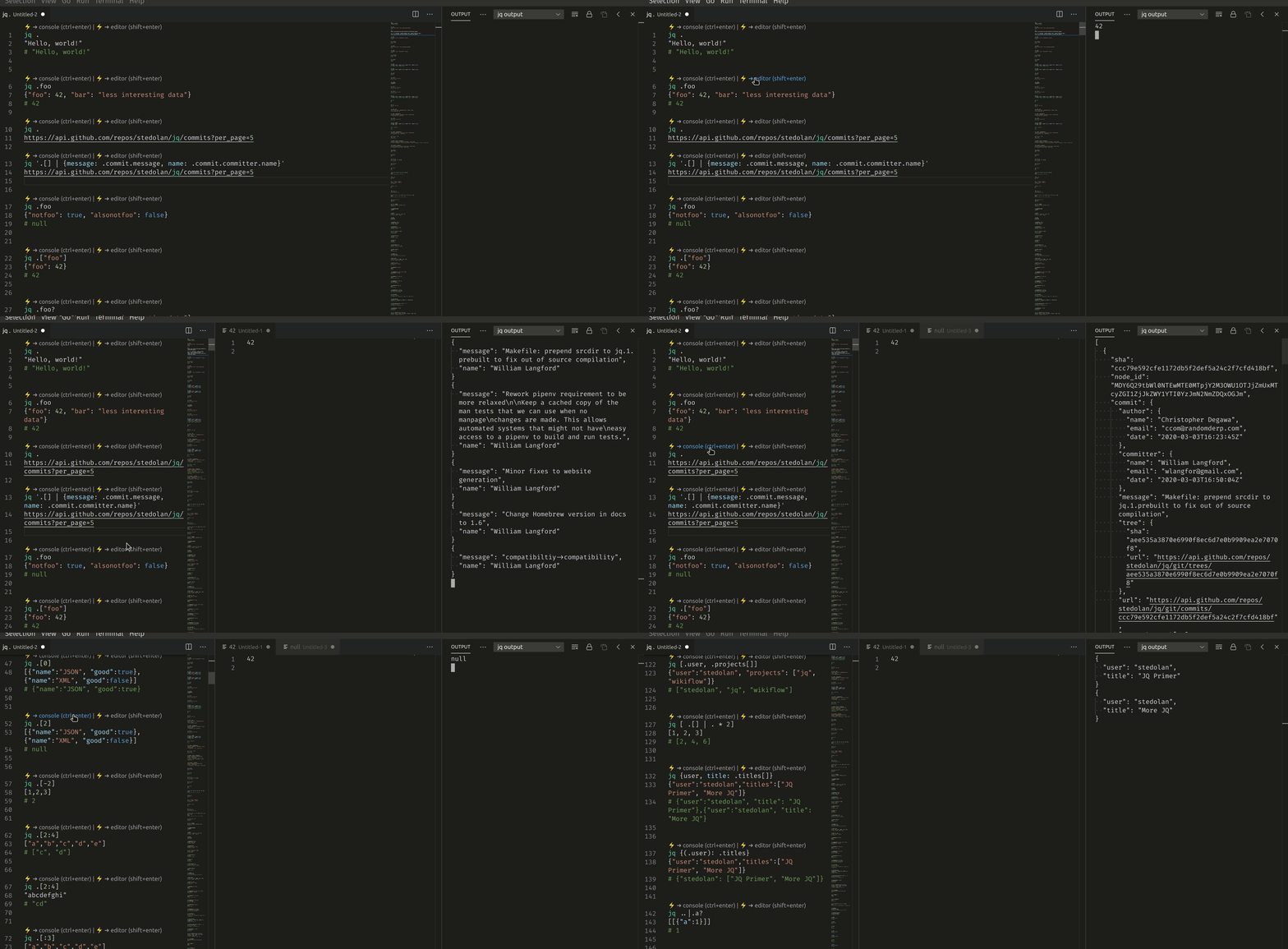
Features
- Notebook-style editing — multiple jq filters in a single
.jqpgfile, each with its own data source - Zero config — auto-detects your system
jq; can download it for you if missing - Rich data inputs — inline JSON, local files, workspace buffers, URLs, shell commands
- Smart autocomplete — IntelliSense powered by the official jq builtins, with docs and examples
- Output flexibility — results to the output console, a side editor, or redirected to a file
- Variables — define
KEY=valuelines and reference$KEYin filters and commands - Multiline filters — write complex queries across multiple lines using quotes
- Syntax highlighting — full TextMate grammar for jq and embedded JSON
- AI-powered assistance — explain, fix, and generate jq filters with GitHub Copilot integration
- Structured error handling — clear, actionable error messages with optional AI-powered fix suggestions
- Chat participant — ask
@jqin the Copilot chat for jq help, filter writing, and debugging - Filter panel — a dedicated webview panel to pick JSON files, write filters, and see results side by side
Quick start
- Install the extension from the Marketplace
- Create a file with the
.jqpgextension - Write a filter and press
Cmd+Enter(macOS) /Ctrl+Enter(Windows/Linux)
jq '.name'
{"name": "Ada Lovelace", "year": 1815}
The result appears in the output panel. Use Shift+Enter to open it in a side editor instead.
Data sources
Each filter block can pull data from a different source.
Inline JSON
jq '[.[] | select(.active)]'
[{"id": 1, "active": true}, {"id": 2, "active": false}]
Local or workspace files
jq '.dependencies | keys'
./package.json
URLs
jq '.[0].commit.message'
https://api.github.com/repos/stedolan/jq/commits?per_page=5
Shell commands
jq -R -s 'split("\n") | map(select(length > 0))'
$ ls -la
Raw string input
jq -R 'split(" ")'
Lorem ipsum dolor sit amet
Variables and output redirection
Define variables before your filter and use them in commands or URLs:
TOKEN = "abc123"
ENDPOINT = "users"

jq '.results'
$ curl -s -H "Authorization: Bearer $TOKEN" "https://api.example.com/$ENDPOINT"
Redirect output to a file with > (overwrite) or >> (append):
jq '[.[] | .url]'
> urls.json
$ curl -s 'https://api.github.com/repos/stedolan/jq/commits?per_page=5'
Filter panel
Run JQPG: Open Playground Panel from the Command Palette to open a dedicated webview where you can experiment with jq filters without leaving the editor.
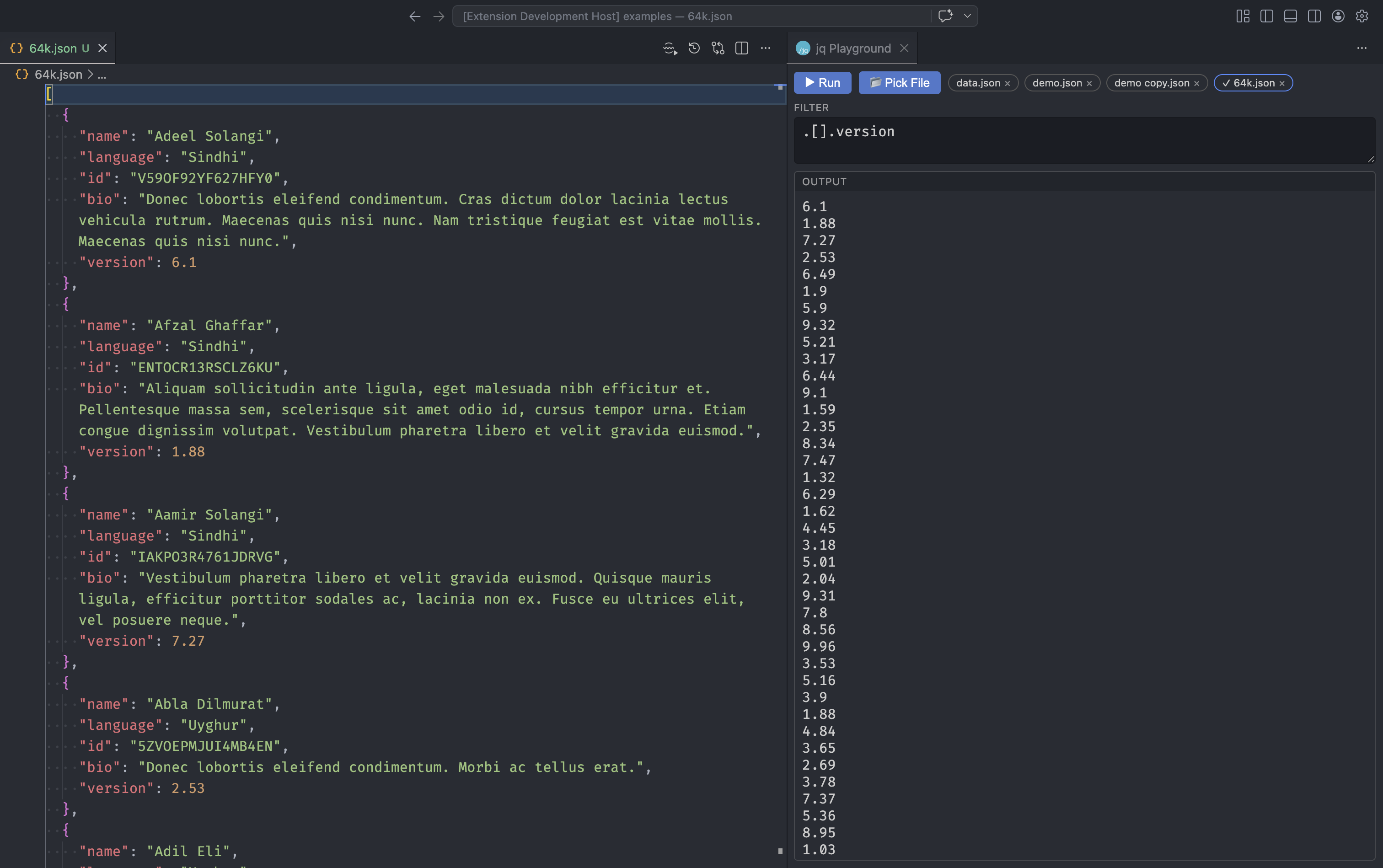
- Pick files — click 📂 Pick File to select a JSON/JSONL file from open editors or the workspace. Up to 4 files can be loaded at once as selectable chips.
- Write and run — type your filter in the text area and press ▶ Run or
Cmd+Enter/Ctrl+Enter. The output appears instantly below. - Switch inputs — click any file chip to change the active data source. The panel remembers your selection and filter text across sessions.
- Error feedback — execution errors are displayed inline in the output area so you can iterate quickly.
AI features
Requires GitHub Copilot. Can be disabled via
jqPlayground.ai.enabled.
Explain filter
Click the ✨ Explain code lens above any jq line to get a step-by-step explanation of what the filter does, which builtins are used, and why.
Fix errors with AI
When a jq filter fails, the extension shows the error and offers an ✨ Explain & Fix button. Clicking it opens a side panel with:
- Why the error occurred
- A corrected filter you can copy back
Generate filter
Run JQPG: Generate filter with AI from the Command Palette, describe what you want in plain language (e.g. "extract all names where active is true"), and the extension generates a valid jq filter and inserts it into your playground.
Chat participant
Type @jq in the GitHub Copilot chat to ask questions about jq syntax, get help writing filters, or debug existing ones. The participant is context-aware — it picks up the active filter and input sample from your editor.
Error handling
The extension provides structured, typed error messages for common failure scenarios:
- jq not found — prompts to configure the path manually or download the binary automatically
- Invalid JSON input — validates input before execution and reports parsing issues
- Execution errors — displays jq stderr output in the output channel with an optional AI fix
- File not found — clear message when a referenced input file doesn't exist
- Command timeout — jq processes are killed after 10 seconds by default to prevent hangs
- Input resolution errors — explains when a data source (URL, file, shell command) can't be resolved
- Unsupported platform — reports when the current OS/architecture isn't supported for binary download
Commands and keybindings
| Keybinding | Action |
|---|---|
Cmd+Enter / Ctrl+Enter | Run filter → output console |
Shift+Enter | Run filter → side editor |
All commands are available via the Command Palette under the JQPG prefix:
| Command | Description |
|---|---|
| JQPG: Examples | Browse executable examples from the jq manual |
| JQPG: Manual | Open the official jq manual |
| JQPG: Tutorial | Open the jq tutorial |
| JQPG: Run query in output | Run the current jq filter to the output console |
| JQPG: Run query in editor | Run the current jq filter to a side editor |
| JQPG: Execute jq filter | Run a jq filter from an input box |
| JQPG: Create playground from filter | Scaffold a .jqpg file from a filter and the active editor content |
| JQPG: Configure jq path | Set a custom path to the jq binary |
| JQPG: Download jq binary | Download jq if not installed |
| JQPG: Explain filter with AI | Explain the current jq filter step by step |
| JQPG: Generate filter with AI | Generate a jq filter from a natural language description |
| JQPG: Open Playground Panel | Open the interactive filter panel in a webview tab |
Configuration
| Setting | Default | Description |
|---|---|---|
jqPlayground.binaryPath | "" | Path to the jq binary. Leave empty for auto-detection. |
jqPlayground.shortcutLabelConsole | "" | Custom label for the "console" code lens. Leave empty to auto-detect from keybindings. |
jqPlayground.shortcutLabelEditor | "" | Custom label for the "editor" code lens. Leave empty to auto-detect from keybindings. |
jqPlayground.ai.enabled | true | Enable AI-powered features (Explain, Fix, Generate). Requires GitHub Copilot. Disable if you work with sensitive data. |
VS Code input variables
Use jq results as input variables in tasks and launch configs:
{
  "inputs": [
    {
      "id": "apiUrl",
      "type": "command",
      "command": "extension.executeJqInputCommand",
      "args": {
        "filter": ".endpoints.api",
        "input": "./config.json"
      }
    }
  ]
}
The input field accepts a file path (relative to workspace root) or inline JSON. If omitted, the active editor content is used.
More examples
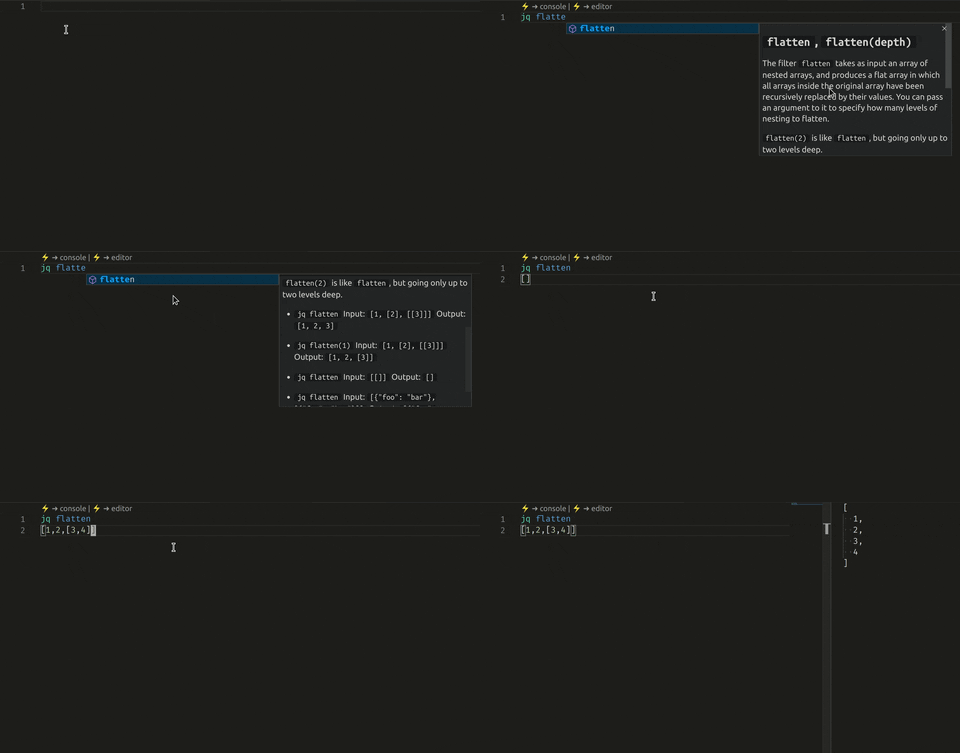


See the interactive examples gallery →
Contributing
Issues and pull requests are welcome on GitHub.
Thanks to all contributors: Joseph Andersen, Yoz Grahame, Jeff Mercado, Leonel Galán.
Inspired by vscode-jq.