readme.md
August 18, 2026 · View on GitHub
ZimaOS


ZimaOS in a Docker container.
Features ✨
- Runs ZimaOS inside a Docker container
- Automatic download and installation
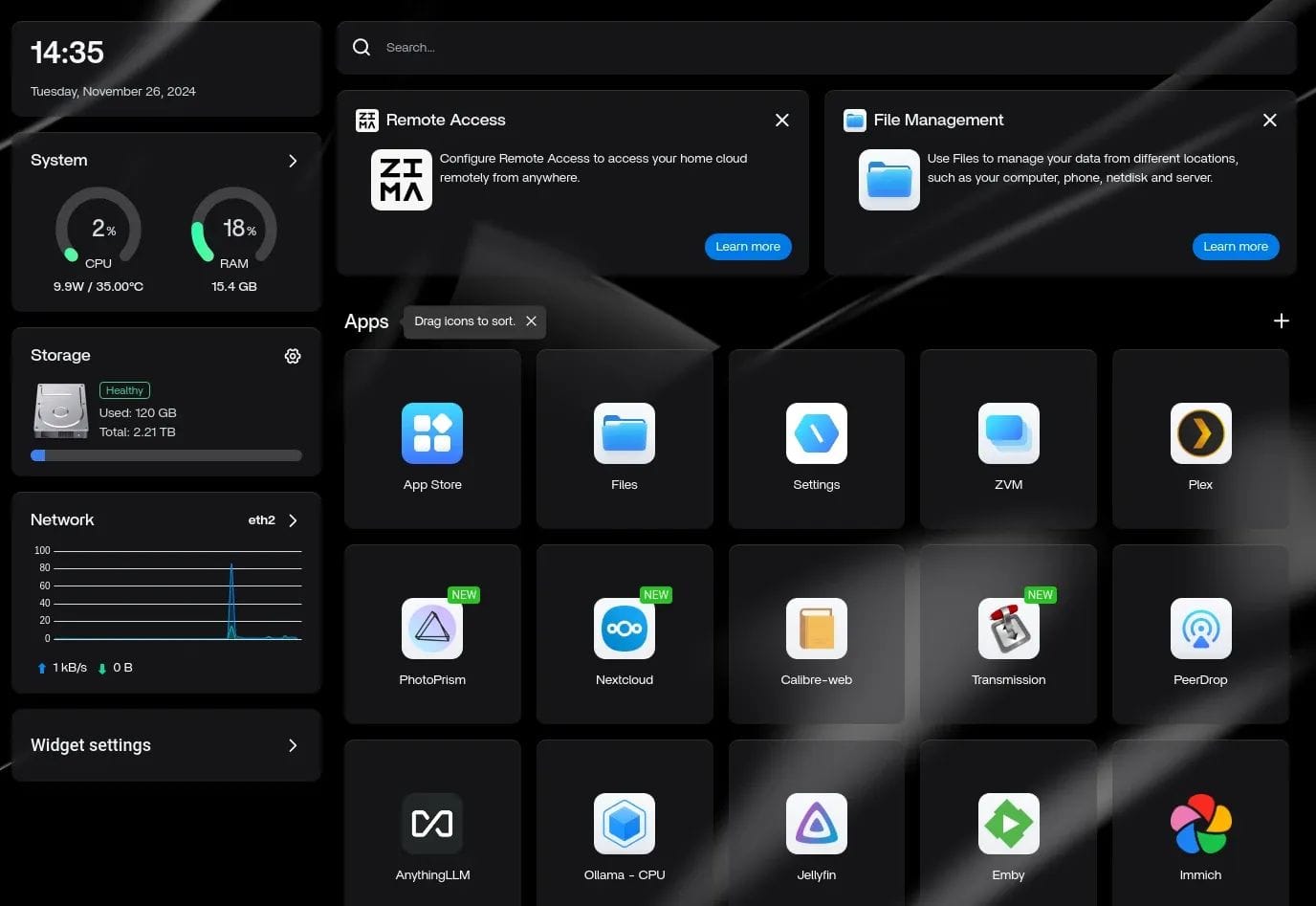
- Provides the ZimaOS web dashboard for managing apps and storage
- Near-native performance with KVM acceleration
- Customizable CPU, memory, and storage allocation
- USB passthrough and host folder sharing
- Supports NAT, user-mode, macvlan, and macvtap networking
Usage 🐳
Docker Compose:
services:
  zima:
    image: dockurr/zima
    container_name: zima
    devices:
      - /dev/kvm
      - /dev/net/tun
    cap_add:
      - NET_ADMIN
    ports:
      - 8080:80
    volumes:
      - ./zima:/storage
    restart: always
    stop_grace_period: 2m
Docker CLI:
docker run -it --rm --name zima -p 8080:80 --device=/dev/kvm --device=/dev/net/tun --cap-add NET_ADMIN -v "${PWD:-.}/zima:/storage" --stop-timeout 120 docker.io/dockurr/zima
Kubernetes:
kubectl apply -f https://raw.githubusercontent.com/dockur/zima/refs/heads/master/kubernetes.yml
GitHub Codespaces:

Screenshot 📸
Requirements ⚙️
- Docker or Podman on a Linux host with KVM support.
- Docker Desktop or Podman (Desktop) on Windows 11 with nested virtualization enabled.
- At least 2 GB of available RAM.
- At least 16 GB of free disk space.
Note
Docker Desktop on Linux, macOS, and Windows 10 does not currently provide KVM access to containers and is therefore not supported.
FAQ 💬
How do I use it?
Very simple! These are the steps:
-
Start the container and connect to port 8006 using your web browser.
-
Wait for the ZimaOS image to finish downloading and for the automatic installation to complete.
-
Once installation is finished, connect to port 8080 to open ZimaOS.
-
Create a username and password, then sign in to complete the setup.
Enjoy your brand new machine, and don't forget to star this repo!
How do I change the storage location?
To change the storage location, include the following bind mount in your compose file:
volumes:
  - ./zima:/storage
Replace the example path ./zima with the desired storage folder or named volume.
How do I change the size of the disk?
To expand the default size of 64 GB, add the DISK_SIZE setting to your compose file and set it to your preferred capacity:
environment:
  DISK_SIZE: "128G"
Tip
This can also be used to resize an existing disk to a larger capacity without any data loss. However, you will need to manually extend the disk partition afterwards inside ZimaOS, since the added disk space will appear as unallocated.
How do I change the amount of CPU or RAM?
By default, ZimaOS will be allowed to use two CPU cores and 4 GB of RAM.
If you want to adjust this, you can specify the desired amount using the following environment variables:
environment:
  RAM_SIZE: "8G"
  CPU_CORES: "4"
How do I expose network ports?
When using bridge networking, you can expose ports by adding them to your compose file. If you want to be able to connect to the SSH service of the machine for example, you would add it like this:
ports:
  - 2222:22
This will make port 2222 on your host redirect to port 22 of the virtual machine.
When using user-mode networking (for example when running under Podman), you will also need to add those ports to the USER_PORTS variable like this:
environment:
  USER_PORTS: "22,80,443"
How do I assign an individual IP address to the container?
By default, the container uses bridge networking, which shares the IP address with the host.
If you want to assign an individual IP address to the container, you can create a macvlan network as follows:
docker network create -d macvlan \
    --subnet=192.168.0.0/24 \
    --gateway=192.168.0.1 \
    --ip-range=192.168.0.100/28 \
    -o parent=eth0 vlan
Be sure to modify these values to match your local subnet.
Once you have created the network, change your compose file to look as follows:
services:
  zima:
    container_name: zima
    ..<snip>..
    networks:
      vlan:
        ipv4_address: 192.168.0.100

networks:
  vlan:
    external: true
An added benefit of this approach is that you won't have to perform any port mapping anymore, since all ports will be exposed by default.
Important
This IP address won't be accessible from the Docker host due to the design of macvlan, which doesn't permit communication between the two. If this is a concern, you need to create a second macvlan as a workaround.
How can ZimaOS acquire an IP address from my router?
After configuring the container for macvlan, it is possible for ZimaOS to become part of your home network by requesting an IP from your router, just like your other devices.
To enable this mode, in which the container and ZimaOS will have separate IP addresses, add the following lines to your compose file:
environment:
  DHCP: "Y"
devices:
  - /dev/vhost-net
device_cgroup_rules:
  - 'c *:* rwm'
How do I pass through a disk?
You can pass through disk devices or partitions directly by adding them to your compose file in this way:
devices:
  - /dev/sdb:/disk1
  - /dev/sdc1:/disk2
Use /disk1 if you want it to become your main drive that will be formatted during installation, and use /disk2 and higher to add them as secondary drives that will stay untouched.
How do I pass through a USB device?
To pass through a USB device, first look up its vendor and product ID via the lsusb command, then add them to your compose file like this:
environment:
  ARGUMENTS: "-device usb-host,vendorid=0x1234,productid=0x1234"
devices:
  - /dev/bus/usb
How do I share files with the host?
To share files with the host, add the following volume to your compose file:
volumes:
  - ./example:/shared
Then start the container and execute the following command in ZimaOS:
mount -t 9p -o trans=virtio shared /mnt/example
Now the ./example directory on the host will be available as /mnt/example in ZimaOS.
Are these all available options?
No. For a complete overview of all supported settings, see the environment variables page.
How do I verify that KVM is available?
First, make sure your platform and container runtime meet the requirements listed above.
On a Linux host, install cpu-checker and run:
sudo apt install cpu-checker
sudo kvm-ok
A working configuration should report:
KVM acceleration can be used
You can also verify that the KVM device exists:
ls -l /dev/kvm
If KVM is unavailable, check whether:
- Hardware virtualization (
Intel VT-xorAMD-V) is enabled in your BIOS or UEFI. - Nested virtualization is enabled when the host itself is a virtual machine.
- Your VPS or cloud provider supports nested virtualization.
If kvm-ok succeeds but the container still reports that KVM is unavailable, you can temporarily add privileged: true to your Compose file to rule out a permission or device-access issue.
How do I run CasaOS in a container?
See dockur/casa for a CasaOS container.
How do I run UmbrelOS in a container?
See dockur/umbrel for a UmbrelOS container.
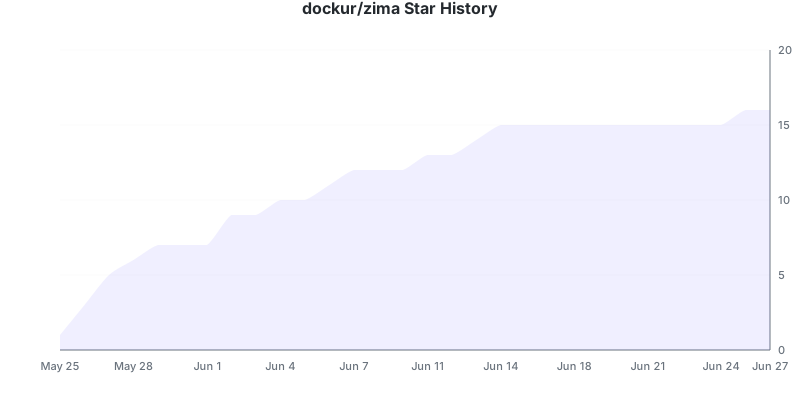
Stars 🌟