Blazor Developer Tools
August 6, 2026 · View on GitHub

Docs & Live Demo
Blazor Developer Tools
The first visual DevTools for Blazor. See your component tree, profile renders, understand why components re-render. No more console.log debugging.


What's New in v1.0.0-beta
This release is a complete architectural rewrite with powerful new features:
- 🧩 Component Tree - Visualize your entire Blazor component hierarchy
- ⏱️ Timeline Profiler - Record and analyze component renders with a visual flamegraph
- 💡 "Why Did This Render?" - Click any render event to see exactly what triggered it
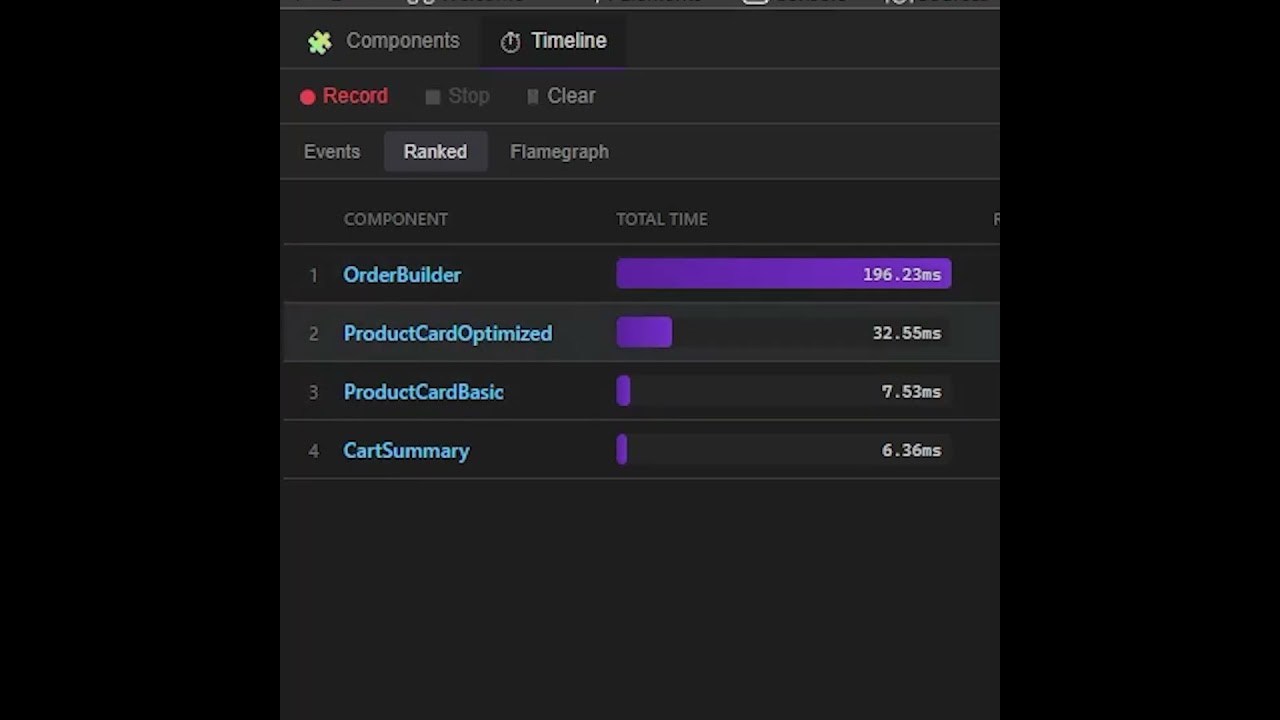
- 📊 Ranked View - See which components render most often and take the longest
- 🔧 Works With Any Component - No code changes required for basic tracking
- ⚡ Enhanced Metrics - Opt-in to
BlazorDevToolsComponentBasefor deep lifecycle timing
Features
- 🔍 Component Tree Visualization - See your Blazor component hierarchy in Chrome/Edge/Firefox DevTools
- 🎯 Element Picker - Click any element on the page to identify and inspect its Blazor component
- ⏱️ Timeline Profiler - Record, analyze, and visualize component render performance
- 🔥 Flamegraph View - Visual swimlane timeline of all component events
- 📈 Performance Rankings - Identify your slowest components at a glance
- 🎨 CSS Isolation Support - Full support for Blazor CSS isolation
Supported Render Modes
⚠️ Currently, Blazor Developer Tools supports InteractiveAuto (Server) render mode. This is the default render mode in .NET 8+ Blazor Web Apps. Support for WebAssembly-only mode is planned for future releases.
Installation
1. Install the NuGet Package
dotnet add package BlazorDeveloperTools
2. Register the Services
Add this line to your Program.cs:
builder.Services.AddBlazorDevTools();
3. Install the Browser Extension
- Chrome: Chrome Web Store
- Edge: Edge Add-ons
- Firefox: Firefox Add-ons
4. That's it!
Open your Blazor app, press F12, and look for the "Blazor" tab in DevTools.
Extension ↔ NuGet compatibility
The browser extension auto-updates through the stores; the NuGet package is pinned per-project — so version skew between them is normal and supported. Any extension ≥ 1.0.0-beta.4 works with any package ≥ 1.0.0-beta.6. The panel shows both versions in its top bar, and features that need a newer package say so instead of breaking. Keeping both on the latest version is always recommended.
Maintainer note: the package's [JSInvokable] API surface is additive-only within the 1.x line — methods are never removed or renamed, DTO fields never repurposed. New package-side behaviors are advertised via GetPackageInfo().Capabilities and feature-detected by the extension.
Usage
Basic Tracking (Zero Config)
Once installed, BDT automatically tracks all components. No code changes needed!
- Run your Blazor app
- Open your browser's DevTools (F12)
- Navigate to the "Blazor" tab
- Explore the Components tree or record a Timeline profile
Enhanced Tracking (Opt-in)
For detailed lifecycle metrics, inherit from BlazorDevToolsComponentBase:
@inherits BlazorDevToolsComponentBase

<h1>My Component</h1>

@code {
    // Your component code - all lifecycle methods are automatically timed
}
This gives you:
- ✅ Lifecycle method timing (OnInitialized, OnParametersSet, etc.)
- ✅ ShouldRender tracking
- ✅ StateHasChanged counts
- ✅ Parameter change detection
- ✅ Render efficiency metrics
Timeline Profiler
- Go to the Timeline tab
- Click Record
- Interact with your app
- Click Stop
- Explore the results:
- Events - Chronological list of all lifecycle events
- Ranked - Components sorted by total render time
- Flamegraph - Visual timeline with zoom and pan
How It Works
BDT uses a Three Pillars architecture:
| Pillar | Method | What It Tracks |
|---|---|---|
| 1. Component Activator | Automatic | All component instantiation, type detection |
| 2. Renderer Sync | Automatic (Reflection) | Component IDs, parent-child hierarchy, parameters, internal state |
| 3. Enhanced Components | Opt-in inheritance | Deep lifecycle metrics, timing, ShouldRender, parameter change detection |
Configuration
Configure in Program.cs:
builder.Services.AddBlazorDevTools(options =>
{
    options.EnableTiming = true;         // Enable lifecycle timing (default: true)
    options.EnableEventPush = false;     // Push events to JS in real-time (default: false)
    options.MinDurationToReportMs = 0;   // Filter events below this duration (default: 0)
});
Disabling in Production
Timing is enabled by default to work out-of-the-box during development. To disable in production for zero overhead:
builder.Services.AddBlazorDevTools(options =>
{
#if !DEBUG
    options.EnableTiming = false;
#endif
});
Try It Now!
Visit blazordevelopertools.com and open DevTools to see BDT in action on a live Blazor app.
Contributing
This project is open source! We welcome contributions.
License
Licensed under the Apache License 2.0. See LICENSE for details.
Support
- 📧 Email: me@joegregory.dev
- 🐦 Twitter: @joegregorydev
- 📺 YouTube: @joegregorydev
Built with ❤️ for the Blazor community by Joe Gregory