README.md
June 28, 2026 · View on GitHub
English | 简体中文
Typora Plugin








Plugin List
| Plugin:Navigation & Management | Feature | Default |
|---|---|---|
| window_tab | Window Tab Bar | |
| search_multi | Multi-Fields File Searcher | |
| auto_number | Auto numbering | |
| bookmark | Bookmark manager | × |
| cursor_history | Cursor History | × |
| preferences | Preferences | |
| updater | One-click plugin update | |
| asset_root_redirect | Resource Redirection | × |
| Plugin:Enhance Editing | Feature | Default |
|---|---|---|
| collapse_paragraph | Chapter Folding | × |
| collapse_list | List Folding | × |
| collapse_table | Table Folding | × |
| md_padding | Chinese-English Text Spacer | |
| slash_commands | Slash Commands | |
| mouse_gestures | Mouse Gestures | × |
| templater | File Templater | |
| fence_enhance | Enhance Fence | |
| right_outline | Right Outline | |
| commander | Commander | |
| command_palette | Command Palette | |
| right_click_menu | Right-Click Menu | |
| pie_menu | Pie menu | × |
| datatables | Enhance Table | × |
| resize_table | Table Resizer | |
| resize_image | Image Resizer | |
| easy_modify | Editing tools | |
| editor_width_slider | Adjust writing area width | |
| cjk_symbol_pairing | CJK Symbol Pairing | |
| text_stylize | Text stylization | |
| resource_manager | Resource Management | |
| markdownlint | Markdownlint Check | |
| export_enhance | Avoid image loss when exporting to HTML/PDF | × |
| Plugin:View & Theme | Feature | Default |
|---|---|---|
| dark | Dark mode | |
| no_image | No image mode | |
| blur | Blur mode | |
| myopic_defocus | Defocus Comfort Mode | |
| read_only | Read-only mode | |
| truncate_text | Hide content to improve performance for large files | × |
| image_viewer | Image viewer | |
| static_markers | Static Markers | × |
| sidebar_enhance | Drag & drop to rearrange、Display non-Markdown files、Keep Fold State |
| Plugin:Component | Feature | Default |
|---|---|---|
| markmap | Provides Markmap support | |
| echarts | Provides Echarts support | |
| chart | Provides Chart.js support | |
| drawIO | Provides DrawIO support | |
| abc | Provides abc.js support | |
| calendar | Provides tui.calendar support | |
| wavedrom | Provides WaveDrom support | |
| marp | Provides Marp support | |
| plantUML | Provides PlantUML support | × |
| callouts | Provides Callouts support | |
| kanban | Kanban | |
| timeline | Timeline | |
| chat | Chat |
| Plugin:Advanced | Feature | Default |
|---|---|---|
| hotkeys | Hotkey registration center (Advanced) | |
| action_buttons | Add function buttons in the lower right corner (Advanced) | |
| custom | Open platform for user-defined plugins (Advanced) | |
| remote_control | Typora Automation (Advanced) | × |
| cipher | Encrypt files | × |
| ripgrep | Search files using ripgrep | × |
| article_uploader | One-click upload blog to supported platforms | × |
If you have other needs or find bugs, feel free to open an issue. PRs are also welcome. If you find this project helpful, please give me a star ⭐
Q&A
- Is my Typora supported? Typora's version should be ≥ 0.9.98 (the last free version).
- How to modify plugin configurations? Right-click menu -> Interactive Plugins -> Preferences. Respect all user choices. Any plugin or feature can be permanently enabled/disabled.
- How to upgrade plugins? Right-click menu -> Interactive Plugins -> Preferences -> Check for Updates.
- How to uninstall plugins? Right-click menu -> Interactive Plugins -> Preferences -> Uninstall Plugins.
- How to develop plugins? No Build Time, No need to install development environment. Please refer to Readme for details.
- Does it support Typora for Mac? I don't have a Mac device, so I haven't tested it.
- Any other questions? Please ask AI Wiki.
How to Use: Windows/Linux Platform
Visit Video Installation Tutorial
-
Download the plugin source code package and unzip it.
-
Go to the Typora installation path and find the folder A containing
window.html.-
For the official version of Typora, the path is
./resources/window.html. -
For the beta version of Typora, the path is
./resources/app/window.html.
-
-
Paste the unzipped plugin folder into folder A.
-
Go to the folder
A/plugin/bin/.- Windows: Right-Click on the file
install_windows.ps1. Select 'Run with PowerShell'. - Linux: Run
install_linux.shas administrator.
- Windows: Right-Click on the file
-
Verification: Restart Typora, right-click in the main text area, and if you see the plugin items, everything is fine.
| Official Version | Beta Version | |
|---|---|---|
| Steps 2-3 |  |  |
| Windows | Linux | |
|---|---|---|
| Step 4 |  |  |
How to Use: Archlinux Platform
Currently, this method is only for the Archlinux platform, see aur/typora-plugin
yay -S typora-plugin
Plugin Usage Instructions
All plugins provide seven usage methods:
- Keyboard enthusiasts:
- Command Palette (see
command_paletteplugin) - Slash commands (see
slash_commandsplugin) - Shortcut keys (see
hotkeysplugin)
- Command Palette (see
- Mouse enthusiasts:
- Right-click in the main text area (see
right_click_menuplugin) - Mouse gestures (see
mouse_gesturesplugin) - Quick buttons (see
action_buttonsplugin) - Pie menu(see
pie_menuplugin)
- Right-click in the main text area (see
Navigation & Management
window_tab

search_multi
By using Google search syntax and combining different criteria to accurately search for files.

auto_number

Unlike other implementations using theme CSS, this plugin perfectly solves the problem of no numbering in the sidebar after exporting to PDF by modifying the built-in function :)
bookmark
Usage:
- Use alt + click on the text content to bookmark.
- This will automatically bring up the bookmark manager. Click on the bookmark above to jump to the bookmark.
cursor_history
- hotkey for the previous cursor: alt+←
- hotkey for the next cursor: alt+→
This plugin is disabled by default and needs to be manually enabled.
preferences
Preferences
updater
Upgrade Plugin.
asset_root_redirect
If you mainly use Obsidian or Joplin to manage files and occasionally use Typora to open files, you will encounter a problem: both Obsidian and Joplin put local resources in the same directory, but Typora defaults to using relative paths to reference local resources.
This plugin is disabled by default and needs to be manually enabled.
Enhance Editing
collapse_paragraph

collapse_list
Fold/expand unordered lists, ordered lists, task lists.
collapse_table
Fold/expand tables.
md_padding
Add spaces between Chinese and English, Chinese and numbers when mixed.

slash_commands
Similar to Notion's slash command.

mouse_gestures
Mouse gestures in Typora.
templater
Similar to Obsidian's file template function, quickly create files based on templates.

fence_enhance

right_outline
Typora's sidebar cannot display both [File] and [Outline] simultaneously. To solve this problem, this plugin adds an [Outline] on the right.
commander

command_palette
Similar to VSCode's command palette (Ctrl+Shift+P)

right_click_menu
All plugins support direct invocation through the right-click menu. Mouse enthusiasts can use the right-click menu as the main way to call all plugins.
pie_menu
Pie Menu. Usage:
Open circular menu: Ctrl + right mouse buttonRotate circular menu: Middle mouse buttonPin the circular menu, so it doesn't automatically disappear: Left mouse button in the middle of the circleExpand the circular menu, so it doesn't automatically collapse: Right mouse button in the middle of the circle
datatables
Enhance tables. Provides functions such as search, filter, pagination, and sorting.
Usage: Place the cursor on the table -> Right-click menu -> Interactive Plugins -> Table Enhancement.

resize_table
ctrl + mouse drag: Modify the row height and column width of the table.

resize_image
alt + mouse scroll: Adjust the image size.
easy_modify
This plugin is a collection of commonly used editing tools, currently including:
- Copy title path
- Promote the title level of the selected paragraph
- Demote the title level of the selected paragraph
- Convert line break CRLF to LF
- Convert line break LF to CRLF
- Remove invisible characters
- Generate mind map based on the document outline: mindmap
- Generate mind map based on the document outline: graph
- Extract selected text to a new file
- Add trailing spaces
editor_width_slider
Adjust the width of the writing area.
cjk_symbol_pairing
Automatically pair symbols when typing 《 【 ( ' " 「.
text_stylize

resource_manager
Resource management, cleanup of unused images
markdownlint
Check whether the current file complies with the markdown best practices.
export_enhance
When exporting HTML/PDF, convert images to base64 to avoid image loss.
View & Theme
dark
Dark Mode
no_image
No Image Mode
blur
After enabling, only the currently focused component is visible, the rest are blurred. It can be used to prevent peeking.
This plugin can only be used with the official version of Typora.
myopic_defocus
Defocus Comfort Mode
read_only
In read-only mode, the document cannot be edited (after enabling, the bottom right corner of the statistics area will show ReadOnly).
truncate_text
The rendering performance of large files in Typora is very poor. Use this plugin to temporarily hide content (just hide the display, not modify the file) to improve rendering performance. It can also be used to prevent peeking.
Principle: By setting the display style of DOM elements to none, elements are hidden so that they do not occupy a position in the rendering tree, and operations on hidden elements do not cause reflow of other elements.
image_viewer
One-stop image viewing, and provides simple image editing.

static_markers
Say goodbye to distracting format refreshes. This plugin keeps your Markdown syntax markers always visible and static.
This plugin disables the auto-hiding feature for syntax markers in WYSIWYG mode. It ensures that all Markdown characters—like **, ##, and _—remain persistently visible around your text, just as they would in a source code editor.

This plugin is disabled by default and needs to be manually enabled.
sidebar_enhance
- Drag & drop outline to rearrange
- Display non-Markdown files in the sidebar
- Keep Fold Outline State
- Customize Sidebar File Icons
- Display File Count
Component
markmap

echarts

chart

drawIO

abc

calendar

wavedrom

marp
Use markdown to create PPT.
plantUML

Due to the B/S architecture of plantUML, a rendering server is required. Suggest using Docker to install:
docker pull plantuml/plantuml-server:jetty
docker run -d --name plantuml-server -p 8080:8080 plantuml/plantuml-server:jetty
callouts

kanban

timeline

chat

Advanced
hotkeys
This plugin is an advanced plugin, only available to users with a JavaScript background.
Bind hotkeys to [any plugin system function] or [any custom function] in a declarative form.
action_buttons
This plugin is an advanced plugin, only available to users with a JavaScript background.
Similar to hotkeys, set function buttons for [any plugin system function] in a declarative form.
custom
This plugin is an advanced plugin, only available to users with a JavaScript background.
Provide open capabilities, support users to write their own plugins.
For specific usage, please refer to README.md.
remote_control
Expose all capabilities including the typora-plugin in the form of JSON RPC for external manipulation of Typora.
For specific usage, please refer to README.md.
This plugin is an advanced plugin, only available to developers. After enabling this plugin, the external will have both node and browser environments, which can fully control the computer, so if you are not a developer, please do not enable it.
cipher
Encrypt File.
ripgrep
Typora comes with ripgrep. This plugin supports using the built-in ripgrep to search files.
To use this plugin, you need to be familiar with the ripgrep tool. This plugin is disabled by default and needs to be manually enabled.
article_uploader
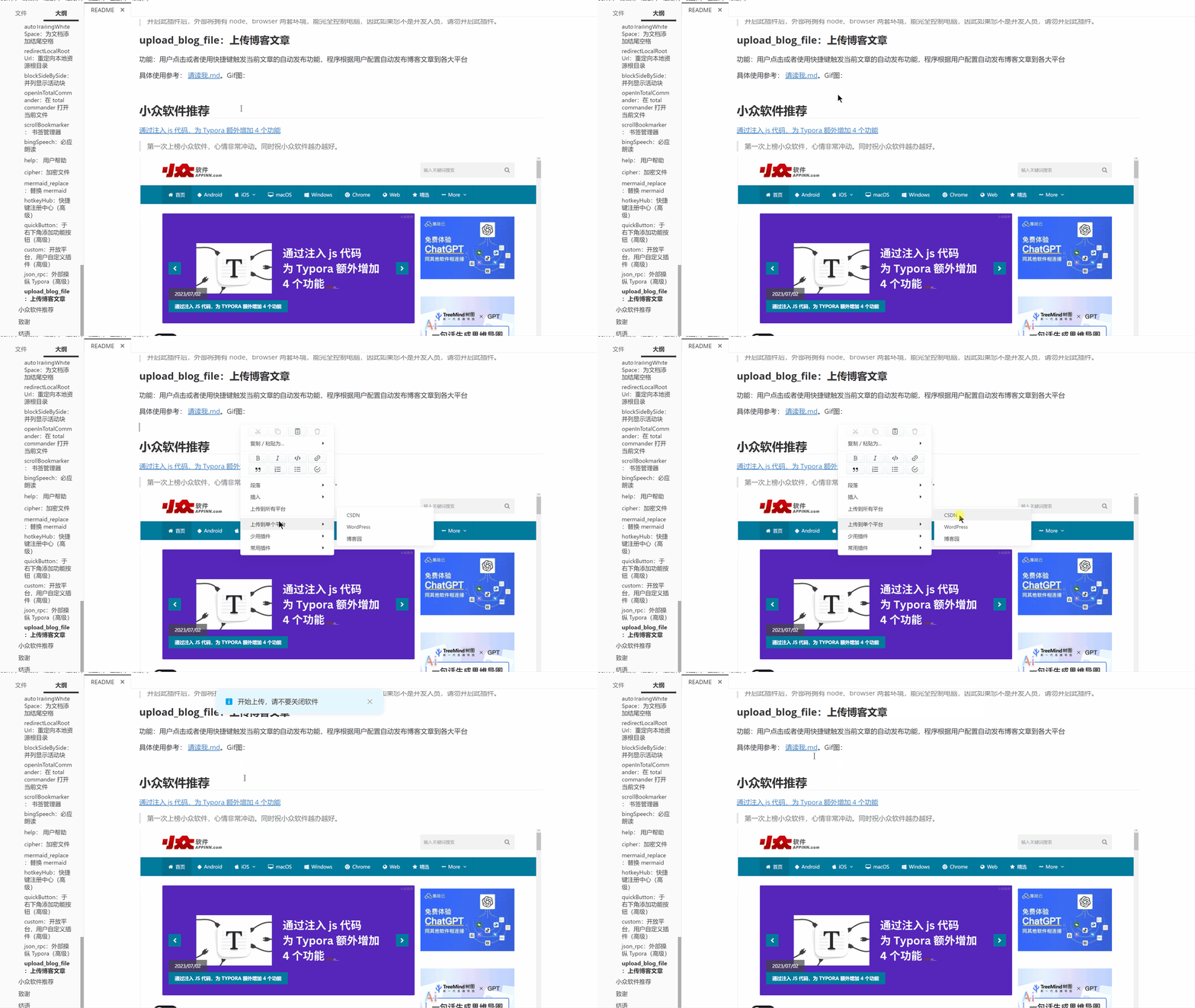
The user clicks or uses a shortcut key to trigger the automatic publishing function of the current article. The program automatically publishes blog articles to major platforms according to user configuration.
For specific usage, refer to: README.md. Taking uploading to CSDN as an example, the GIF is as follows:
Acknowledgements
- GPL: PlantUML | Refractify Myopic Defocus
- Apache: ECharts | draw.io
- MIT: markmap | Chart.js | abcjs | tui.calendar | Marp | WaveDrom | DataTables | markdownlint
- no-licence: typora-tabbar-plugin | typora-side-by-side | md-padding
Conclusion
This project follows the MIT license, feel free to enjoy it.
If you find it useful, please give it a star ⭐, and feel free to recommend it to like-minded friends.