ᑌᑎotes Markdown WYSIWYG
December 15, 2023 · View on GitHub

ᑌᑎotes Markdown WYSIWYG
Unotes gives you a
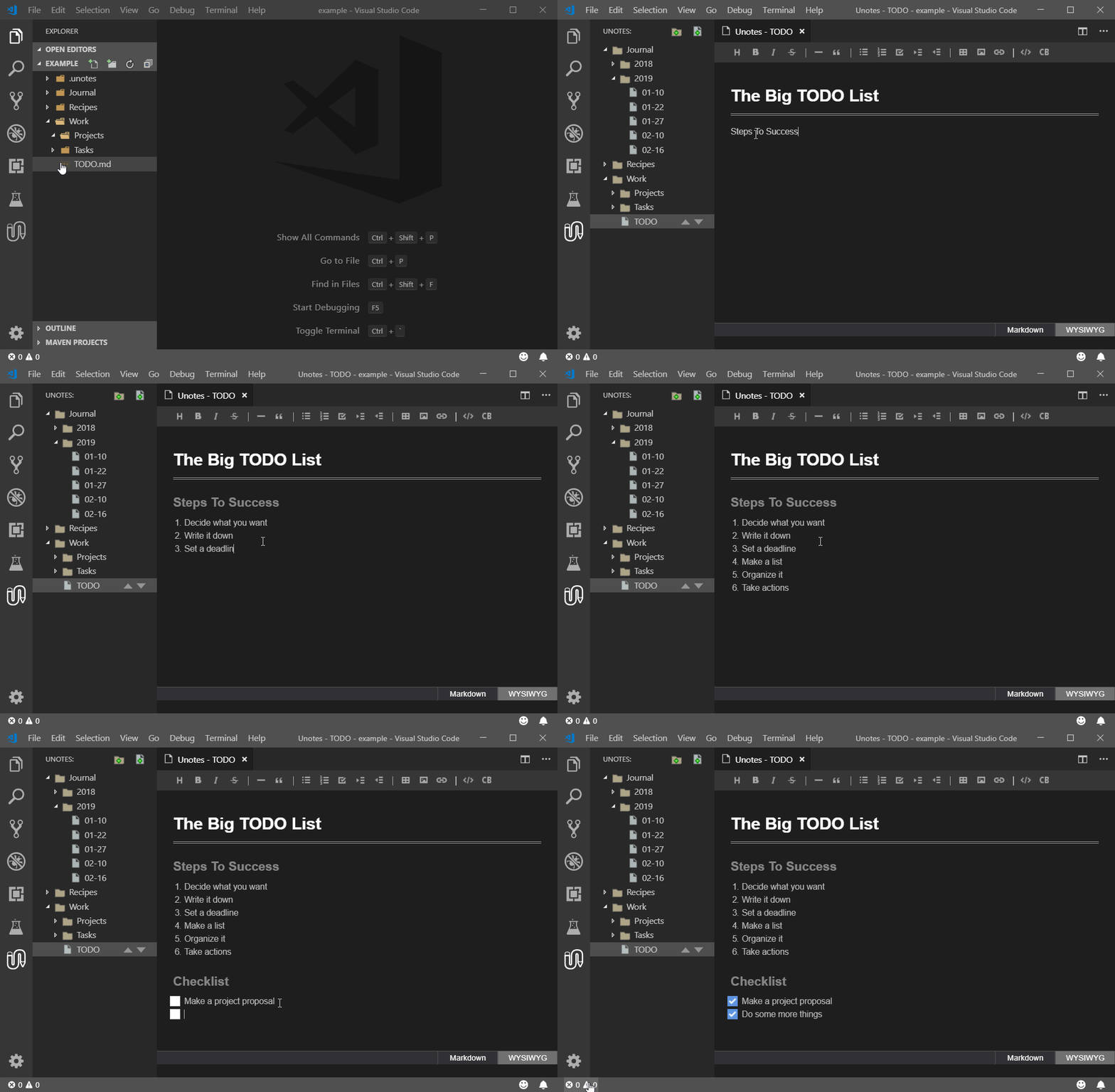
markdownnote editor right inside Visual Studio Code. Don't get distracted with noisy markdown syntax. Enjoy your notes with a rich WYSIWYG editor. Take full control of the markdown when needed. Start taking notes in style!
Important Warning and Notice for Unotes 1.5 users
Because of potentially data loss with Unotes v1.5 and issues with undo, we've un-published the extension from the VSCode Marketplace. Users can still manually download and install any release from GitHub. A 1.4 version is highly recommended until issues with tui-editor can be resolved. Apologies for any inconvenience.
♥
If you find Unotes useful, please write a review.
or
What's new in Unotes 1.5
Fixed
-
Indent resetting (issue: #81)
-
Action bar color theme (issue: #91)
-
Writing
Creates text and new paragraph (issue: #121) -
Auto scroll function broken (issue: #138)
-
${workspaceFolder}supported inunotes.rootPath(issue: #101) -
Cursor jumping to beginning of file (issue: #113) (contributed by kiyoka)
-
(issue: #118) (contributed by kiyoka)
-
(issue: #127) (contributed by kiyoka)
Added
- inline Katex support
- set focus hotkey (issue: #144) (contributed by kiyoka)
unotes.editor.extraFocussetting
Removed
- code block Katex support
- 2x toolbar display setting
Known Issues with Unotes 1.5
- custom theme colors are not all working.
- inline Katex escapes underscores
undodoes not work reliablypasteinto code block can cause data loss- switching notes in markdown view can cause the view to not update
ᑌᑎotes
Unotes is an open-source extension for Visual Studio Code created by Ryan McAlister.
Unotes helps you visualize and manage your markdown notes. Organize your notes in nested folders and edit them with a rich WYSIWYG editor.
Use Visual Studio Code's built-in search and version control features for all your notes.
FAIR WARNING
- Unotes will reformat your markdown without warning.
- It will not preserve special formatting.
- It auto-saves all edits.
It is highly recommended to use unotes with source control to revert any unwanted changes.
Features
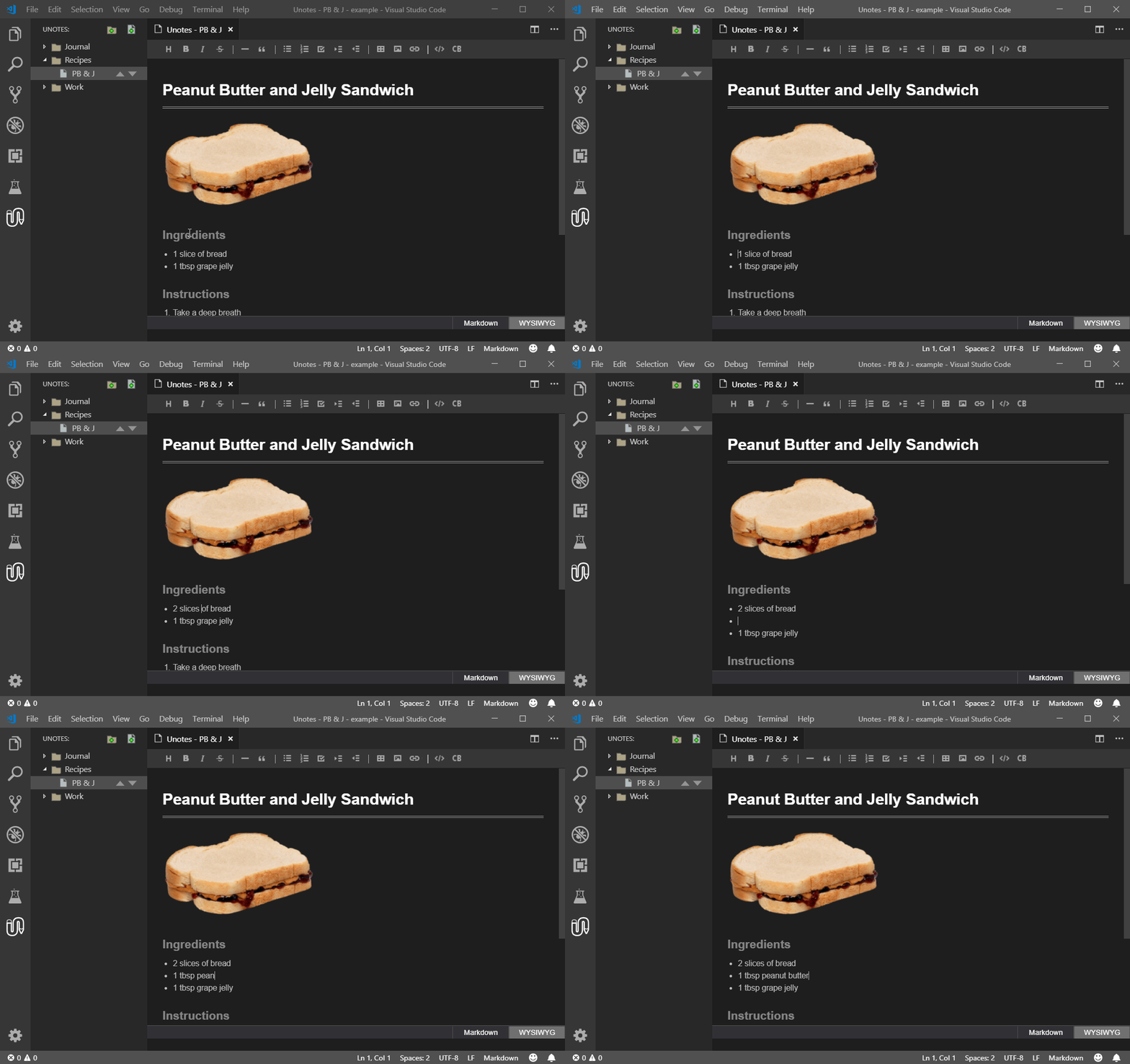
WYSIWYG Editor
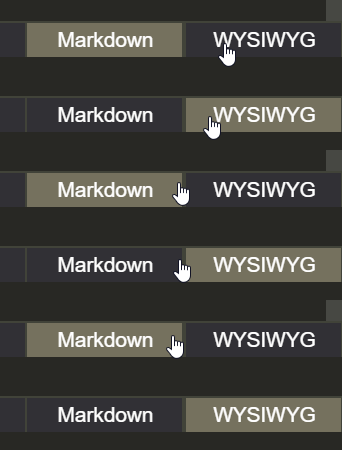
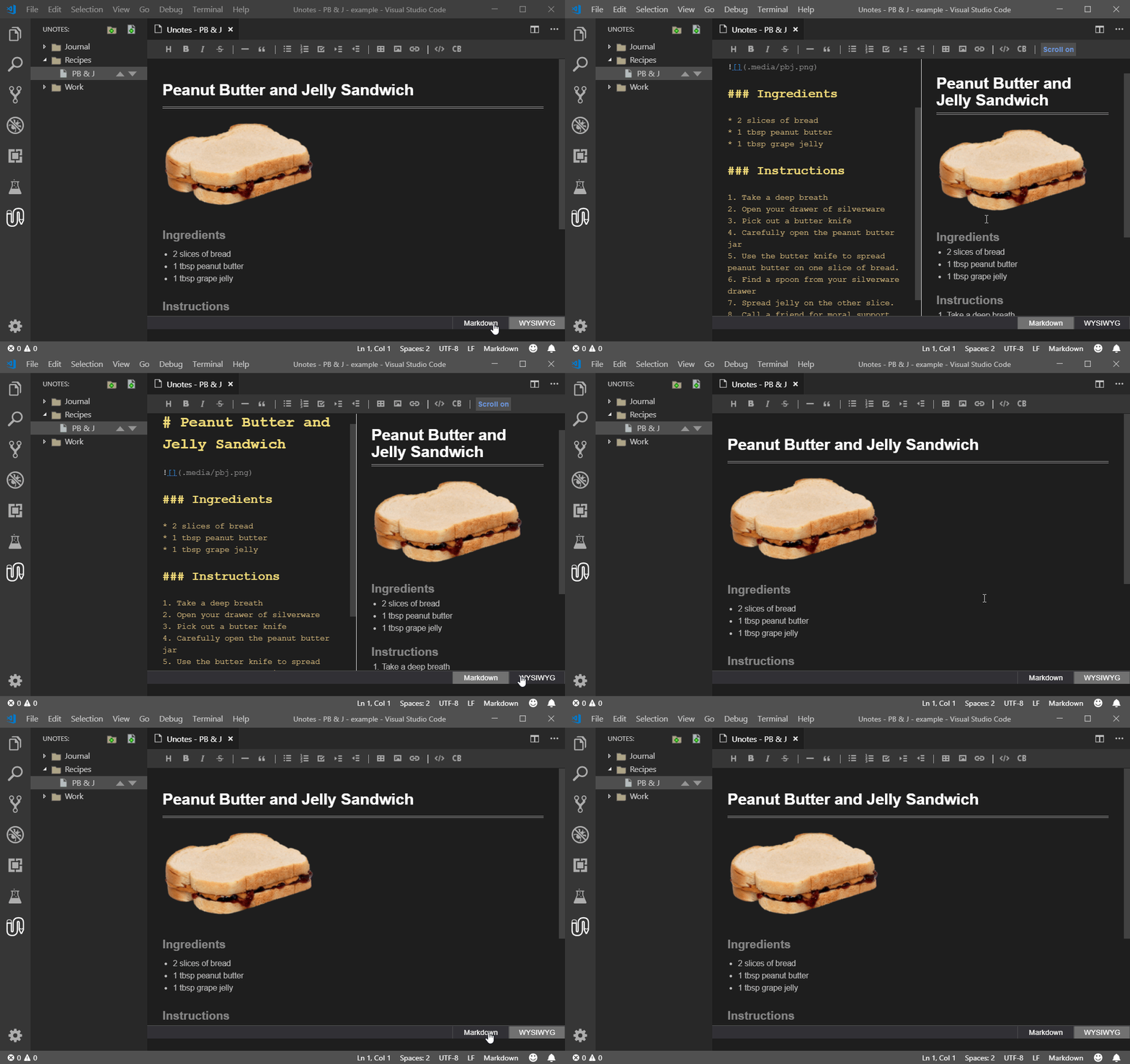
Split Markdown / Preview View
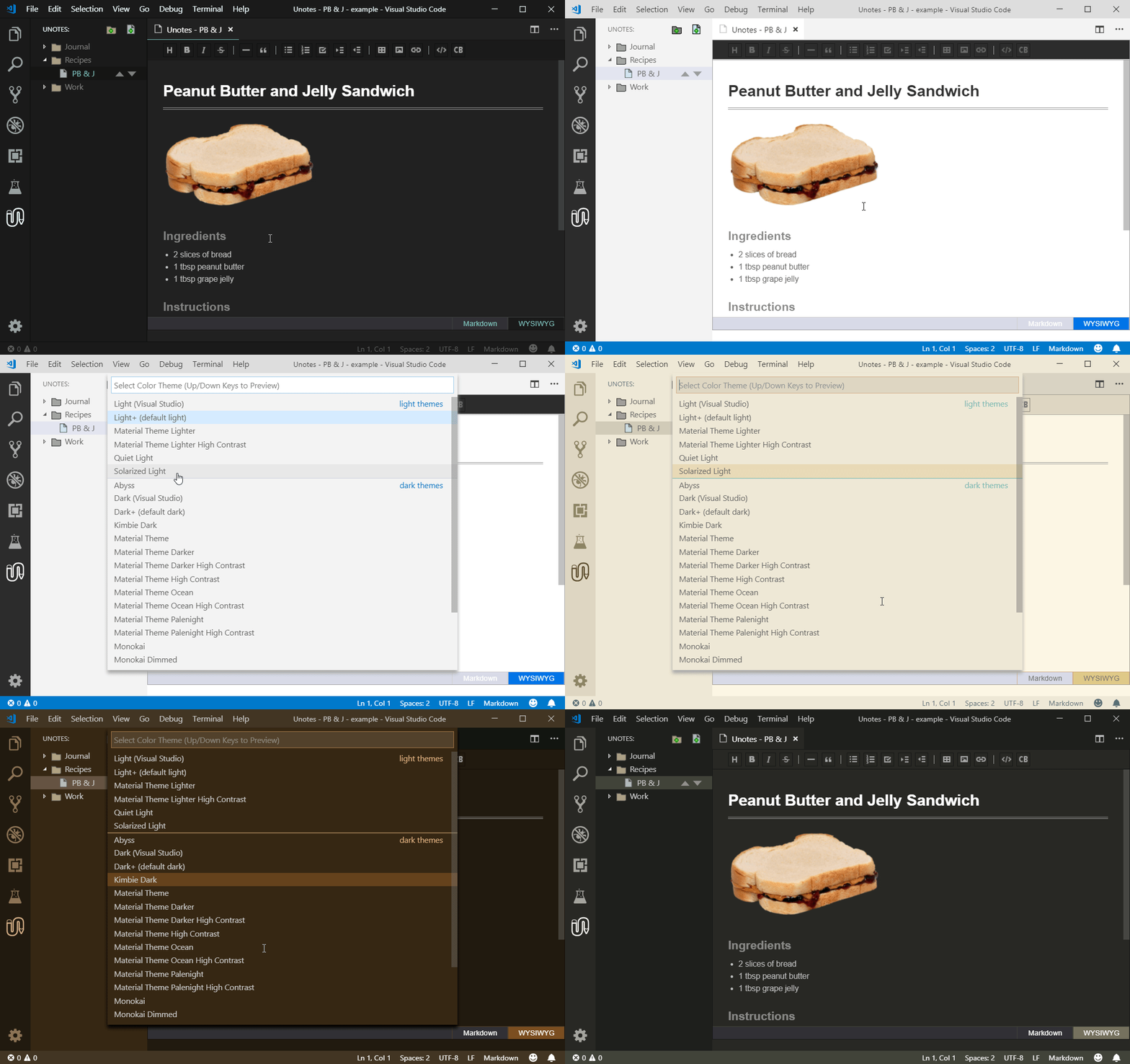
Color Themes Supported
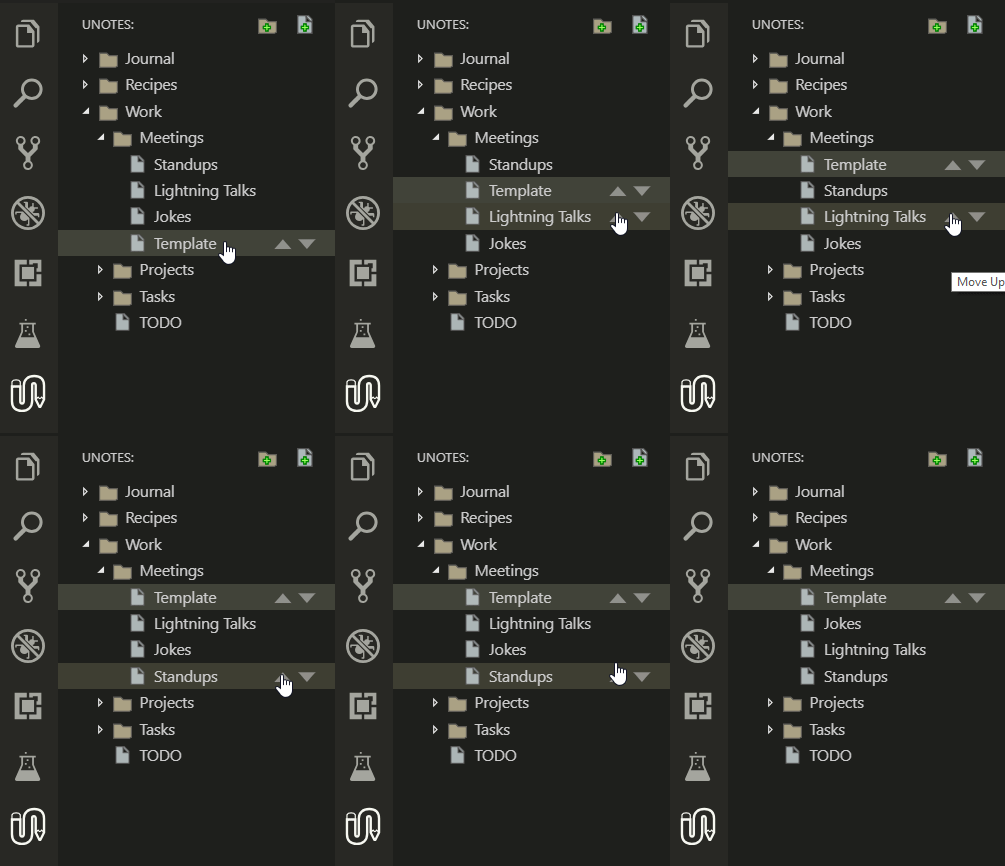
Note Ordering
Editing Toolbar
Paste Images from the Clipboard
By default images are embedded as base64 text objects. Images can optionally be auto-converted to local files when pasted. See Image convertion to local files.
Local, Embedded and URL Images
Local Image Example

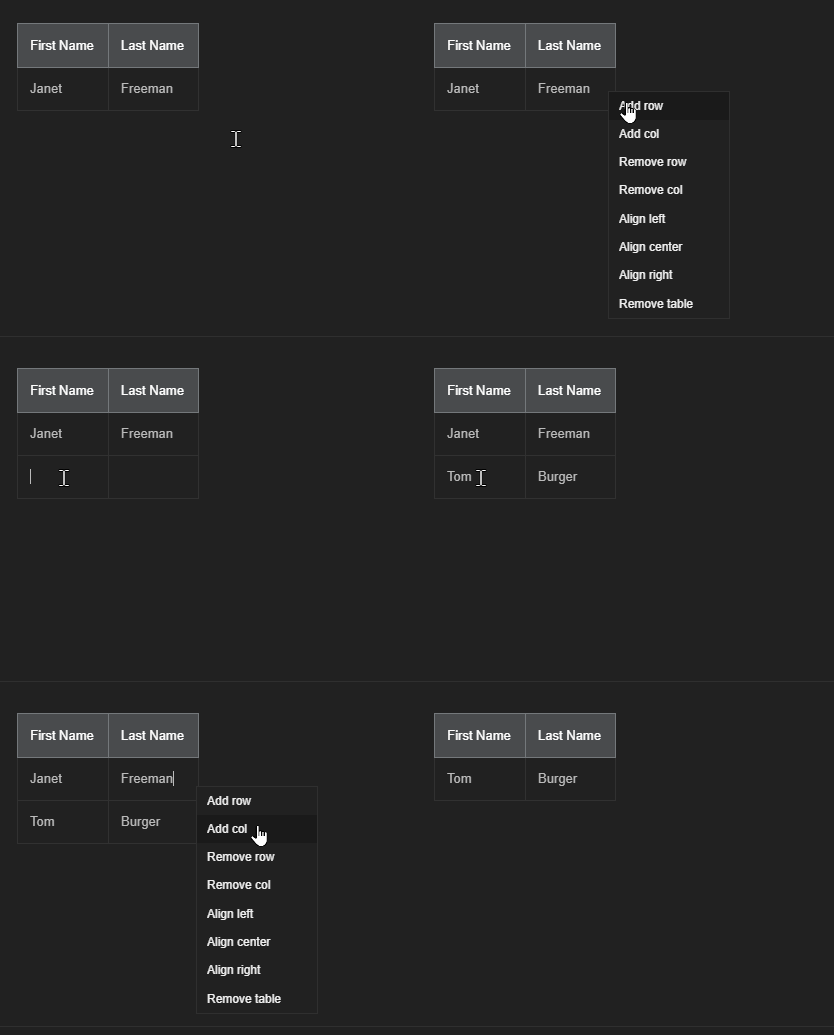
Table Support
Use the table toolbar button to insert a table. Right-click on the table to open the table editing menu.
Template Notes
Templates notes allow you to create a new note using a customizable template. Right-click in the note sidebar and select 'Add Template Note' to choose from the available templates.
- Template files can be added to the
.unotes/templatesdirectory as.hbs(handlebars) files. - Template variables:
titledate
- Template helper functions:
formatDate- see momentjs for format options.capitalizecapitalizeAll
A default template can also be set using the newNoteTemplate setting. This will apply the template by default without having to select from the list.
Template Example
# {{capitalizeAll title}}

{{formatDate date "llll"}}
Math Typesetting
- Only KaTeX currently supported
- Codeblock KaTeX no longer supported. Use inline blocks as shown below.
KaTeX Example
$$katex
\sqrt{x^2+1}
$$

Customizable Hotkeys
| Command | Default |
|---|---|
| Heading 1 | Ctrl + Alt + 1 |
| Heading 2 | Ctrl + Alt + 2 |
| Heading 3 | Ctrl + Alt + 3 |
| Heading 4 | Ctrl + Alt + 4 |
| Heading 5 | Ctrl + Alt + 5 |
| Heading 6 | Ctrl + Alt + 6 |
| Normal | Ctrl + Alt + 0 |
| Bold | Ctrl + Alt + b |
| Italic | Ctrl + Alt + i |
| Strike | Ctrl + Alt + s |
| Task | Ctrl + Alt + t |
| Unordered List | Ctrl + Alt + u |
| Ordered List | Ctrl + Alt + o |
| BlockQuote | Ctrl + Alt + q |
| Inline Code (highlight) | Ctrl + Alt + h |
| Code Block | Ctrl + Alt + c |
| Horizontal Line | Ctrl + Alt + l |
| Toggle Mode | Ctrl + Alt + m |
| Focus | Ctrl + Alt + f |
Formatting Options (Experimental)
Unotes can automatically reformat your markdown if desired using remark-stringify. To enable this feature, add a 'remark_settings.json' file to the .unotes folder in your project directory. All remark-stringify options can be used.
Note - This feature is experimental and has some known issues.
Additional Remark Settings Options
listItemSpace- sets the number of spaces after a list marker
- only works when listItemIndent = 'tab'
listItemTabSize- sets the list item tab size (default = 4)
Example remark_settings.json
    {
        "gfm": true,
        "commonmark": false,
        "pedantic": false,
        "looseTable": false,
        "spacedTable": true,
        "paddedTable": true,
        "fence": "`",
        "fences": true,
        "bullet": "-",
        "listItemIndent": "tab",
        "listItemSpace": 1,
        "listItemTabSize": 4,
        "incrementListMarker": true,
        "rule": "-",
        "ruleRepetition": 3,
        "ruleSpaces": false,
        "strong": "*",
        "emphasis": "_"
    }
YAML Front Matter Support
Unotes now supports the YAML front matter sections in tui-editor 2.0. Note this will not work when using markdown reformatting with remark (see above).
Example
---
title: title
---
Workspace Configuration Options
| Setting | Description |
|---|---|
| unotes.editor.display2X | Display the button toolbar at twice the size (currently not supported) |
| unotes.editor.convertPastedImages | Automatically convert pasted images to local image files in a .media folder |
| unotes.editor.extraFocus | Call focus on the editor when window is focused |
| unotes.editor.imageMaxWidthPercent | Set the default global image max width percent (10, 25, 50, 75, 100) |
| unotes.mediaFolder | The folder where pasted or converted images will be saved. Relative to the note. Absolute paths also supported (e.g. /f:/my/folder) |
| unotes.newNoteTemplate | The template used for new notes. Set to empty for no note template. |
| unotes.noteFileExtension | The file extension used to filter and save note files. Default = '.md' |
| unotes.rootPath | The root folder path for the note files. Setting this value will turn off auto-tracking of external file changes. If needed you can click the 'Refresh' button on the notes tree. You can also use the ${workspaceFolder} variable if needed in the path. (e.g. ${workspaceFolder}/notes) |
Font Customization
Unotes now uses the VSCode editor.font-size, editor.font-family and editor.font-weight settings.
Custom Colors
*** NOTE: Custom colors are not working with version 1.5.0. ***
Custom colors can be set to override many of the themed or default color values. Note there are separate values for the wysywig, markdown editor and markdown preview panes.
You can set options in the vscode workspace settings.json file:
"workbench.colorCustomizations":
{
    "unotes.wysText": "#998",
    "unotes.mdHeader": "#333",
    "unotes.pvCodeKeyword": "#3e4d75"
}
Color Options
| Color Name | Description |
|---|---|
| wysText | Unotes wysiwyg text |
| wysH1 | Unotes wysiwyg heading 1 |
| wysH2 | Unotes wysiwyg heading 2 |
| wysH3H4 | Unotes wysiwyg heading 3 and 4 |
| wysH5H6 | Unotes wysiwyg heading 5 and 6 |
| wysBlockquote | Unotes wysiwyg blockquote |
| wysCodeBlockBackground | Unotes wysiwyg code block background |
| wysCodeBlockText | Unotes wysiwyg code block text |
| wysHighlight | Unotes wysiwyg highlight / inline code |
| wysTableText | Unotes wysiwyg table text |
| wysTableTdBorder | Unotes wysiwyg table cell border |
| wysTableThBorder | Unotes wysiwyg table header border |
| wysTableThBackground | Unotes wysiwyg table header background |
| wysTableThText | Unotes wysiwyg table header text |
| wysList | Unotes wysiwyg list text |
| wysLink | Unotes wysiwyg link |
| wysLinkHover | Unotes wysiwyg hover link |
| mdText | Unotes markdown text |
| mdSelectedBackground | Unotes markdown selected text background |
| mdHeader | Unotes markdown header |
| mdListSub1 | Unotes markdown list sub item 1 |
| mdListSub2 | Unotes markdown list sub item 2 |
| mdListSub3 | Unotes markdown list sub item 3 |
| mdCodeBlockText | Unotes markdown codeblock text |
| mdCodeBlockBackground | Unotes markdown codeblock background |
| mdHighlightText | Unotes markdown highlight text |
| mdCodeBlockText | Unotes markdown codeblock text |
| mdTableText | Unotes markdown table text |
| pvCodeComment | Unotes preview code comment |
| pvCodeText | Unotes preview code text |
| pvCodeKeyword | Unotes preview code keyword |
| pvCodeNumber | Unotes preview code number |
| pvCodeString | Unotes preview code string |
| pvCodeType | Unotes preview code type |
| pvCodeDeletion | Unotes preview code deletion |
| pvCodeAddition | Unotes preview code addition |
| pvCodeTitle | Unotes preview code title |
Syncing Note Files
- All note files are stored as
.mdfiles by default. This is configurable. - Sync to a repository using
Gitor other version control system - Folder and Note settings are stored in
.unotes/unotes_meta.json- Be sure to sync this file to preserve note orderings
Additional Info
Excluded Folders
The following folders are excluded from the Unotes navigation tree:
node_modules/**.*(folders starting with '.')
Known Issues
No markdown WYSIWYG is perfect and Unotes has its share of issues. Some issues have been inherited from the current dependencies. Hopefully some of these will be resolved in the near future...
Copy and Paste
- You may not always get the desired results when pasting directly into the WYSIWYG editor. In some cases it may be best to paste into the raw markdown view.
- You can paste into the WYSIWYG editor as plain text if the shift key is down. This can be done by adding an additional keybinding in
vscodeforpaste. (e.g. 'CTRL + SHIFT + v')
CodeBlocks
- Some characters are escape encoded undesireably.
Open Workspace Folder
- Before using Unotes you must have a folder currently opened in the workspace.
Multiple Workspace Folder Not Supported
- Unotes currently does not support multiple workspace folders open. This may be a future enhancement.
Acknowlegments
Unotes is here largely thanks to