word-sys's PDF Editor
September 18, 2026 · View on GitHub
Languages: English | Türkçe | Français | Deutsch | Español | Italiano | Русский
word-sys's PDF Editor

word-sys's PDF Editor is a simple and user-friendly tool developed for Pardus, Debian and other Linux distributions, focused on editing text, image and object content in PDF files. Developed from scratch in the spirit of #MilliTeknolojiHamlesi and TEKNOFEST 2025 to meet the need for a simple, free, open-source PDF editor in the Linux ecosystem, word-sys's PDF Editor serves both corporate and individual users, does most of the important and common jobs that other paid PDF Editors does and has lots of features which are easy to use, including those who prefer the Turkish language interface — and been the FIRST PLACE winner of the TEKNOFEST 2025 Pardus Development Competition.
Developer: Barın Güzeldemirci (word-sys)
License: GPL-3.0-or-later
Tip
Recommended Stable Release: v1.11.0 — For the most stable experience, it is strongly recommended to use version 1.11.0. See the installation sections below for details on how to install this version.
Screenshots
| PDF Editing & Annotation Canvas | Welcome Screen & Document Hub |
|---|---|
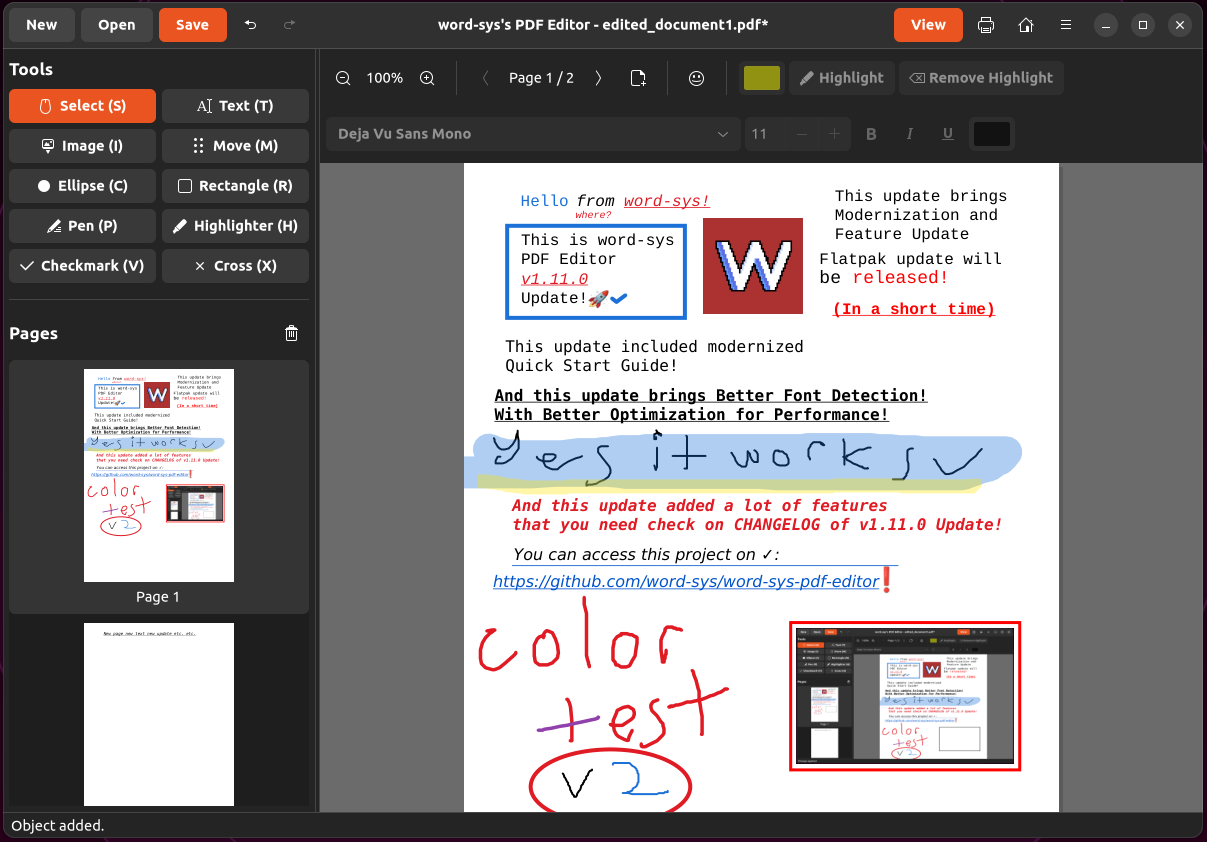 | 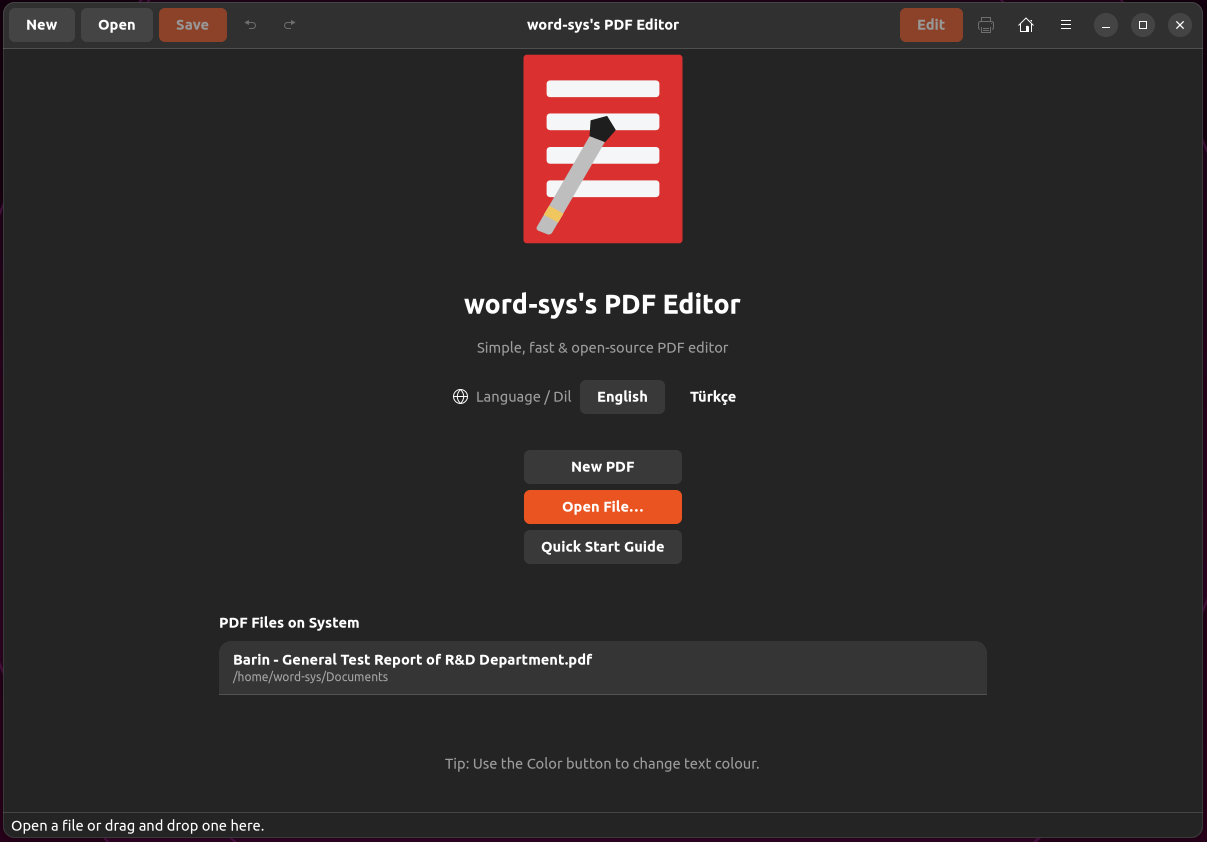 |
| New Document Creation Dialog | Interactive Quick Start Guide & Manual |
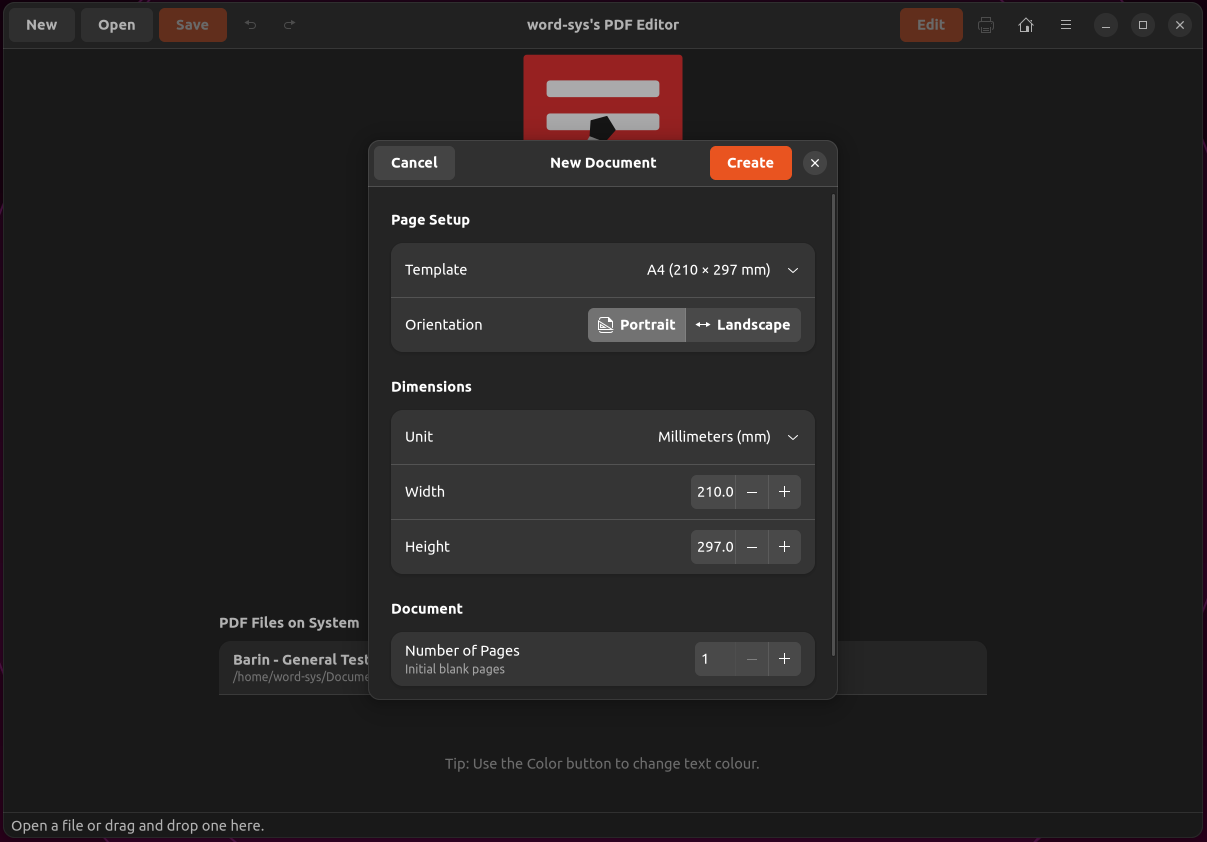 | 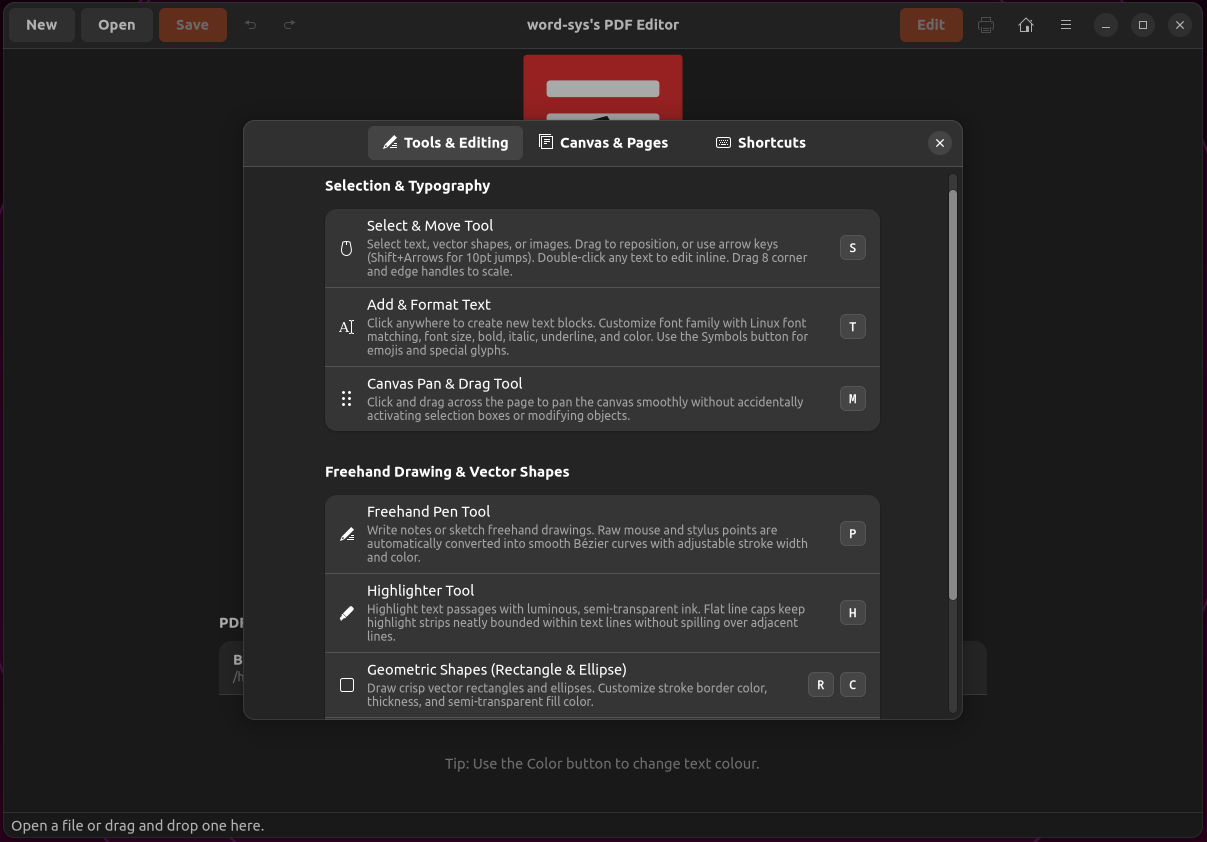 |
Key Features
- Create PDF files with customizable page dimensions and unit auto-conversion (mm, cm, in, pt, px)
- Open and view PDF files
- Merge PDFs
- Interactive Quick Start Guide & Manual with keyboard shortcuts cheatsheet (
F1) - Select existing text blocks within a page
- Edit or delete selected text
- Add new text blocks to a page
- Add images to a page with alpha transparency preservation
- Font width/family support with Linux Fontconfig (
fc-match) engine - Move/reposition objects within the PDF
- Change font type, size, color, and decoration
- Granular Word Selection and precise highlighting
- Add shapes to PDFs (Rectangles, Ellipses, Checkmarks, Crosses)
- Draw freehand Pen and Highlighter strokes with Bézier smoothing and vector scaling
- Special Characters, Symbols & Emojis
- Save edited PDFs
- Quick Save (
Ctrl + S) - Export PDFs to DOCX or ODT (requires LibreOffice) and TXT formats
- User-friendly interface with live thumbnail drag-and-drop reordering
- Safe Save
- Restricted Mode (Safe Mode)
- Full multi-level Undo/Redo tracking (
Ctrl + Z/Ctrl + Y) - Precision pointer-centered focal zoom (
Ctrl + ScrollandCtrl + + / - / 0) - Add/remove pages in PDFs
Installation
There are many ways to install word-sys's PDF Editor on your system:
1. Automatic Installation (Recommended Method)
This method is the easiest installation path for Linux distributions.
-
Download the latest
.debpackage from the GitHub Releases page. The file will typically be named something likeword-sys-pdf-editor_1.11.0_all.deb.Tip
Use version 1.11.0 for the most stable experience: look for
word-sys-pdf-editor_1.11.0_all.debon the releases page. -
Open a terminal in the directory where you downloaded the
.debfile. -
Run the following command to install the package:
sudo apt update
sudo apt install ./word-sys-pdf-editor_1.11.0_all.deb
(Note: Replace
word-sys-pdf-editor_1.11.0_all.debwith the exact filename you downloaded if different.) -
If you encounter a dependency error during installation, it may happens because of you existing broken system, firstly try running the following command to fix missing dependencies or problems on your other packages:
sudo apt --fix-broken install -
Once installation is complete, you can launch word-sys's PDF Editor from your application menu.
2. AppImage and Binary Release (Second Recommended Method)
This method is the easiest usable path for all Linux distributions.
-
Download the latest
.AppImageor*-linux-x64.tar.gzpackage from the GitHub Releases page. The file will typically be named something likeword-sys-pdf-editor.AppImageorword-sys-pdf-editor-linux-x64.tar.gz.Use version 1.11.0 for the most stable experience: look for
v1.11.0tag on the releases page.
A. AppImage Installation
-
Open a terminal in the directory where you downloaded the
word-sys-pdf-editor.AppImagefile. -
Run this command to make it executable:
chmod +x word-sys-pdf-editor.AppImage -
Double-click the AppImage file or run in terminal:
./word-sys-pdf-editor.AppImage
B. Binary Release Installation (tar.gz)
-
Open a terminal in the directory where you downloaded the
word-sys-pdf-editor-linux-x64.tar.gzfile. -
Unzip the archive:
tar -xzf word-sys-pdf-editor-linux-x64.tar.gz -
Navigate to the extracted directory:
cd AppDir -
Make the AppRun executable:
chmod +x AppRun -
Run the application:
./AppRun
3. Manual Installation (For Developers or Those Who Want to Build from Source)
This method is suitable for users who want to run the application directly from source code or contribute to development.
Tip
For a stable experience, use the v1.11.0 tag when cloning. If you want to test the latest development changes, you can clone the main branch directly — but note that it may be less stable.
Pardus 23.4, Debian 12, and Ubuntu < 24.04 — Manual Installation
-
Install Required Dependencies: Make sure the following packages are installed on your system. Run this command in your terminal:
sudo apt update
sudo apt install python3 python3-pip python3-venv \
                 python3-gi python3-gi-cairo gir1.2-gtk-4.0 gir1.2-adw-1 libgirepository1.0-dev \
                 python3-numpy \
                 python3-dev libcairo2-dev build-essential \
                 fonts-noto-core fonts-liberation2
Optional (for DOCX export):
sudo apt install libreoffice-common -
Download the Source Code:
Recommended (stable v1.11.0):
git clone --branch v1.11.0 https://github.com/word-sys/word-sys-pdf-editor.git
cd word-sys-pdf-editor
For testing / latest development build (may be unstable):
git clone https://github.com/word-sys/word-sys-pdf-editor.git cd word-sys-pdf-editor -
Create and Activate a Virtual Environment (Recommended): Creating a virtual environment in the project directory helps isolate Python dependencies from system-wide installations.
python3 -m venv venv
source venv/bin/activate
(You can use
deactivatelater to exit the virtual environment.) -
Install Python Dependencies: Install the core Python library PyMuPDF (and numpy if not already installed from the system):
pip install PyMuPDF numpy pygobject==3.50.0 -
Run the Application: From the project root directory (where you extracted or cloned the source code), run:
python3 run-editor.py
Ubuntu 24.04+, Debian 13 Trixie — Manual Installation
-
Install Required Dependencies:
sudo apt update
sudo apt install python3 python3-pip python3-venv \
                 python3-gi python3-gi-cairo gir1.2-gtk-4.0 gir1.2-adw-1 libgirepository-2.0-dev \
                 python3-numpy \
                 python3-dev libcairo2-dev build-essential \
                 fonts-noto-core fonts-liberation2
Optional (for DOCX export):
sudo apt install libreoffice-common -
Download the Source Code:
Recommended (stable v1.11.0):
git clone --branch v1.11.0 https://github.com/word-sys/word-sys-pdf-editor.git
cd word-sys-pdf-editor
For testing / latest development build (may be unstable):
git clone https://github.com/word-sys/word-sys-pdf-editor.git cd word-sys-pdf-editor -
Create and Activate a Virtual Environment:
python3 -m venv venv
source venv/bin/activate
(You can use
deactivatelater to exit the virtual environment.) -
Install Python Dependencies:
pip install PyMuPDF numpy pygobject -
Run the Application:
python3 run-editor.py
Arch Linux and Derivatives — Manual Installation
-
Download the Source Code:
Recommended (stable v1.11.0):
git clone --branch v1.11.0 https://github.com/word-sys/word-sys-pdf-editor.git
cd word-sys-pdf-editor
For testing / latest development build (may be unstable):
git clone https://github.com/word-sys/word-sys-pdf-editor.git
cd word-sys-pdf-editor
Optional (for DOCX export):
sudo pacman -S libreoffice-fresh -
Create and Activate a Virtual Environment:
python3 -m venv venv
source venv/bin/activate
(You can use
deactivatelater to exit the virtual environment.) -
Install Python Dependencies:
pip install PyMuPDF numpy pygobject -
Run the Application:
python3 run-editor.py
CONGRATULATIONS! You have successfully launched word-sys's PDF Editor!
Arch Linux and Derivatives — From AUR
THIS PACKAGES ARENT CREATED OR MAINTAINED BY ME, CONSIDER CHECKING THEM ON AUR TO MAKE SURE THEY RIGHT, I AM NOT RESPONSIBLE FOR ANYTHING THAT HAPPENS OR GONNA HAPPEN AFTER INSTALLING FROM AUR CAUSE IM NOT THE CREATOR OR MAINTAINER OF THAT AUR PACKAGES, THEY ARE NOT TESTED BY ME SO BE CAREFULL! CONTACT WITH MAINTAINERS FOR ANY AUR CONNECTED ISSUE, NOT ME! IM NOT ARCH USER SO DONT EXPECT AUR PACKAGES CREATED OR MAINTAINED BY ME! ALL OFFICIAL PACKAGES BUILDED BY GITHUB ACTIONS ON RELEASES PAGE!
-
Download, build and install:
git clone https://aur.archlinux.org/word-sys-pdf-editor
makepkg -sfi
People using the yay AUR helper could build and install it using:
yay -S word-sys-pdf-editoror if you prefer to use paru:
paru -S word-sys-pdf-editorOr you can use -bin package on AUR:
yay -S word-sys-pdf-editor-binor if you prefer to use paru:
paru -S word-sys-pdf-editor-binOptional (for DOCX export):
sudo pacman -S libreoffice-fresh -
Run the Application:
word-sys-pdf-editorYou can also use your application launcher to execute word-sys's PDF Editor
Bug Reports and Feedback
If you encounter any bugs, have a feature request, or want to leave general feedback, please use the GitHub Issues section.
Contributing
word-sys's PDF Editor is an open-source project and welcomes contributions! If you'd like to contribute, please follow these steps:
- Fork this repository.
- Create your own branch for a new feature or bug fix (
git checkout -b feature/new-featureorgit checkout -b fix/bug-name). - Make your changes and commit them (
git commit -am 'Added new feature'). - Push your branch to GitHub (
git push origin feature/new-feature). - Open a Pull Request (PR).
License
This project is licensed under the GNU General Public License v3.0 or later.