VSCode Neo File Utils
September 21, 2025 · View on GitHub








provide some file utils for vscode.
Features
Go to Symbolic Link Real Path
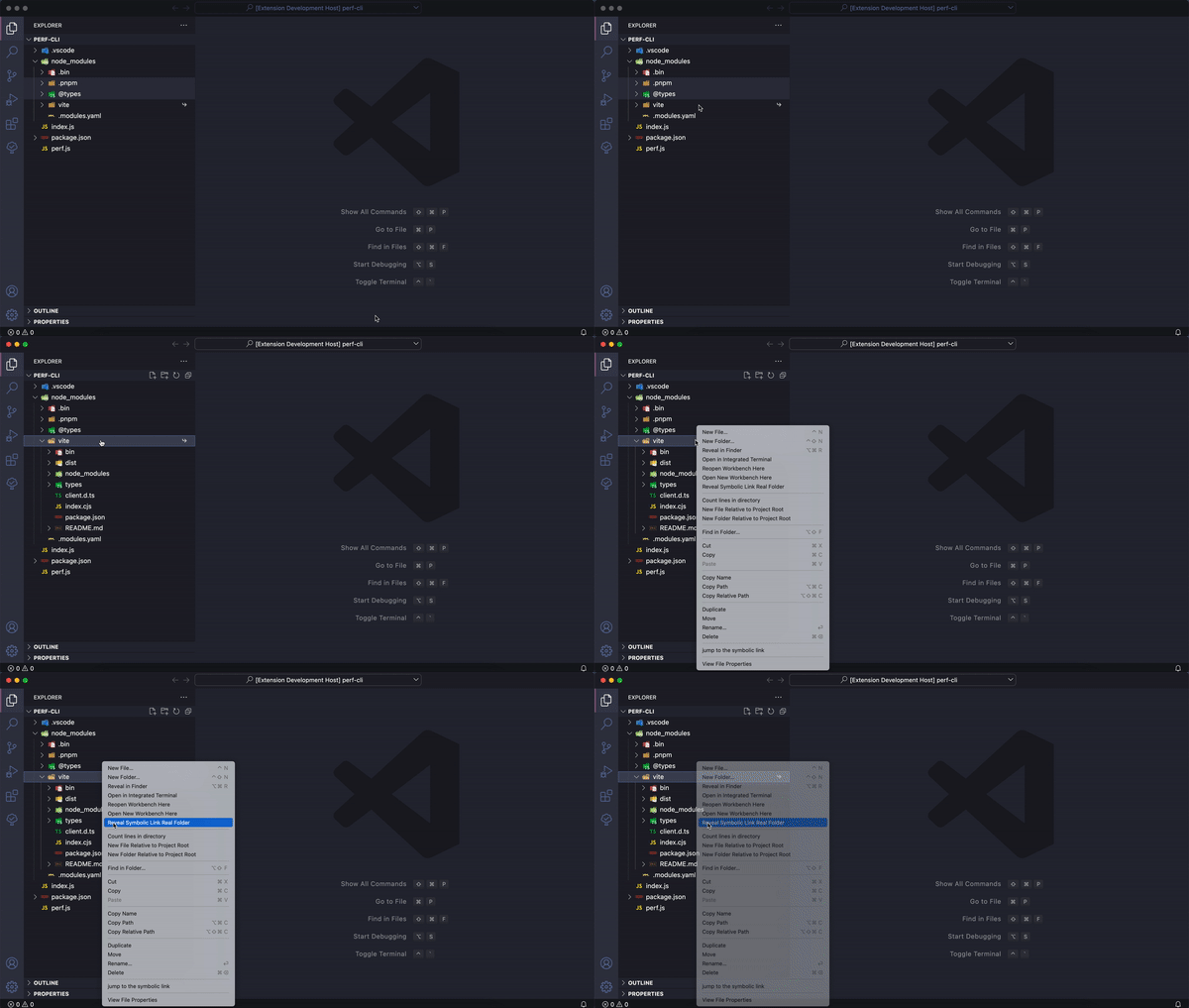
Just right click the explorer menu and select:
- Open Symbolic Link Real File
- Reveal Symbolic Link Real Folder
Note: For now, only file and folder under node_modules will show the menu
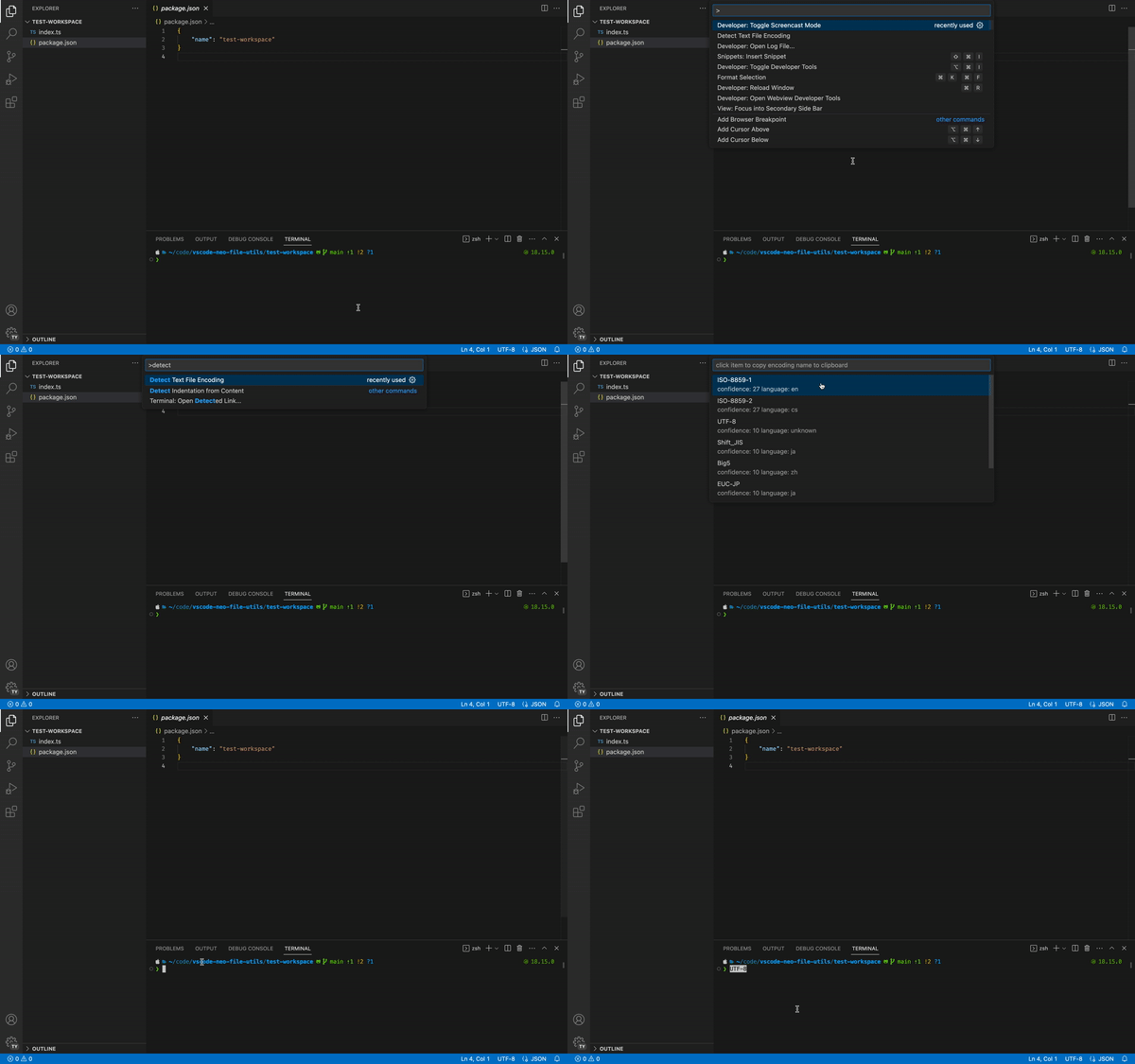
Detect Text File Encoding
Just open a text file and run command Detect Text File Encoding.
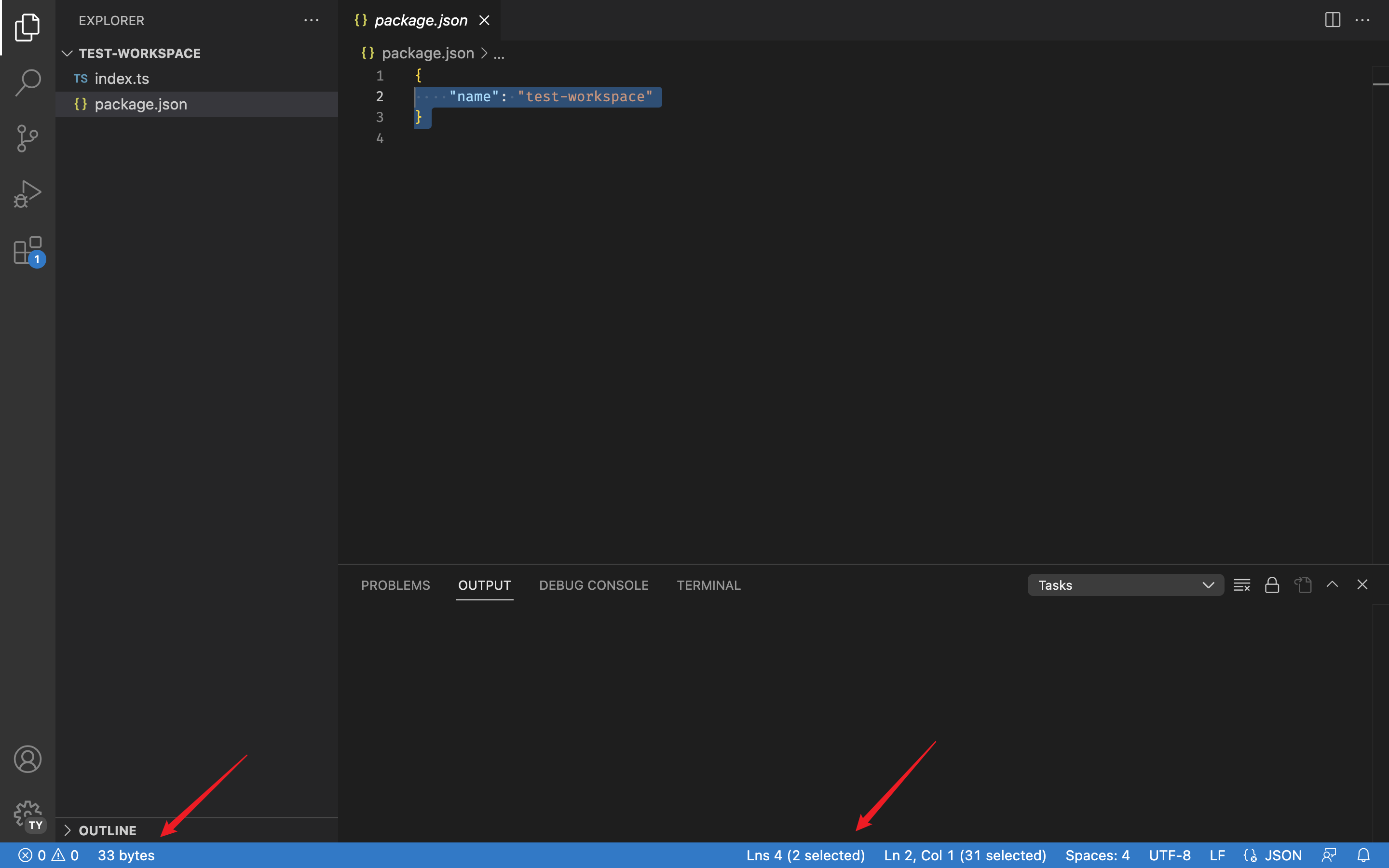
File Size and Line Count in Status Bar
Open Folder Context Menus for VS Code
I just migrated code from extension: Open Folder Context Menus for VS Code
Smart Revert
check source code for details
Batch Rename
I just migrated code from extension: Batch Rename
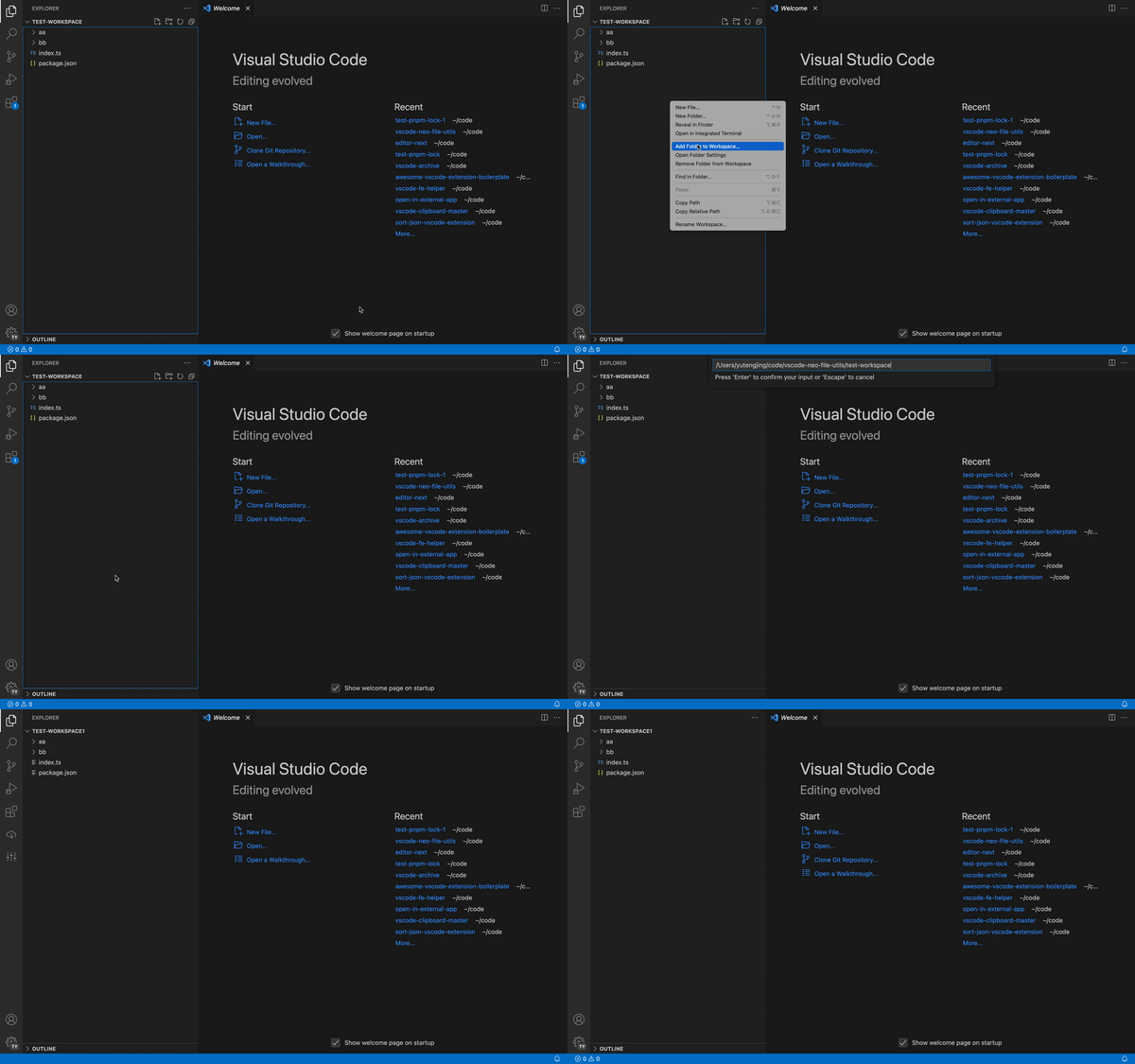
Rename Workspace
Open Extension Folder
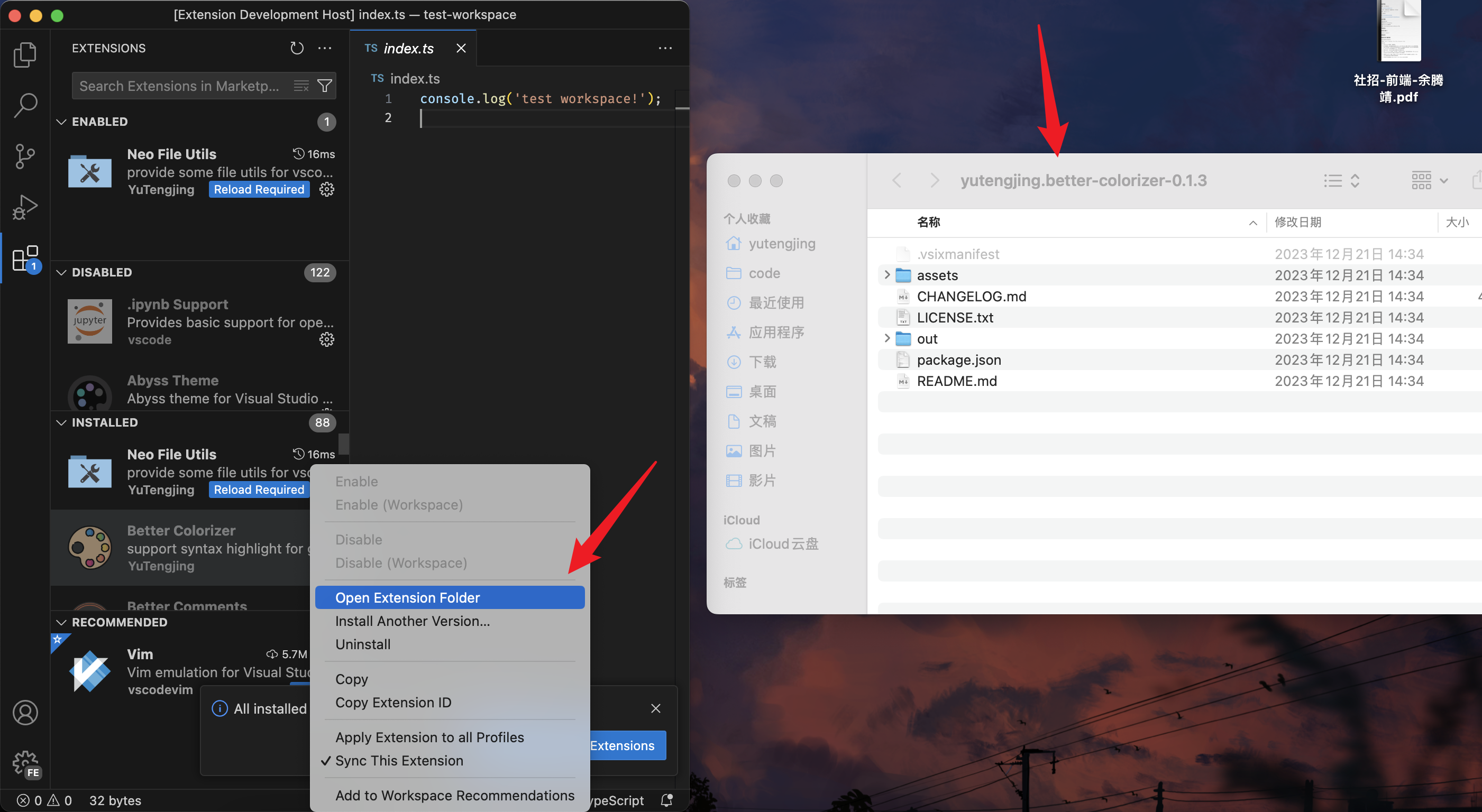
Remove Old Versions of Extensions
Run the Neo File Utils: Remove Old Versions of Extensions command to preview stale extension versions, then purge everything except the latest build for each extension across VS Code, Cursor, Windsurf, and other supported hosts.
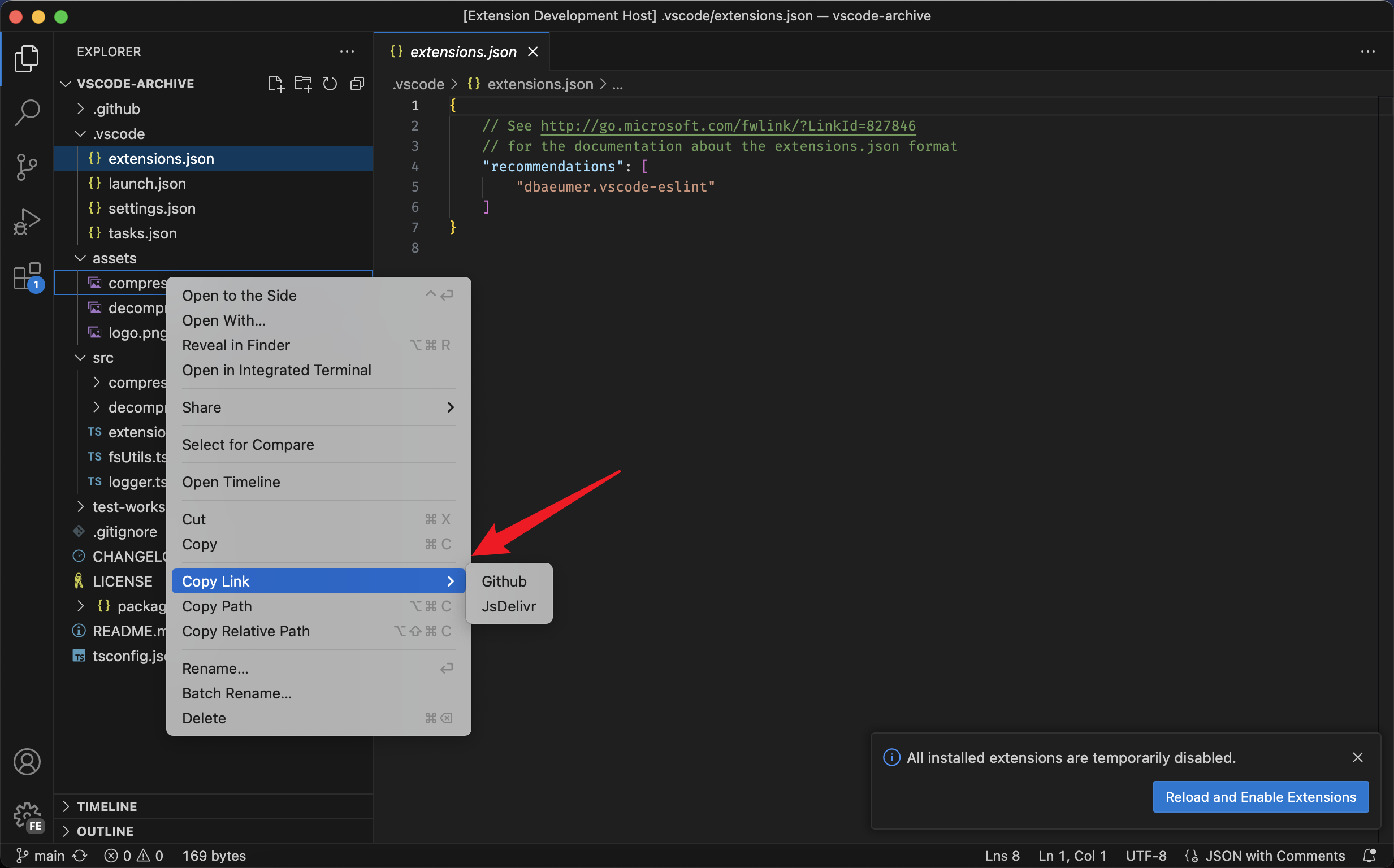
Copy Links
Useful for refer github online image link.
Install Extension from Remote VSIX
Install VS Code extensions directly from the marketplace by providing the extension identifier, marketplace URL, or specific version. This feature allows you to:
- Install extensions by typing
publisher.extension-nameformat - Paste marketplace URLs directly
- Specify exact versions using
publisher.extension-name@versionsyntax - Choose from available versions if no version is specified
- Download and install extensions automatically
Examples:
ms-python.python- install latest Python extensionms-python.python@2023.12.0- install specific versionhttps://marketplace.visualstudio.com/items?itemName=ms-python.python- from marketplace URL
Batch Merge Conflict Resolution
Efficiently resolve merge conflicts in bulk operations with context menu integration in the Source Control view. Available operations:
- Accept All Current in Folder - Accept your version for all conflicts in the selected folder
- Accept All Incoming in Folder - Accept incoming version for all conflicts in the selected folder
- Accept All Current and Stage in Folder - Accept your version and automatically stage the changes
- Accept All Incoming and Stage in Folder - Accept incoming version and automatically stage the changes
These commands appear in the SCM resource folder context menu when merge conflicts are detected, allowing you to resolve conflicts at the directory level instead of file-by-file.
My extensions
- Open in External App
- VSCode FE Helper
- VSCode archive
- Modify File Warning
- Adobe Extension Development Tools
- Scripting Listener
Check all here: publishers/YuTengjing